Blog

  • Accelerating Wan Models with TAESD and Custom Encoders

    Accelerating Wan Models with TAESD and Custom Encoders


    Introduction

    Wan models generate amazing video and images. Tiny AutoEncoders make these models run faster.

    Fedora Linux users often prefer efficient local tools. Stable-diffusion.cpp is a great C++ implementation.

    Understanding Performance Benefits

    TAESD allows for real-time latent previews. This saves time during long generation tasks.

    First install build essentials on your Fedora system. Use dnf to grab the latest compilers.

    Clone the stable-diffusion.cpp repository from GitHub. Navigate into the folder using your terminal.

    Setting Up Wan 2.1 and 2.2

    Download the Wan 2.1 1.3B model file. Also download the Wan 2.2 14B file.

    The TAESD files are much smaller than VAEs. Place these files in your models directory.

    Run the project using the taesd flag. Specify the path to your tiny autoencoder.

    Hardware Considerations for Large Models

    The 1.3B model works well on laptops. The 14B model requires more video memory.

    Standard VAEs often use too much RAM. TAESD uses a tiny fraction of memory.

    Decoding images becomes nearly an instant process. This helps you iterate on prompts quickly.

    Replacing the Text Encoder

    Text encoders turn your words into numbers. Wan models typically use the T5 encoder.

    The regular T5 encoder is very large. You can replace it with smaller versions.

    Look for quantized GGUF versions of T5. These fit much better in system RAM.

    Use the –vae flag for the standard encoder. Use the –taesd flag for the fast one.

    Implementation and Final Steps

    The cli tool accepts separate text encoder paths. Point the software to your downloaded encoder.

    Combining TAESD and small encoders saves memory. This allows 14B models to run locally.

    Fedora Linux handles these high-performance tasks very efficiently. Keep your mesa drivers updated for speed.

    Check the console for any loading errors. Ensure your paths match your actual file locations.

    Monitor your system resources with the top command. Watch the memory usage during the process.

    Screenshot
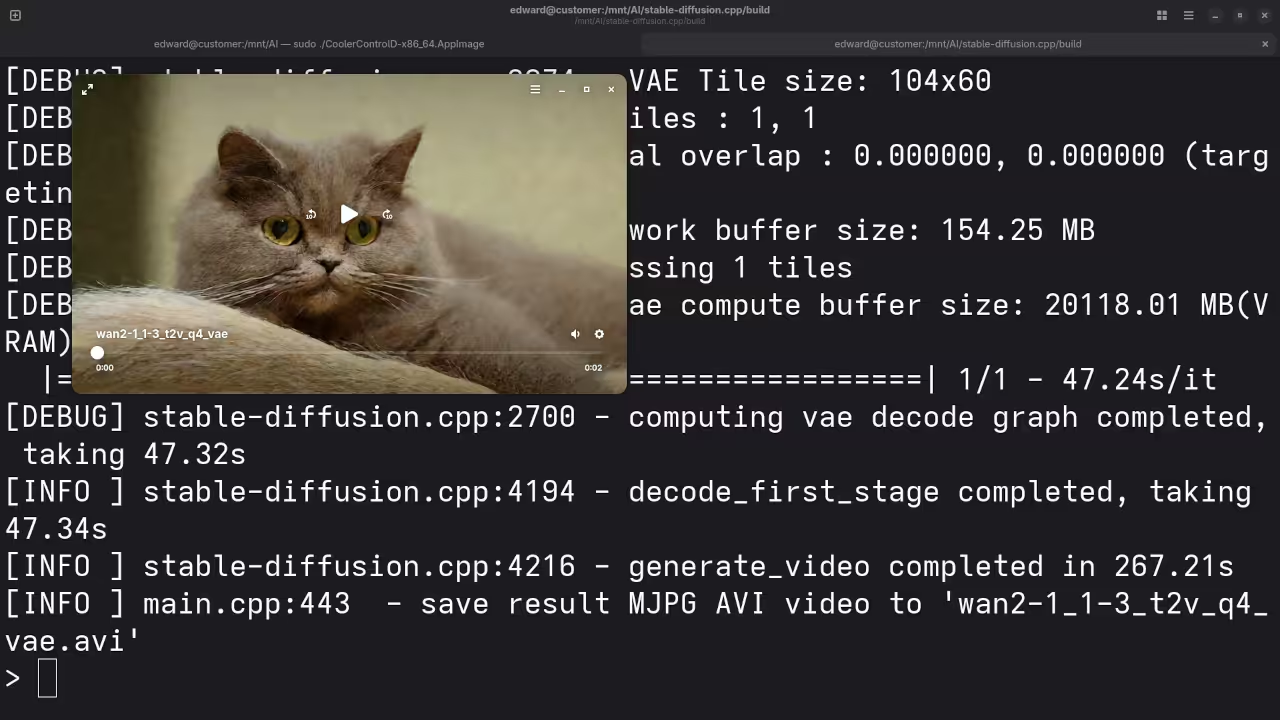
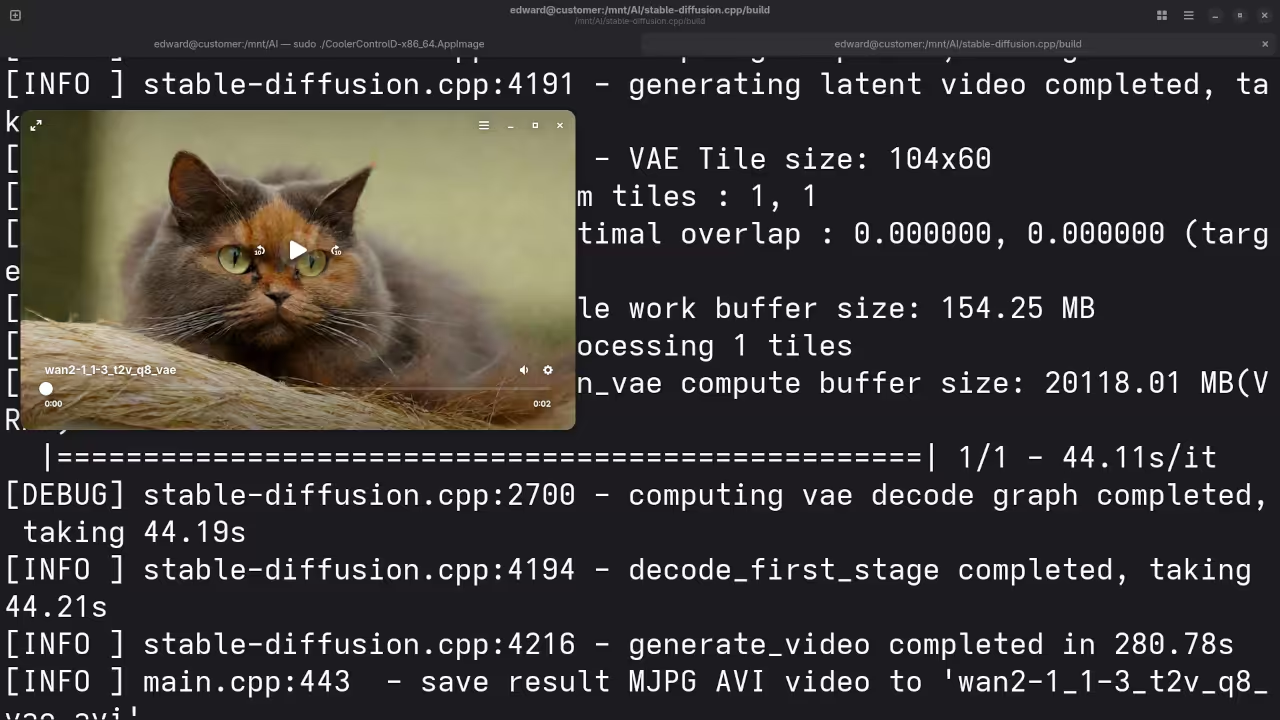
    Wan 2.1 1.3B Q4 VAE
    Wan 2.1 1.3B Q4 VAE Video Screenshot

    Wan 2.1 1.3B Q8 VAE
    Wan 2.1 1.3B Q8 VAE Video Screenshot

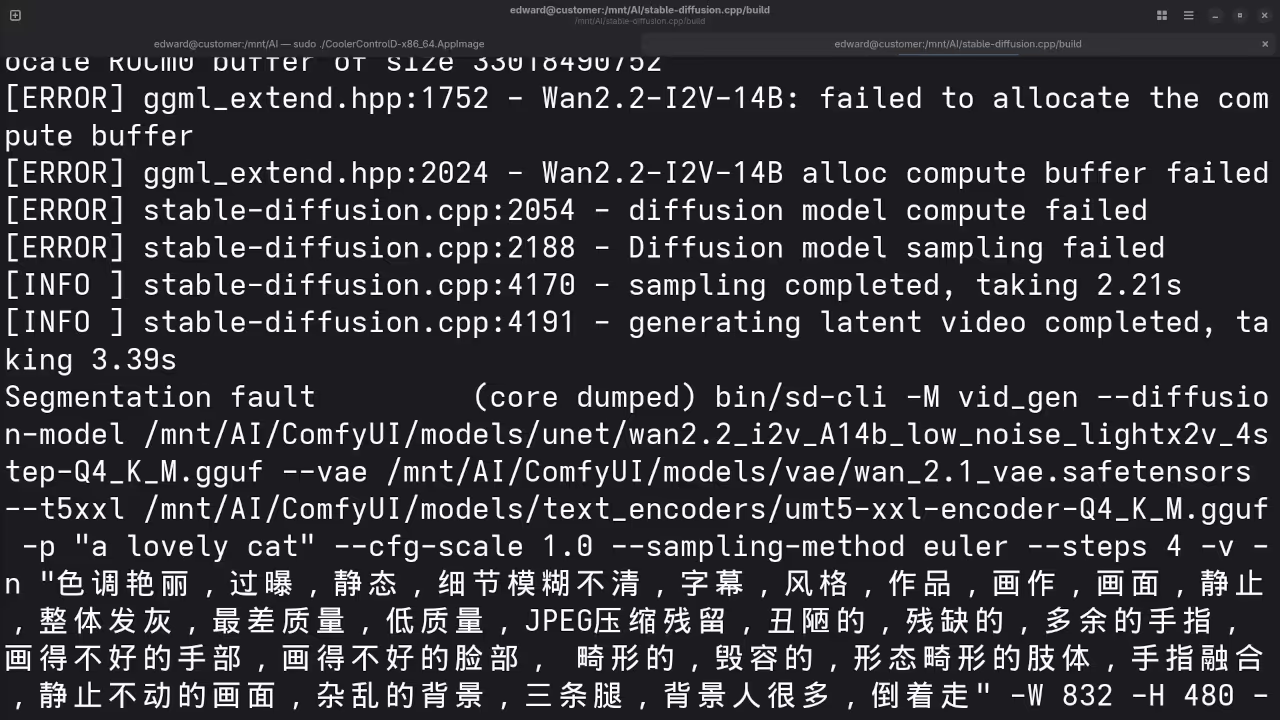
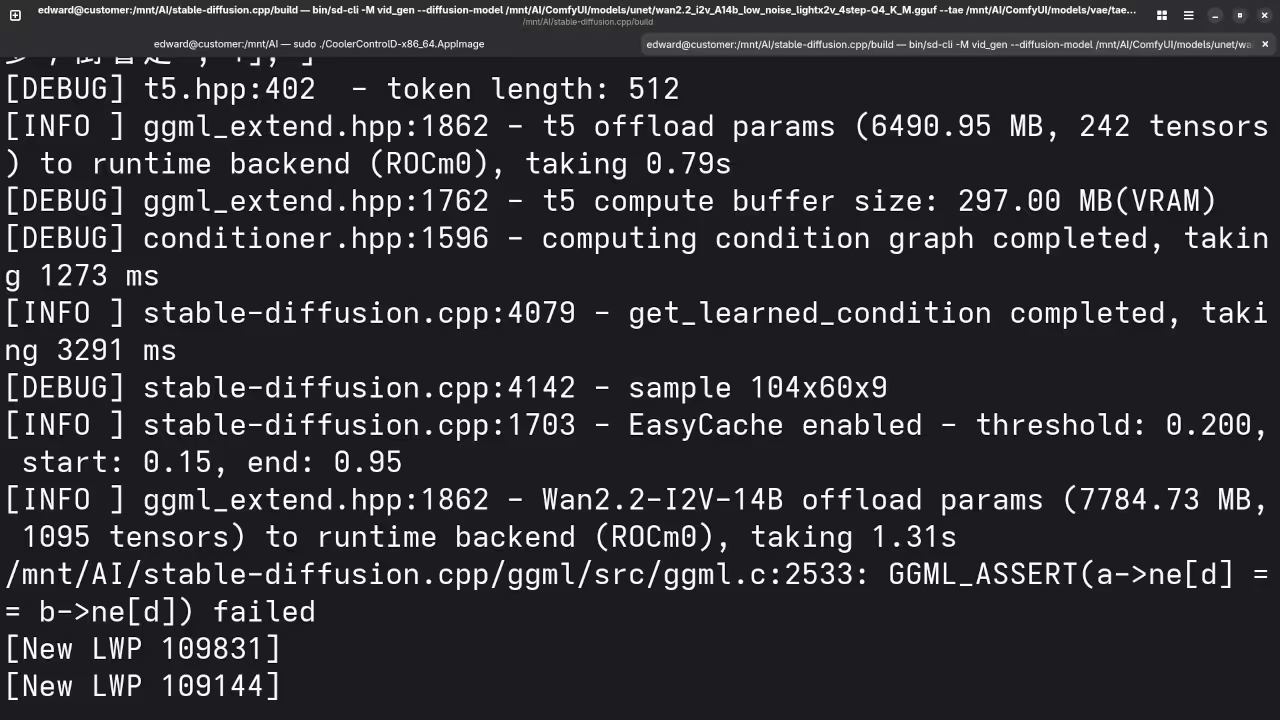
    Wan 2.2 14B I2V Q4 VAE
    Wan 2.2 14B Q4 VAE Video Screenshot

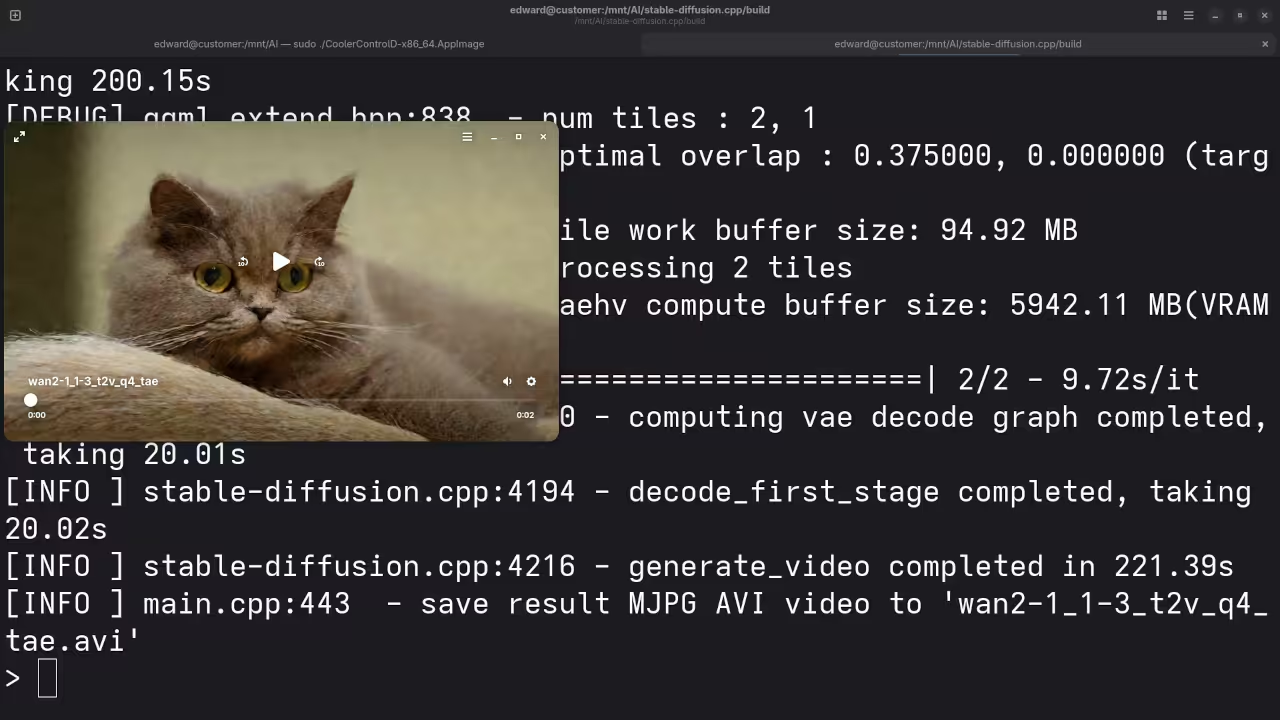
    Wan 2.1 1.3B Q4 TAESD
    Wan 2.1 1.3B Q4 TAESD Video Screenshot

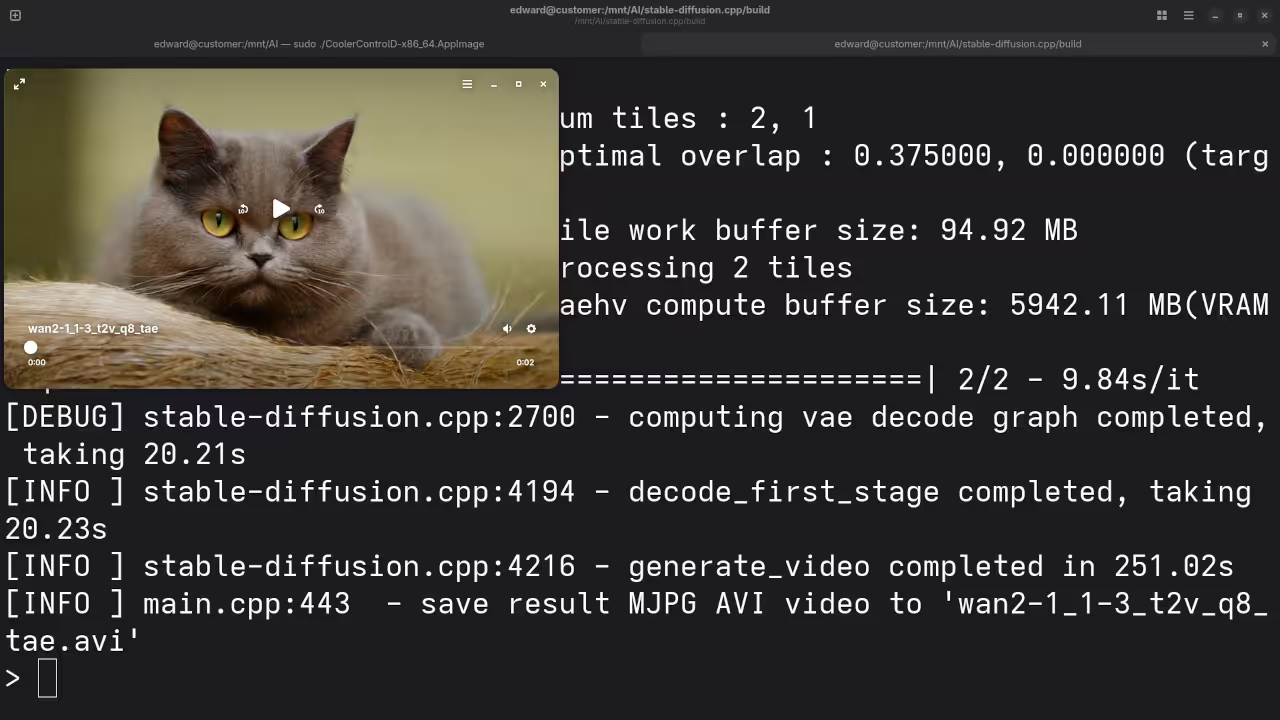
    Wan 2.1 1.3B Q8 TAESD
    Wan 2.1 1.3B Q8 TAESD Video Screenshot

    Wan 2.2 14B I2V Q4 TAESD
    Wan 2.2 14B Q4 TAESD Video Screenshot

    Live Screencast

    Screencast Of Stable Diffusion TAESD Explanation

    Take Your Skills Further

  • Optimizing AI Generated Skewb Code On Fedora

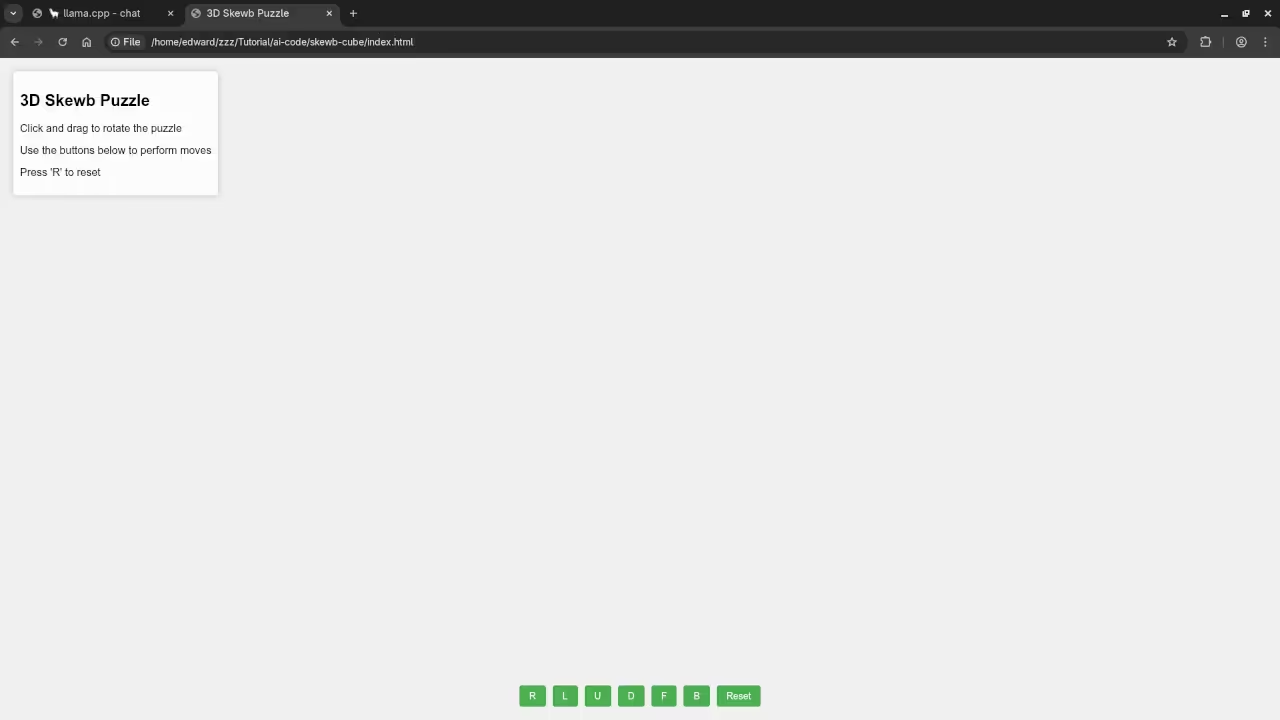
    Optimizing AI Generated Skewb Code On Fedora

    Introduction

    We will improve the 3D Skewb puzzle logic. This optimization makes the code faster on Linux.

    AI generated code often includes many redundant parts. Clean code runs better on your Fedora workstation.

    Memory Management And Resource Reuse

    The first change focuses on memory management. We reuse one geometry object for every piece.

    This prevents the browser from creating unnecessary data. Your CPU will stay cool while running simulations.

    Render On Demand Strategy

    We implemented a render on demand strategy. The GPU only works when the puzzle moves.

    This saves battery life on your Fedora laptop. It also keeps the user interface very responsive.

    Advanced Rotation Math For Skewb Puzzles

    The Skewb uses unique corner turning rotation math. We use vector dot products to find pieces.

    This mathematical approach is cleaner than nested loops. It ensures accurate 120 degree rotations every time.

    We also capped the pixel ratio for screens. High resolution monitors will not lag during play.

    This adjustment protects your graphics card from overheating. Fedora users will appreciate the smooth frame rate.

    Standardizing Visual Logic

    Standardizing colors makes the solve state very clear. You can now track every move with precision.

    The code below shows the optimized rotation logic. It uses vectors instead of creating new objects.


    function turnCorner(index) {
        const axis = diagonals[index];
        const angle = (Math.PI * 2) / 3;
        tempQuat.setFromAxisAngle(axis, angle);
        pieces.forEach(p => {
            if (p.position.dot(axis) > 0.1) {
                p.applyQuaternion(tempQuat);
                p.position.applyQuaternion(tempQuat);
            }
        });
        requestRender();
    }


    By using dot products we isolate specific layers. This is much faster than checking every coordinate.

    Performance Results On Linux

    Modern browsers on Fedora handle these calculations easily. The result is a professional and snappy application.

    Proper event listeners handle window resizing events. The camera updates instantly without stretching the image.

    Using import maps keeps our project files tidy. We load Three.js directly from a fast CDN.

    Testing your code in Firefox or Chromium is easy. Fedora repositories provide all the latest web tools.

    Consolidated Demo

    HTML5 Optimized Skewb Cube

    Screenshot

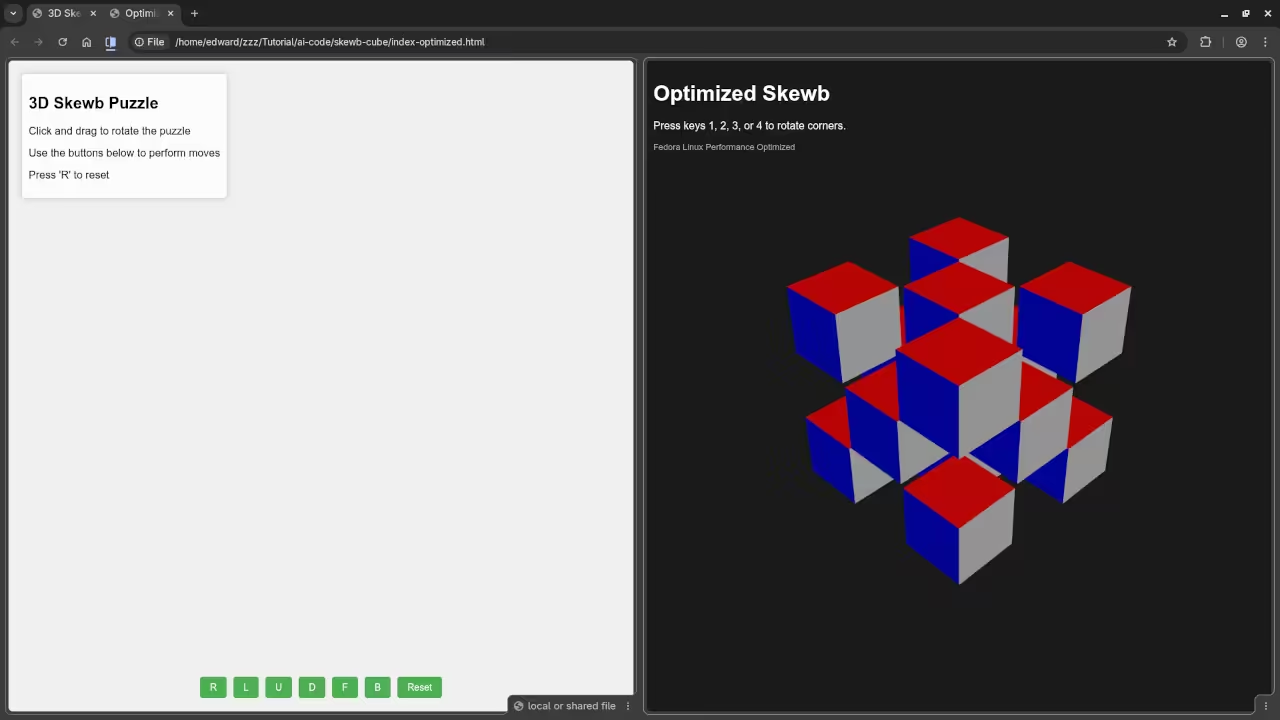
    Original vs Optimized
    Web Browser Showing Original And Optimized Skewb Cube

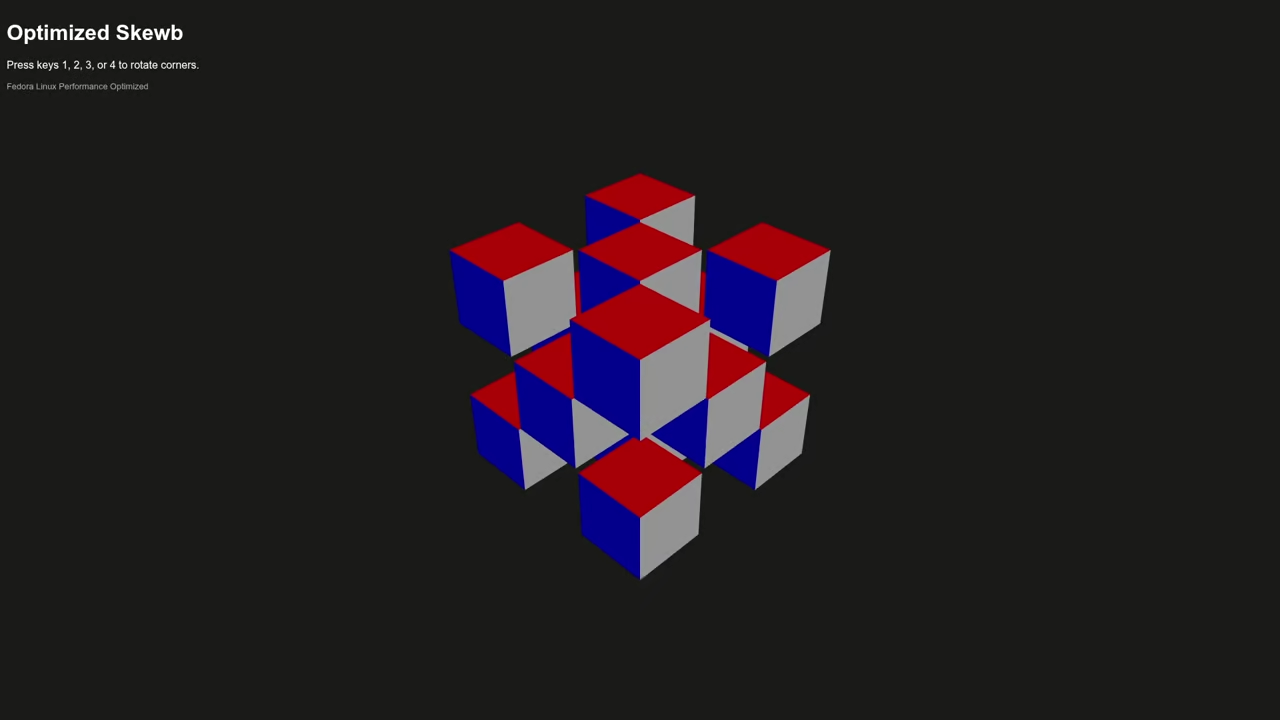
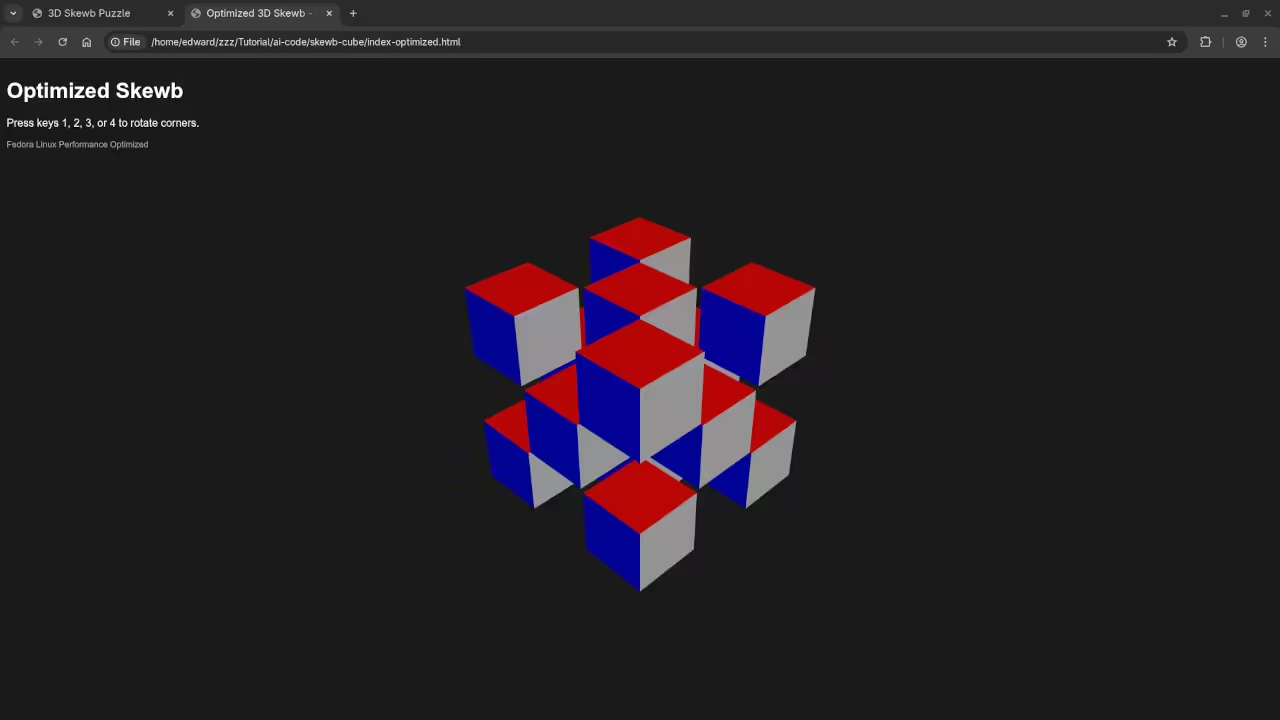
    Optimized Skewb Cube
    Web Browser Showing Optimized Skewb Cube Results

    Live Screencast

    Screencast Of Optimized Skewb Cube Code

    Take Your Skills Further

  • AI Generated Skewb Puzzle Solutions Using Qwen3 On Fedora

    AI Generated Skewb Puzzle Solutions Using Qwen3 On Fedora

    Introduction

    The Skewb is a unique corner turning twisty puzzle. Modern AI models can help solve these complex rotations.

    The Skewb differs from a standard Rubik cube mechanism. Its axes of rotation pass directly through the corners.

    This deep cut design affects all six faces simultaneously. Solving it requires mastering a new form of reasoning.

    Setting Up Llama Server On Fedora Linux

    We use llama.cpp to run the Qwen3 model locally. Fedora Linux provides a stable environment for these computations.

    Open your terminal and prepare the model file path. Execute the llama-server command with the provided GPU flags.

    The command uses nine hundred ninety nine layers for offloading. This ensures your graphics card handles the heavy math.

    Set the context length to twenty four thousand tokens. High context allows the AI to track long sequences.

    Choosing The Right AI Model Architecture

    I am using an instruct model instead of base. Base models only predict the next word in patterns.

    Instruct models follow specific commands for puzzle solving logic. They provide direct answers instead of just more questions.

    GGUF Format And Model Quantization

    The GGUF format is essential for local Linux hosting. This format allows for fast loading and easy sharing.

    We utilize quantization to fit large models on GPUs. The Q5_K_XL version uses five bits per weight.

    Quantization reduces the memory footprint of the thirty billion model. It allows high performance on consumer grade hardware cards.

    Optimal Sampling Parameters For Logic

    The Qwen3 model suggests specific movements for the Skewb. Use a temperature of zero point seven for accuracy.

    A top p value of zero point eight works. These parameters prevent the model from repeating illogical steps.

    The output length should reach sixteen thousand tokens. This length is enough for complex step by step guides.

    Adjust the presence penalty to stop endless repetitive loops. Be careful as high values might mix different languages.

    Running The Local AI Server

    Beginner programmers can easily host this server on Fedora. Use the provided port to send your puzzle queries.

    The model used is the Qwen3 30B Instruct version. It features high performance for logical and spatial reasoning.

    Use the jinja flag to enable proper chat templates. This helps the model understand your puzzle solving prompts.

    The port eight thousand eighty one serves the API. Connect your local scripts to this specific network address.

    Point the model flag to your local GGUF file. Ensure the file path matches your external mount points.

    Server Configuration Summary

    Server Performance Parameters
    Parameter Description Value
    Model Path Location of GGUF file /mnt/AI/models
    Context Size Total tokens available 24576
    Server Port Local network access 8081
    GPU Layers Offloading to hardware 999
    Chat Template Template engine enabled jinja
    Parameter Description Value

    Setting the top k to twenty improves output quality. This limits the AI to the most likely next moves.

    A min p value of zero allows full sampling. This gives the model flexibility for creative puzzle solutions.

    Presence penalty helps keep the instructions very clear. Use a value between zero and two for results.

    Fedora Linux handles the server process with high efficiency. Monitor your VRAM usage while the llama server runs.

    Testing AI logic on physical puzzles is very rewarding. These local models run without needing an internet connection.

    Consolidated Demo

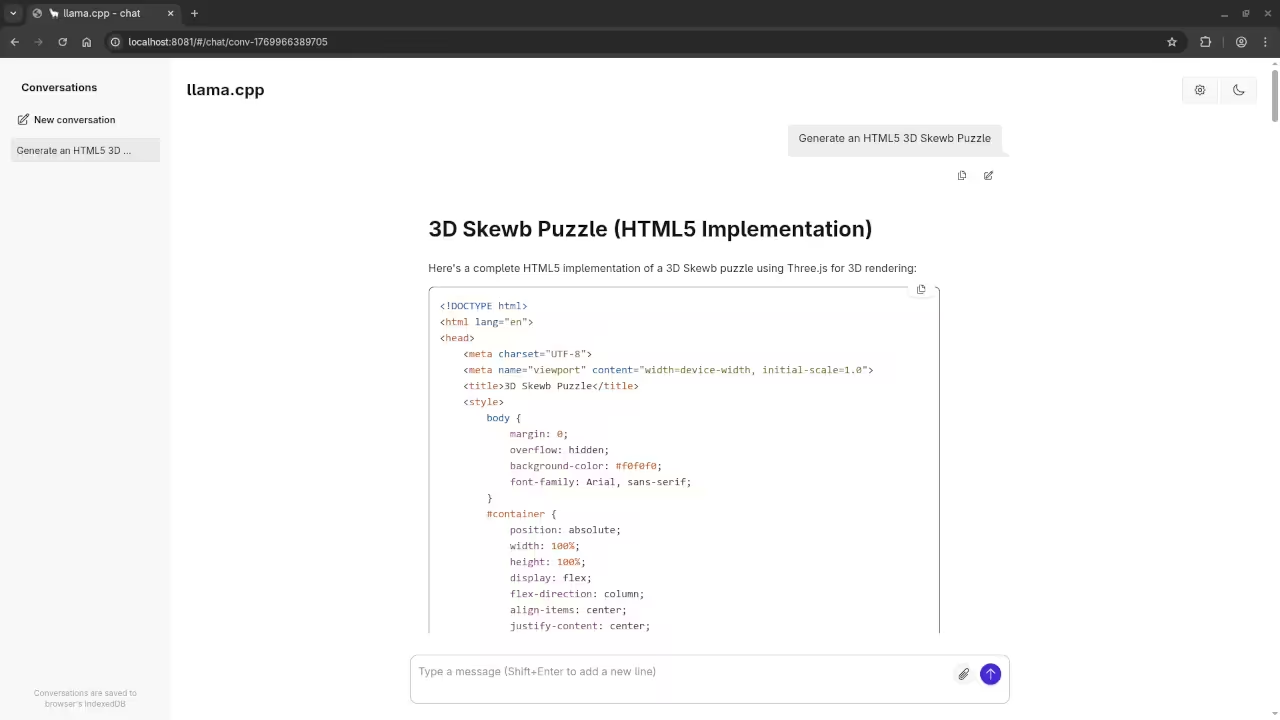
    HTML5 AI-Generated Skewb Puzzle

    Screenshot

    AI 3D Skewb
    Web Browser Showing llama.cpp And Generated Skewb Cube

    AI HTML5 Code
    Web Browser Showing AI Code And Generated Skewb Cube

    Live Screencast

    Screencast Of AI Generated Skewb Cube Code

    Take Your Skills Further

  • Optimising Stable Diffusion With TAESD On Fedora Linux

    Optimising Stable Diffusion With TAESD On Fedora Linux

    Introduction

    TAESD speeds up image generation on Fedora Linux. This tool provides instant previews for beginner developers.

    Standard VAEs use a lot of video memory. TAESD reduces the load on your local GPU.

    Fedora users can install these tools very easily. Use the terminal to set up your environment.

    How Tiny Autoencoders Work

    The model works by simplifying the decoding process. It skips heavy calculations to save precious time.

    You can see your art while it builds. This feedback loop helps you fix prompt errors.

    Small models allow for experimentation on older hardware. Tiny autoencoders are perfect for rapid local testing.

    Setting Up Your Linux Environment

    The code stays simple for any new programmer. Integrate the weights into your existing Python scripts.

    Fedora workstations handle these Python tasks very well. Open your terminal to begin the installation process.

    Update your system packages before starting the project. Install the latest version of PyTorch for Linux.

    Technical Performance Details

    The encoder compresses the image into a latent. The decoder recreates the pixels with high efficiency.

    Standard models often freeze during the decoding phase. TAESD remains fluid even on lower-end graphics cards.

    Latency drops significantly when using this specialized model. Speed becomes your biggest advantage during creative sessions.

    Most developers prefer Fedora for its stable kernels. This operating system runs AI libraries with ease.

    Comparison and Theoretical Speed Gains

    The architecture uses fewer layers than a standard VAE. Each layer focuses on speed instead of detail.

    TAESD Performance Comparison
    Feature Standard VAE TAESD Model
    VRAM Usage High (Gigabytes) Low (Megabytes)
    Decoding Speed Baseline speed Up to 10x faster
    Image Quality Full detail Compressed preview
    Ideal Use Final Render Drafting
    Feature Standard VAE TAESD Model

    Theoretical speed gains can reach up to tenfold. Decoding happens in milliseconds rather than full seconds.

    This efficiency allows for real-time video generation experiments. Your Fedora system will feel much more responsive.

    Tradeoffs and Quality Considerations

    However you must consider the trade-off in quality. Tiny models sometimes lose very fine image details.

    Small text or distant faces might appear slightly blurry. You should use standard VAEs for your final renders.

    TAESD serves best as a fast drafting tool. Switch models when you are ready for high-definition output.

    The color accuracy might shift in certain light settings. Always check your work with a full-sized autoencoder later.

    Beginners should understand these limits before starting projects. Balancing speed and quality is a vital programming skill.

    Modern AI depends on these smart optimization tricks. Learning them early improves your programming career path.

    Screenshot

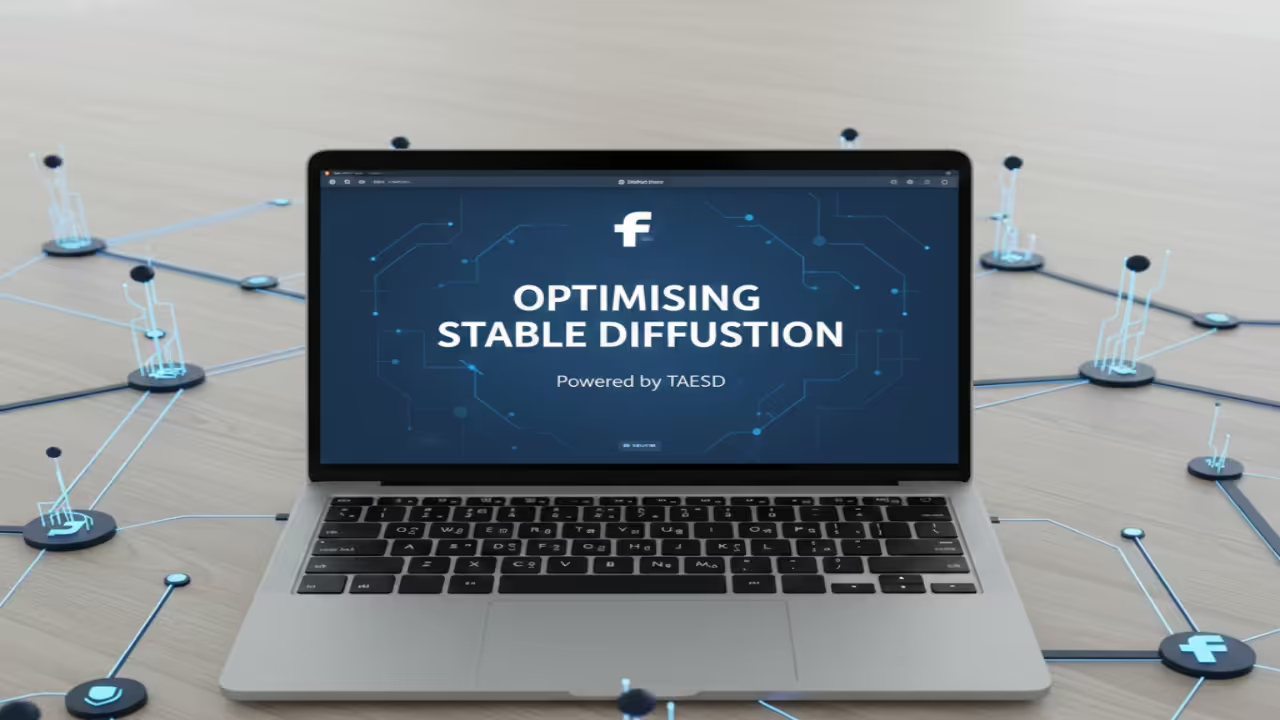
    Stable Diffusion TAESD
    Banner Representing Stable Diffusion TAESD

    Live Screencast

    Screencast Of Stable Diffusion TAESD Explanation

    Take Your Skills Further

  • Procedural Galaxy Generation From Blender To Threejs

    Procedural Galaxy Generation From Blender To Threejs

    Introduction

    Building 3D galaxies is easy with Python scripts. Start by opening Blender on your Fedora system.

    Procedural generation creates complex assets with code. This method saves time during the design phase.

    Using Blender Python API for Geometry

    Open the Scripting tab inside Blender 5.0 now. You will use the bmesh module for speed.

    The script runs a loop to create vertices. It uses math functions to calculate star positions.


    import bpy
    import bmesh
    import math
    import random
    
    def create_galaxy(stars=5000):
        mesh = bpy.data.meshes.new("Galaxy")
        obj = bpy.data.objects.new("Galaxy", mesh)
        bpy.context.collection.objects.link(obj)
        bm = bmesh.new()
        for i in range(stars):
            angle = random.uniform(0, 12.0)
            dist = random.uniform(0.2, 5.0)
            x = dist * math.cos(angle + dist) + random.gauss(0, 0.1)
            y = dist * math.sin(angle + dist) + random.gauss(0, 0.1)
            z = random.gauss(0, 0.05)
            bm.verts.new((x, y, z))
        bm.to_mesh(mesh)
        bm.free()
    
    create_galaxy()


    Applying Logarithmic Spiral Math

    A logarithmic spiral formula creates the galaxy arms. This math places points along a curved path.

    Use the random module to add organic noise. This makes the star distribution look very natural.

    Vertices are stored in a single mesh object. This keeps the file size small for web.

    Exporting to Web Optimized Formats

    Export your finished galaxy as a GLB file. Choose the include custom properties option during export.

    The GLB format contains geometry and material data. It is the standard for modern web 3D.

    Displaying with Threejs

    Create a basic HTML file for your project. Include the Threejs library using a script tag.


    import * as THREE from "three";
    import { GLTFLoader } from "three/examples/jsm/loaders/GLTFLoader.js";
    
    const scene = new THREE.Scene();
    const loader = new GLTFLoader();
    loader.load("galaxy.glb", function(gltf) {
        scene.add(gltf.scene);
    });


    Use the GLTFLoader class to import your model. Add a perspective camera to view the scene.

    Set up a basic animation loop for rotation. The galaxy will spin slowly in the browser.

    You have now mastered the 3D web workflow. Create more complex shapes with this same logic.

    📸 Screenshots & Screencast

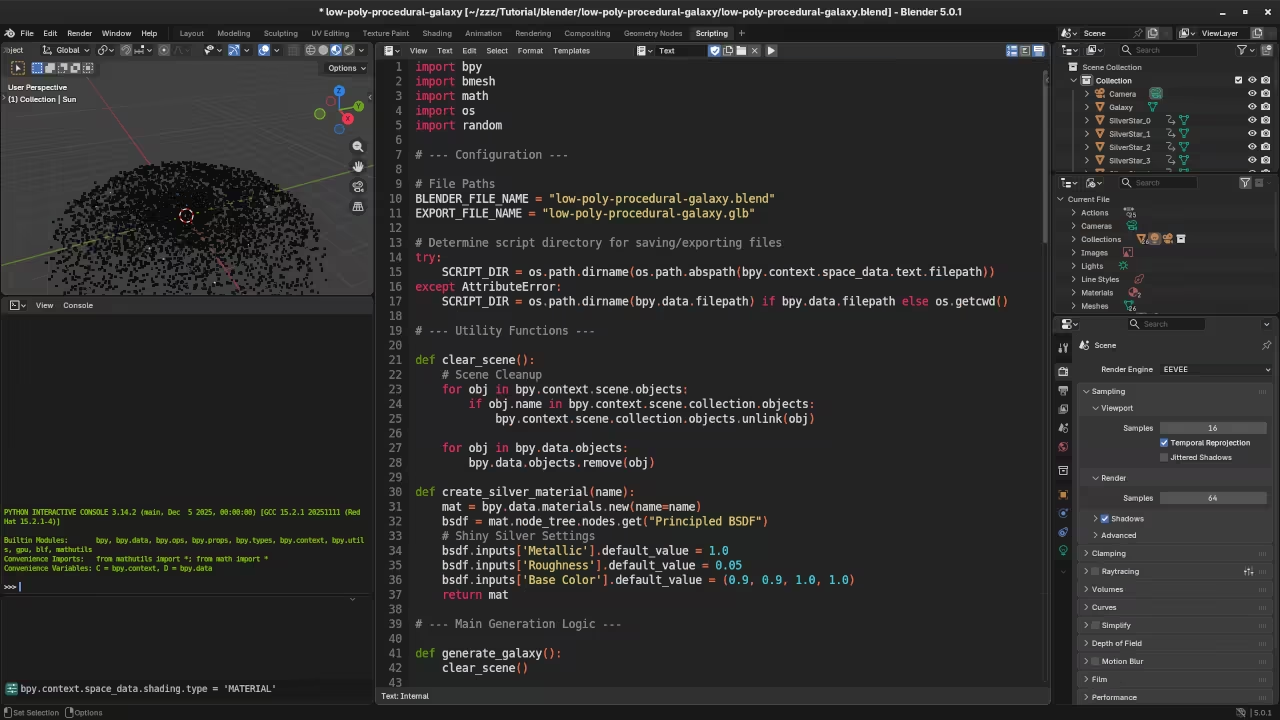
    Procedural Galaxy Python code
    Blender Scripting Workspace Displaying Procedural Galaxy Python Code

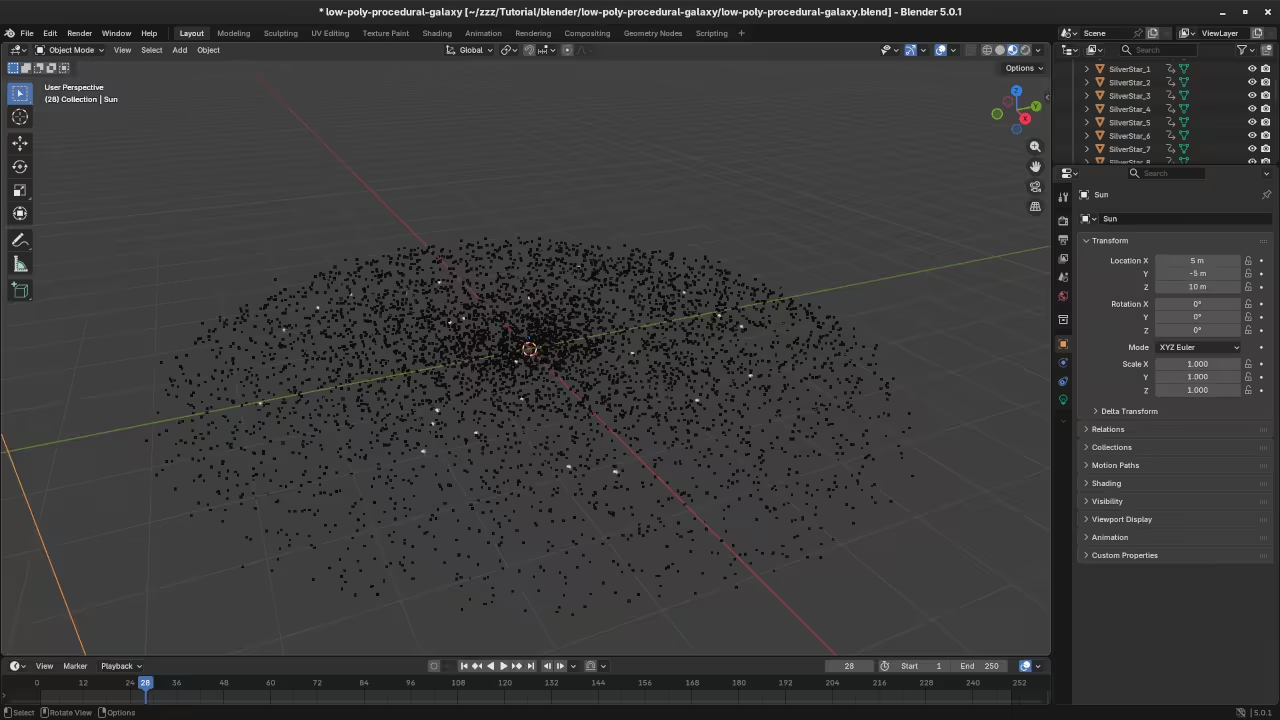
    Procedural Galaxy in Blender
    Blender Layout Workspace Displaying Procedural Galaxy

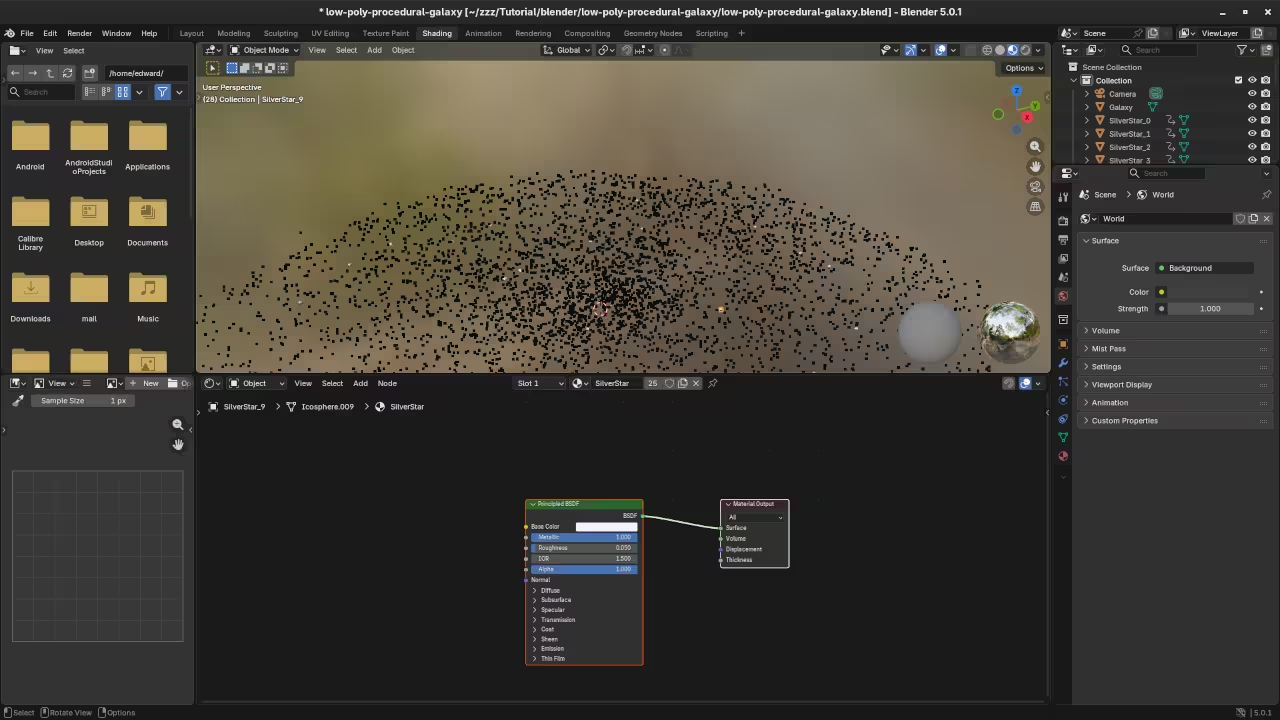
    Procedural Galaxy in Blender Shading
    Blender Shading Workspace Displaying Procedural Galaxy

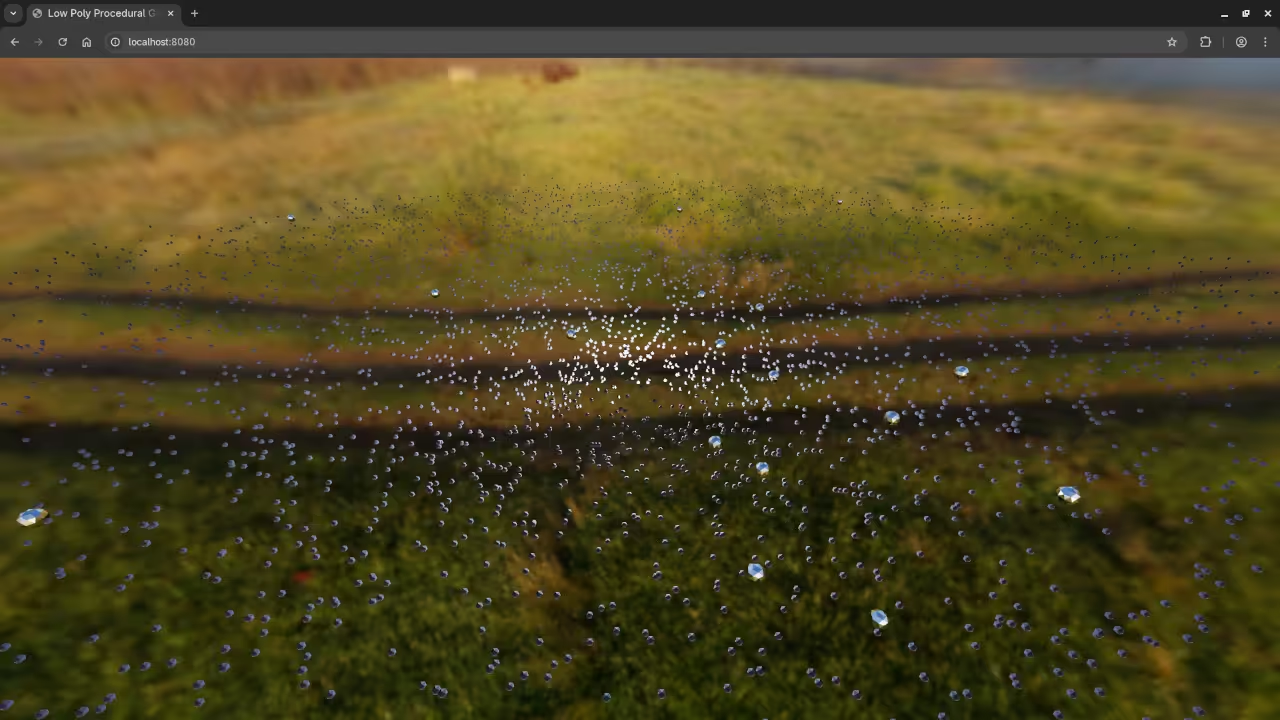
    Procedural Galaxy in Web browser
    Web Browser Displaying Rendered Procedural Galaxy

    Screencast For Blender Python API Procedural Galaxy

    Take Your Skills Further

  • Getting Started with Vimix on Fedora Linux

    Getting Started with Vimix on Fedora Linux

    Introduction

    Vimix enables live video mixing on Fedora Linux. It uses your graphics card for smooth performance.

    This software works great for beginner video editors. You can blend multiple video files together easily.

    Installation and Licensing Details

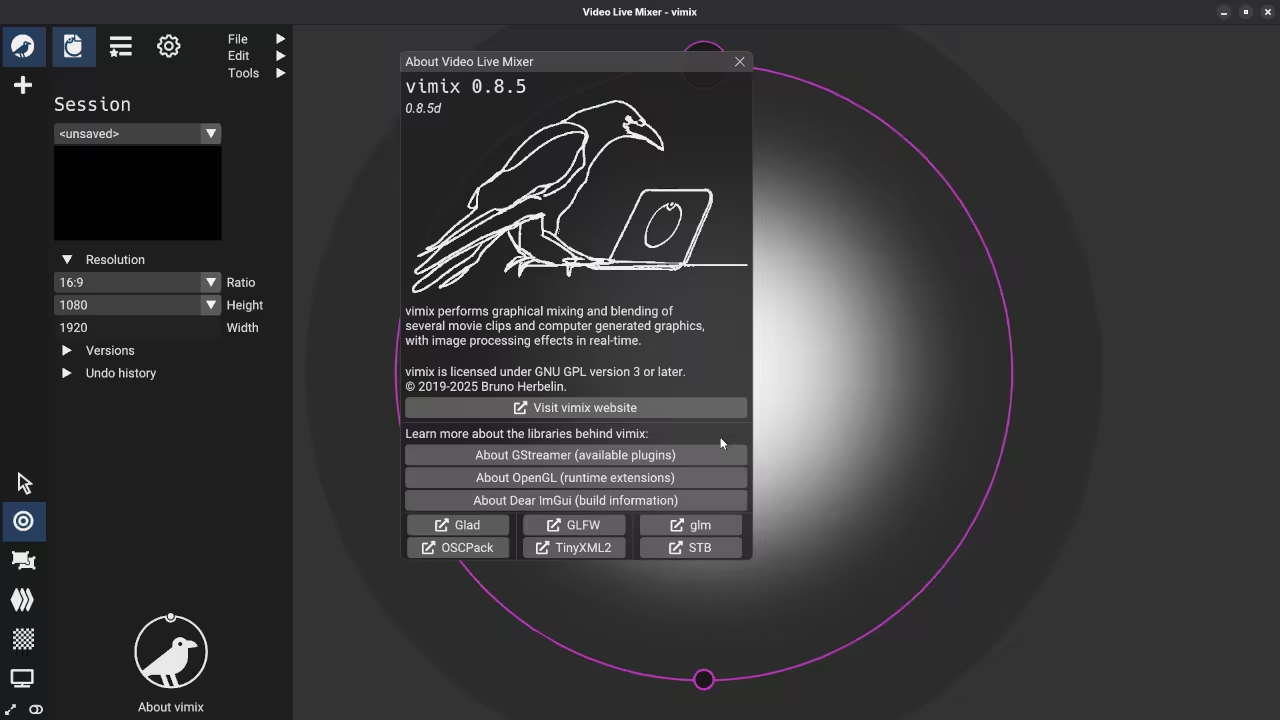
    Find the source code on the GitHub website. The project is hosted by creator Bruno Herbelin.

    Vimix uses the GNU General Public License v3. This means the code is free to share.

    The software follows the successor of GLMixer tools. It focuses on high performance and real-time blending.

    Installation on Fedora is best done via Flatpak. Use the Flathub repository to find the package.

    Open your terminal to start the installation process. Type the command for installing the Vimix flatpak.

    You can also build the app from source. This requires the flatpak-builder tool on your machine.

    Using the Vimix Interface

    The interface uses a simple node-based system. You connect sources to the output window.

    Import your video clips into the media list. Drag them onto the mixing canvas to start.

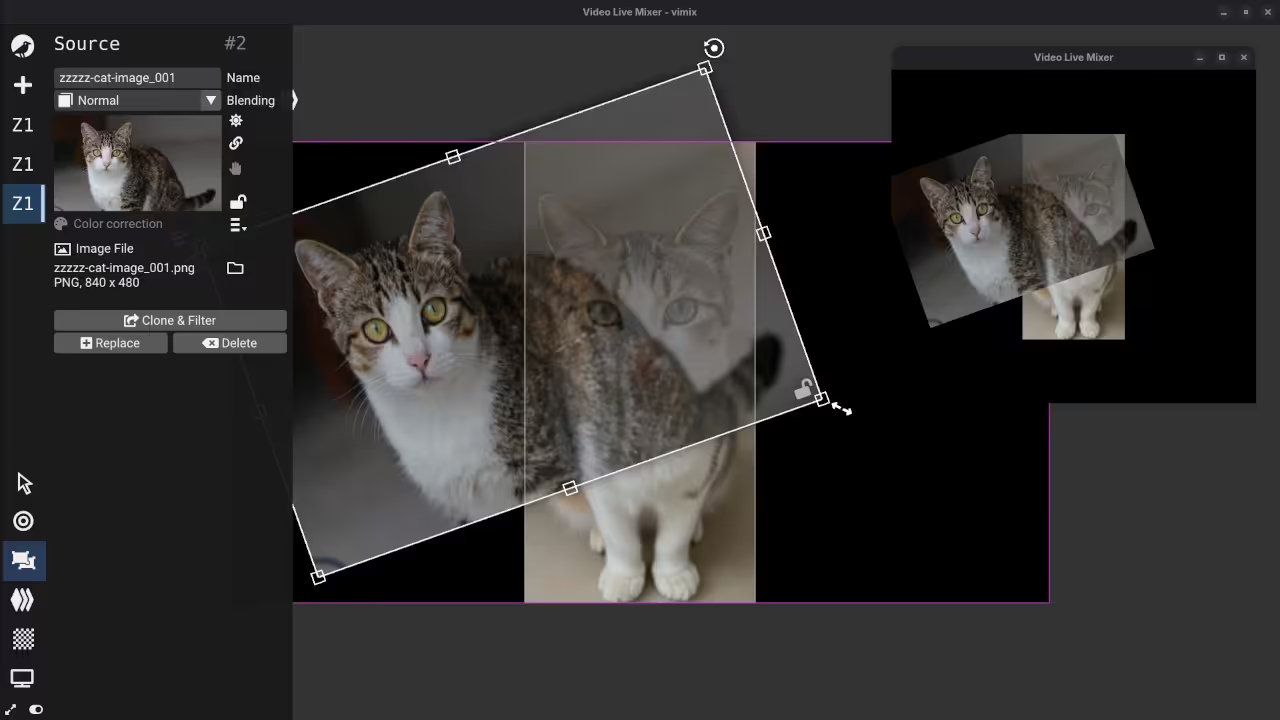
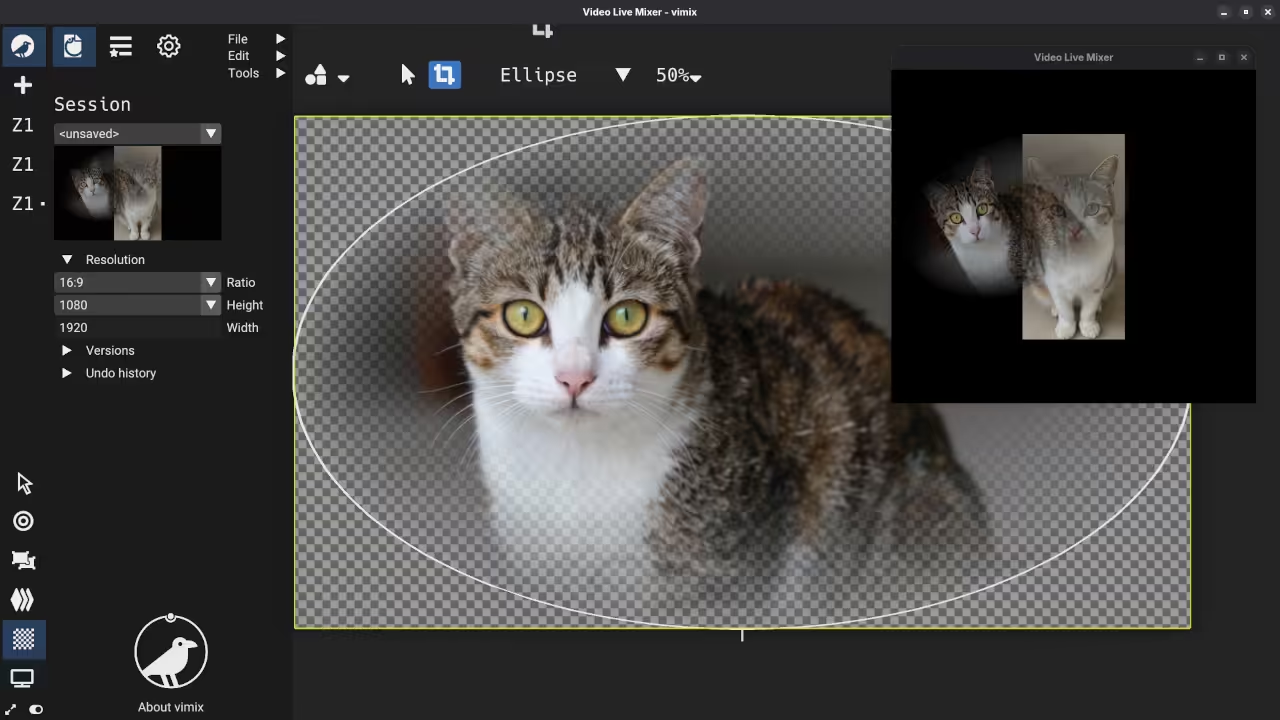
    The canvas allows for real-time image processing effects. You can change the shape of your videos.

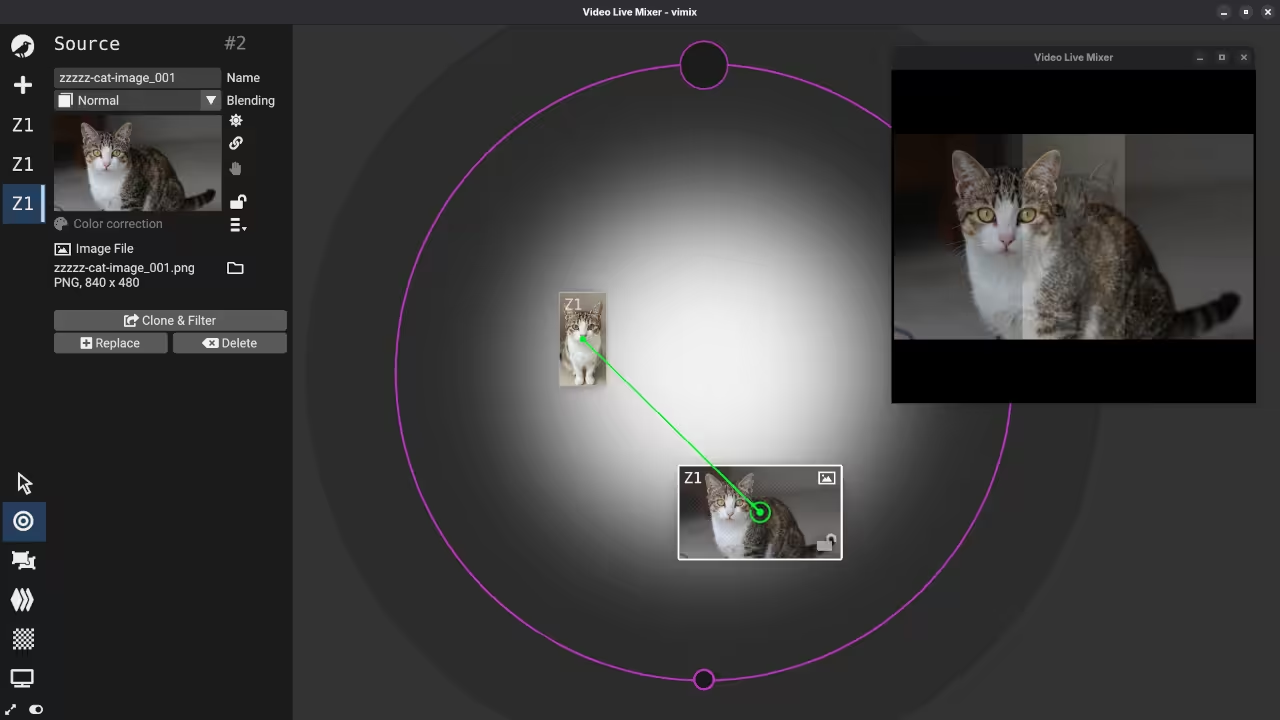
    Direct control over opacity helps create artistic overlays. You can mix graphics with live movie clips.

    You can add various transitions between your clips. Use the faders to control the opacity levels.

    Performance and Output Features

    Graphics acceleration is a key feature of Vimix. It keeps your CPU usage very low.

    The software supports many different video file formats. You can even use live camera feed inputs.

    Output your final mix to a local window. You can also stream the output to internet.

    The app supports SRT and Shmdata for streaming. These protocols provide low latency for live shows.

    You can record your output to a file. Note that recording currently does not include audio.

    The node system makes complex layouts very easy. You can see your signal flow visually.

    Connect an external monitor or a large projector. This is perfect for VJing at concerts.

    Keyboard shortcuts help you mix videos much faster. You can trigger different clips with your keys.

    📷 Screenshots

    Vimix Fading
    Vimix Live Mixer Fading Effect

    Vimix Geometry
    Vimix Live Mixer Geometry Rotation

    Vimix Texturing
    Vimix Live Mixer Texturing Mask Shape

    🎬 Live YouTube Screencast

    Video Displaying The Installation And Use Of Vimix

    Take Your Skills Further

  • Building 2D Games With LITIENGINE On Fedora 43

    Building 2D Games With LITIENGINE On Fedora 43


    Introduction

    Building 2D games is very exciting for new developers. LITIENGINE helps you create these games using Java.

    Open Source Game Development Benefits

    This engine is free and uses the MIT license. You can create and sell your projects easily.

    The MIT license is highly permissive for developers. You can share your modified code with others.

    Technical Features and Performance

    The engine relies on pure Java for high performance. It works smoothly on Fedora Linux 43 systems.

    The software avoids complex math and OpenGL setups. You can focus on your game ideas instead.

    Installation and Environment Setup

    You must install Java 25 to start coding. Fedora 43 makes this setup very fast today.

    Use the dnf command to install the JDK. Then download the LITIENGINE library for your project.

    Modern Input and Rendering

    The engine uses a custom framework called Input4j. This handles gamepads and keyboards with great speed.

    Input4j removes the need for native binary files. Your game stays portable across different desktop systems.

    The 2D render engine uses standard Java AWT. This ensures your game runs on any PC.

    Using the Development Tools

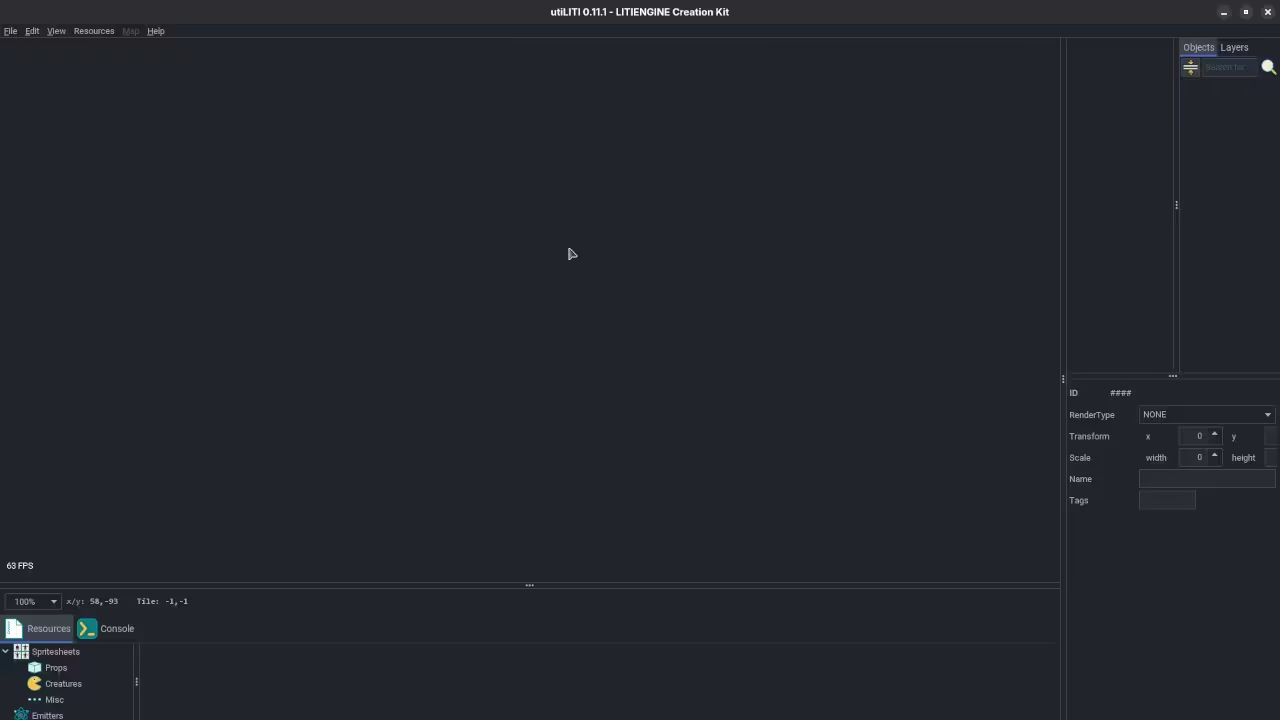
    You can organize your game using the utiLITI editor. This tool manages maps and resources in one place.

    The editor allows you to place entities quickly. You can add triggers and collision boxes with clicks.

    LITIENGINE supports Tiled maps for your game levels. These maps are standard in the 2D industry.

    Physics and Audio Systems

    The integrated physics engine handles all character movements. It calculates collisions and gravity for your entities.

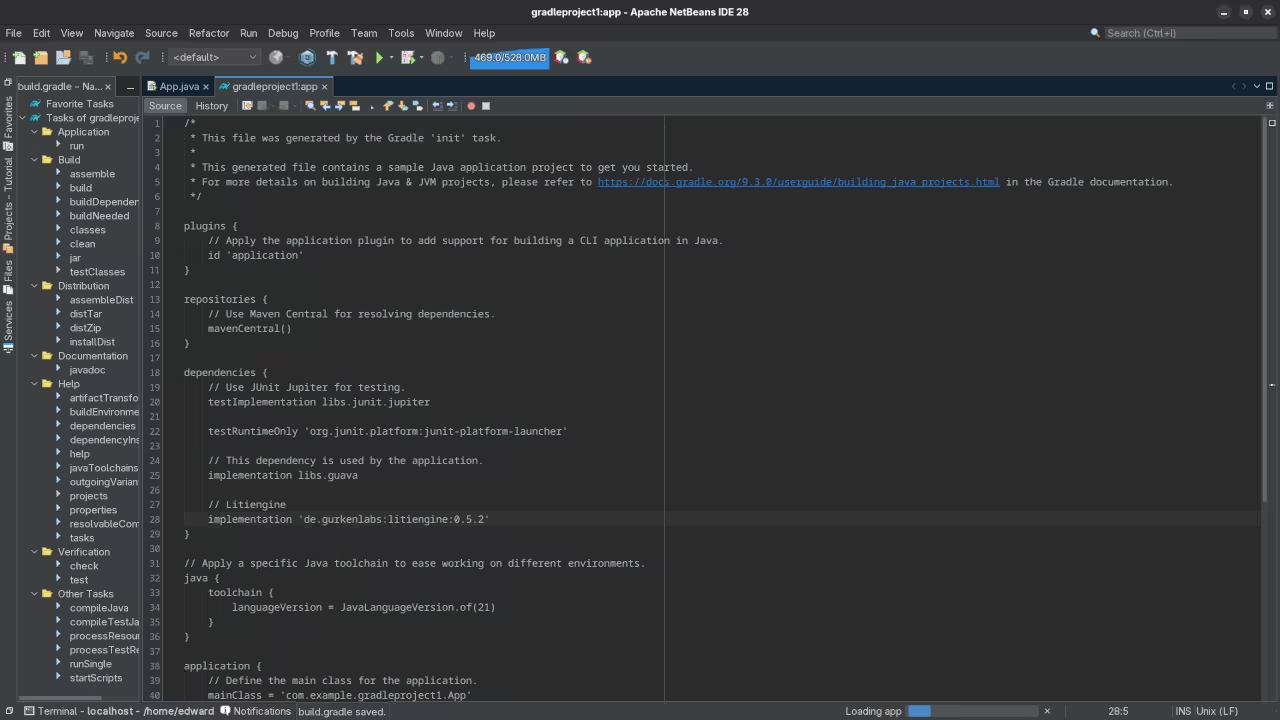
    Gradle 9 helps you build your game files. This tool automates the compiling process for you.

    You can create platformers or top down shooters easily. The engine provides the physics and sound systems.

    The sound engine supports high quality spatial audio. Sounds can move relative to the player position.

    Best Practices for Beginners

    Always test your game on different screen sizes. Fedora 43 provides great tools for display scaling.

    This setup is perfect for your first game project. It keeps your development process stable and fun.

    📷 Screenshots

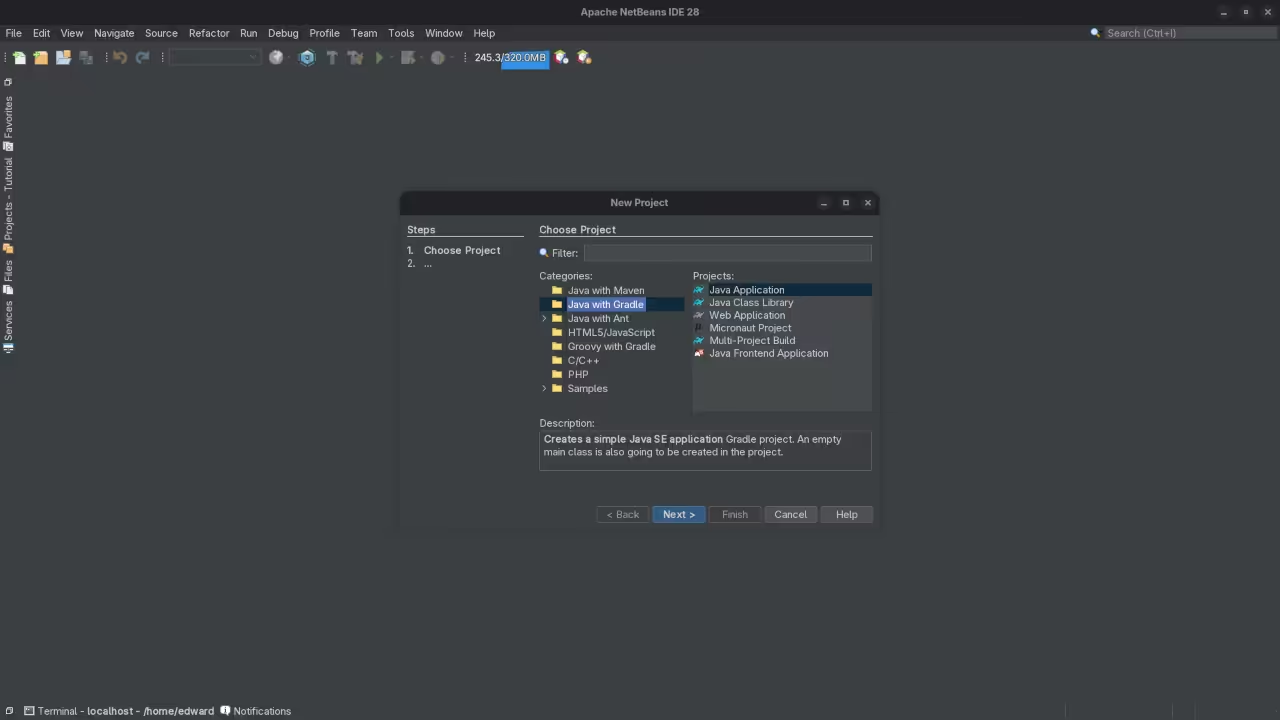
    LITIENGINE Game Engine
    LITIENGINE Game Engine Setup In Netbeans

    LITIENGINE Grade Dependencies
    LITIENGINE Game Engine Grade Project Dependencies

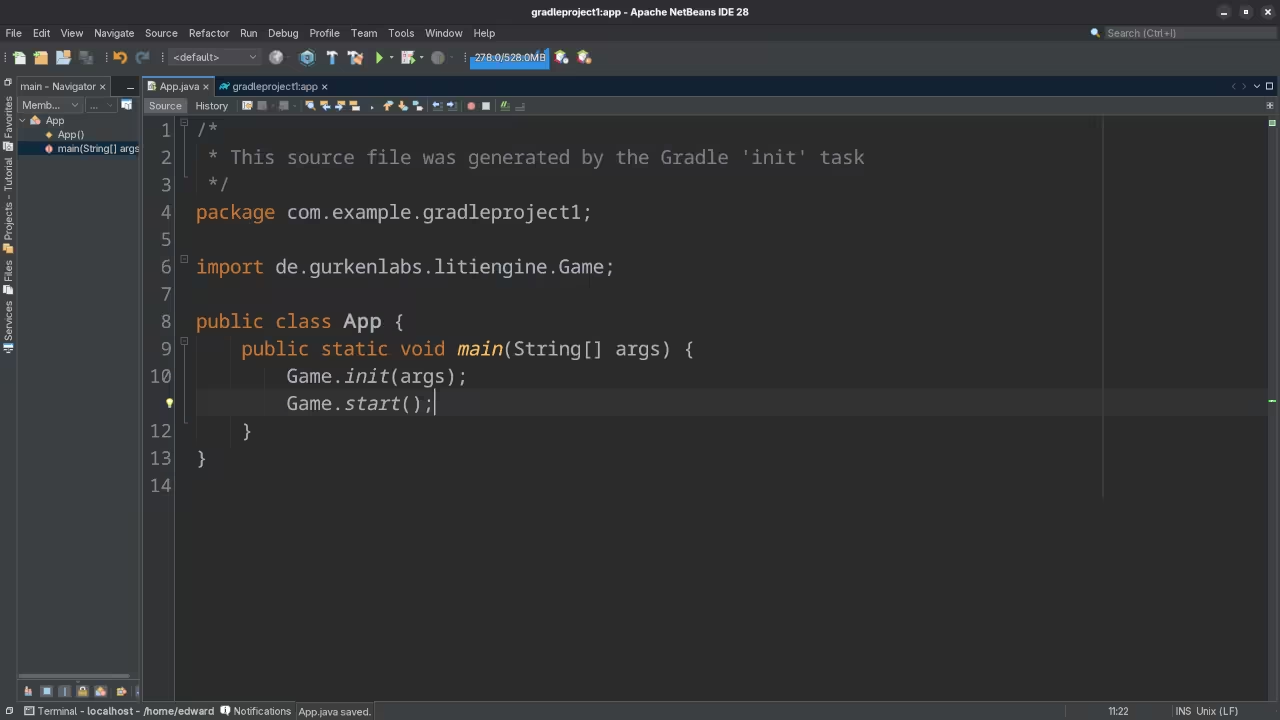
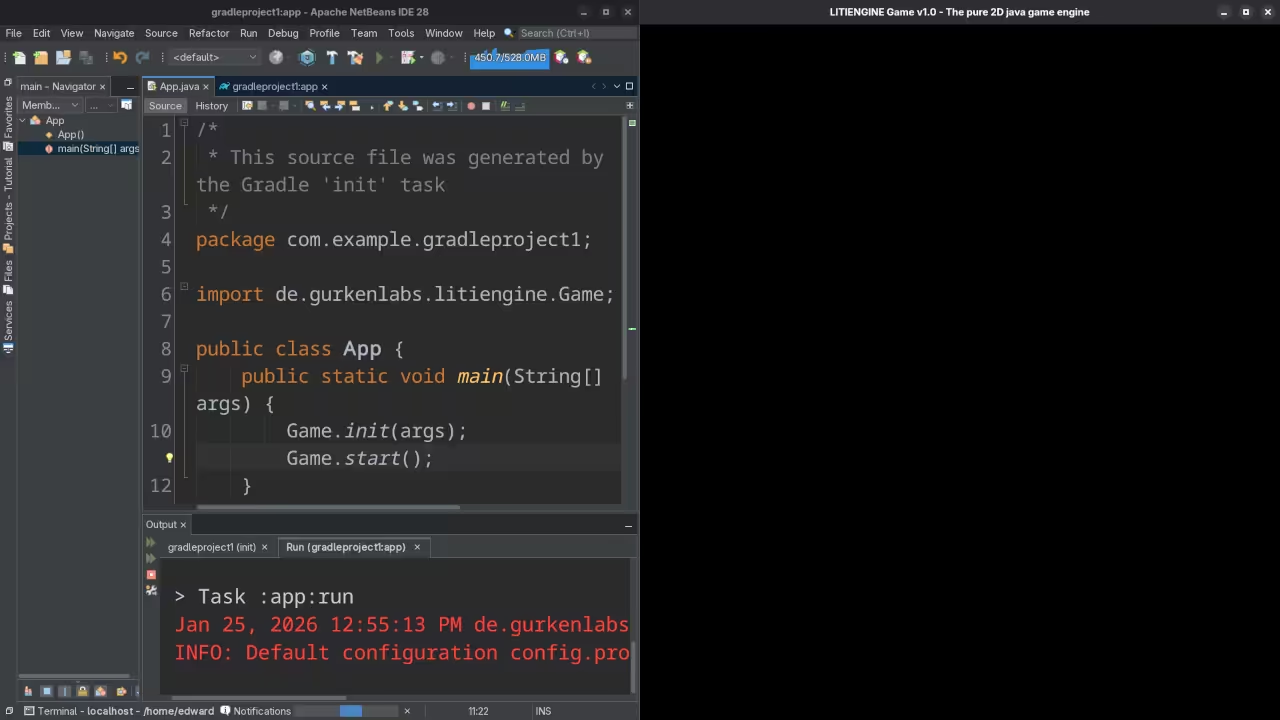
    LITIENGINE Init Code
    LITIENGINE Game Engine Starter Code

    LITIENGINE Run Code
    LITIENGINE Game Engine Running Code

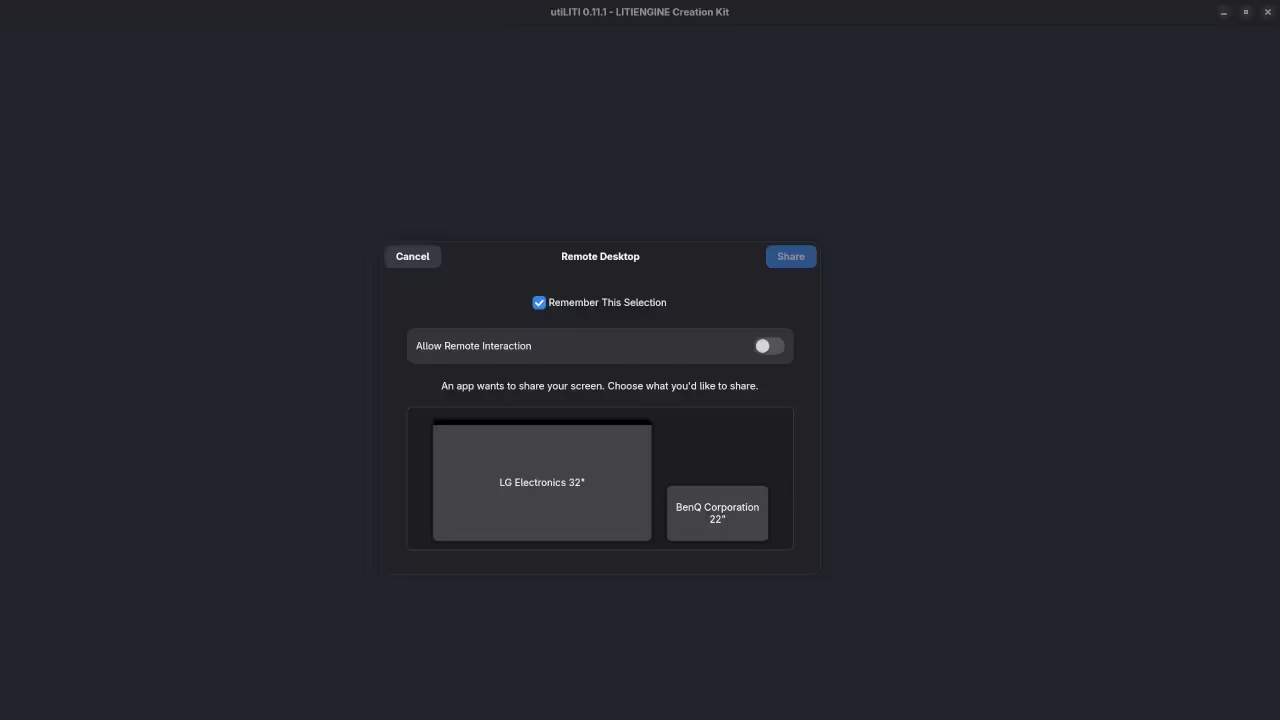
    LITIENGINE utiLITI Tool
    LITIENGINE Game Engine Starting utiLITI Tool

    🎬 Live YouTube Screencast

    Video Displaying The Installation And Use Of LITIENGINE Game Engine

    Take Your Skills Further