
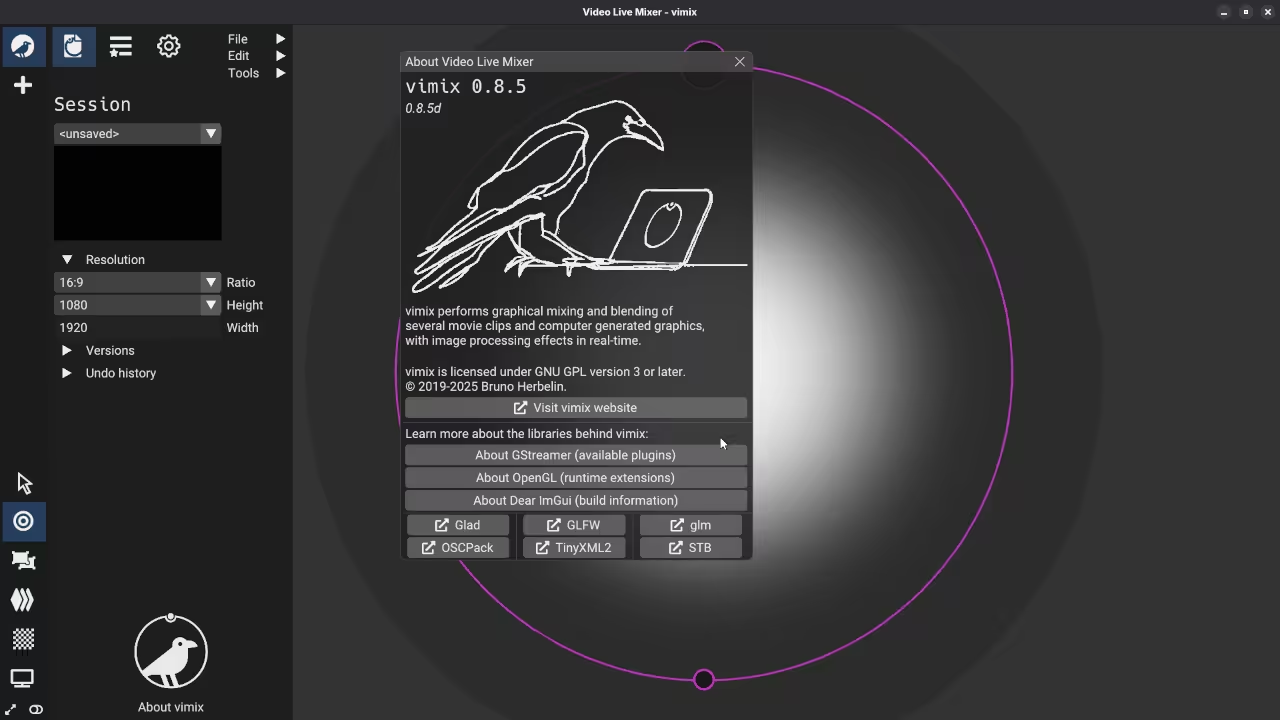
Introduction
Vimix enables live video mixing on Fedora Linux. It uses your graphics card for smooth performance.
This software works great for beginner video editors. You can blend multiple video files together easily.
Installation and Licensing Details
Find the source code on the GitHub website. The project is hosted by creator Bruno Herbelin.
Vimix uses the GNU General Public License v3. This means the code is free to share.
The software follows the successor of GLMixer tools. It focuses on high performance and real-time blending.
Installation on Fedora is best done via Flatpak. Use the Flathub repository to find the package.
Open your terminal to start the installation process. Type the command for installing the Vimix flatpak.
You can also build the app from source. This requires the flatpak-builder tool on your machine.
Using the Vimix Interface
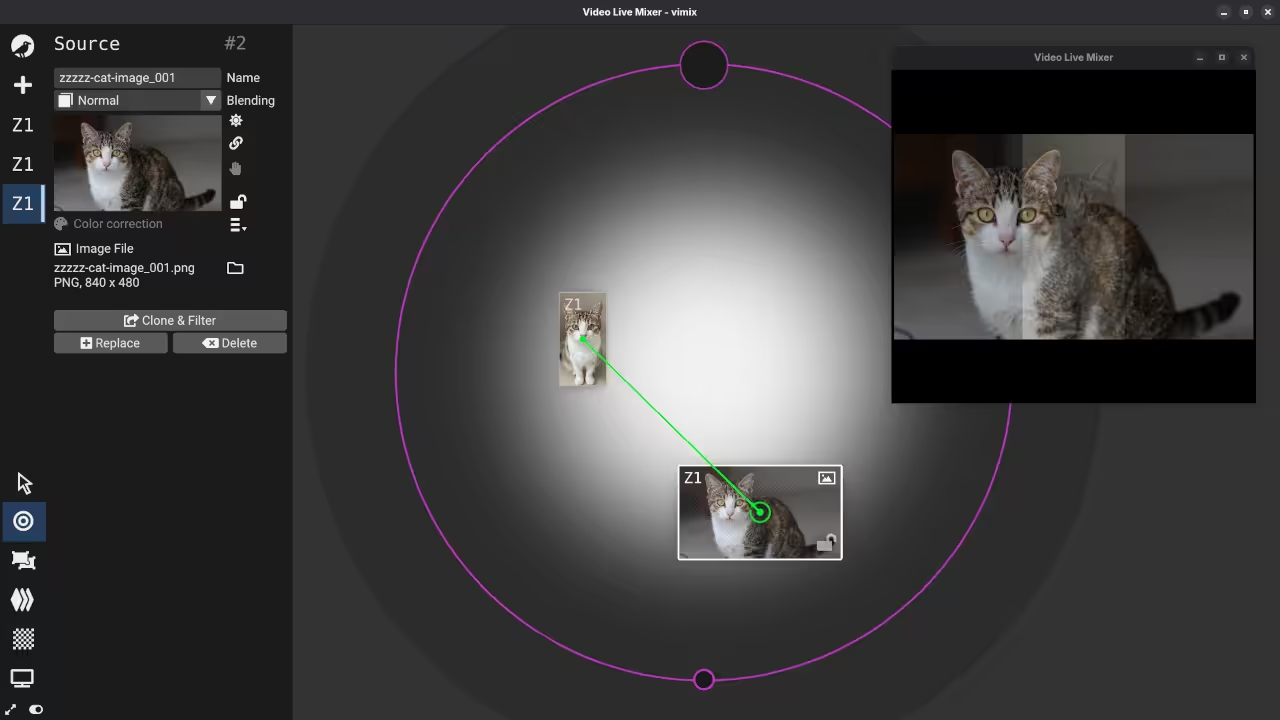
The interface uses a simple node-based system. You connect sources to the output window.
Import your video clips into the media list. Drag them onto the mixing canvas to start.
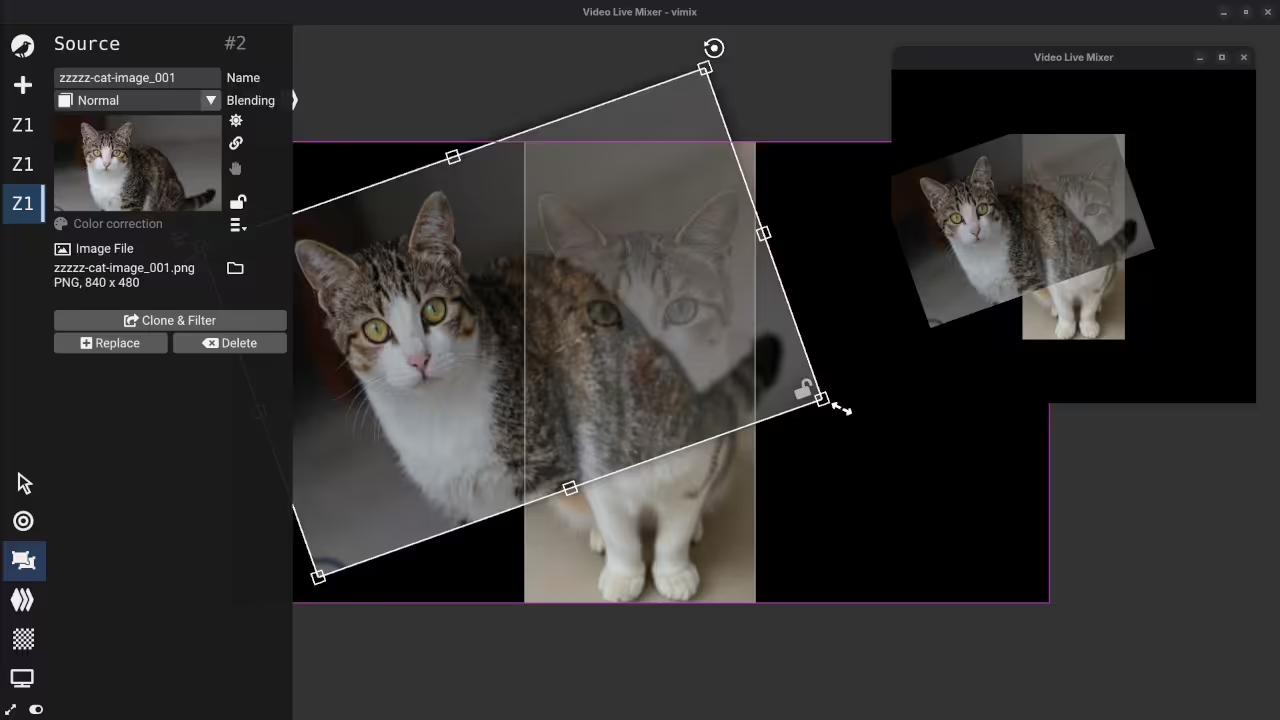
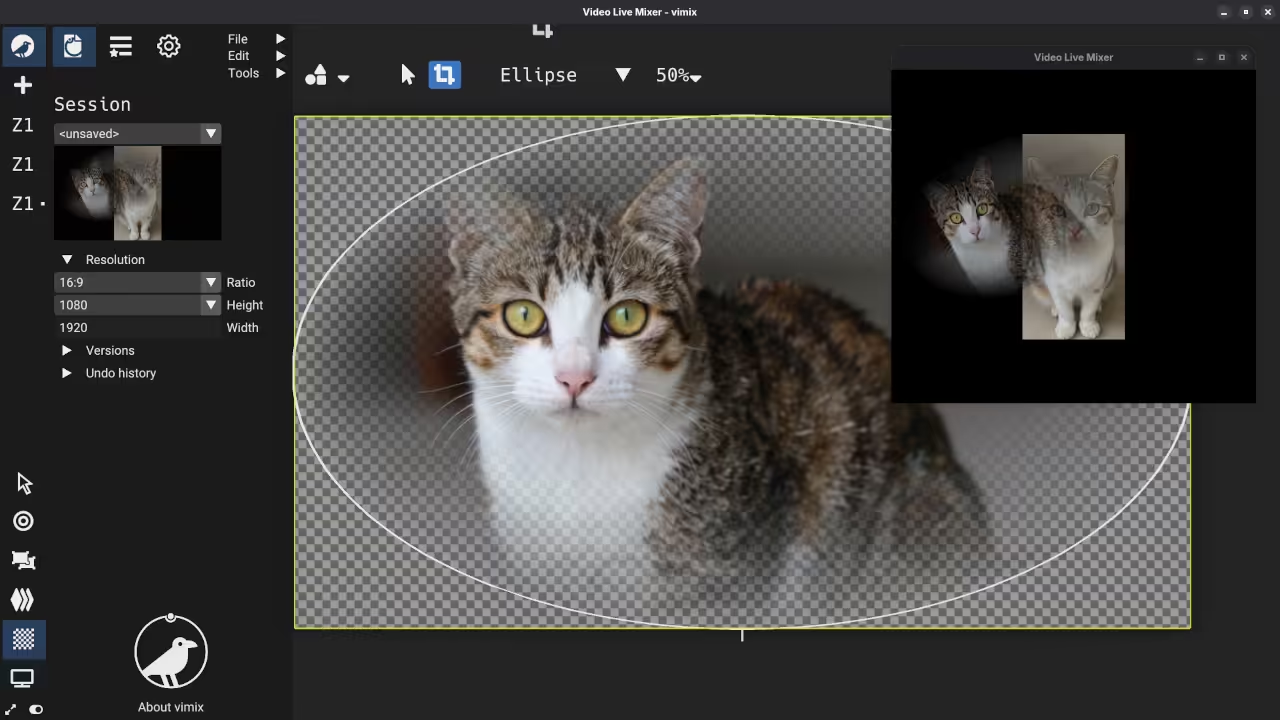
The canvas allows for real-time image processing effects. You can change the shape of your videos.
Direct control over opacity helps create artistic overlays. You can mix graphics with live movie clips.
You can add various transitions between your clips. Use the faders to control the opacity levels.
Performance and Output Features
Graphics acceleration is a key feature of Vimix. It keeps your CPU usage very low.
The software supports many different video file formats. You can even use live camera feed inputs.
Output your final mix to a local window. You can also stream the output to internet.
The app supports SRT and Shmdata for streaming. These protocols provide low latency for live shows.
You can record your output to a file. Note that recording currently does not include audio.
The node system makes complex layouts very easy. You can see your signal flow visually.
Connect an external monitor or a large projector. This is perfect for VJing at concerts.
Keyboard shortcuts help you mix videos much faster. You can trigger different clips with your keys.
📷 Screenshots
🎬 Live YouTube Screencast
Take Your Skills Further
- Books: https://www.amazon.com/stores/Edward-Ojambo/author/B0D94QM76N
- Courses: https://ojamboshop.com/product-category/course
- Tutorials: https://ojambo.com/contact
- Consultations: https://ojamboservices.com/contact
🚀 Recommended Resources
Disclosure: Some of the links above are referral links. I may earn a commission if you make a purchase at no extra cost to you.