
Git is a free and open-source distributed version control system used by developers worldwide. Whether you're working solo or collaborating with a team, Git helps you track changes in your project over time.
Two essential Git commands for monitoring your project's history and current state are git status and git log. In this post, we'll explain what they do, show a basic example, and guide you through using them effectively.
📌 What Is git status?
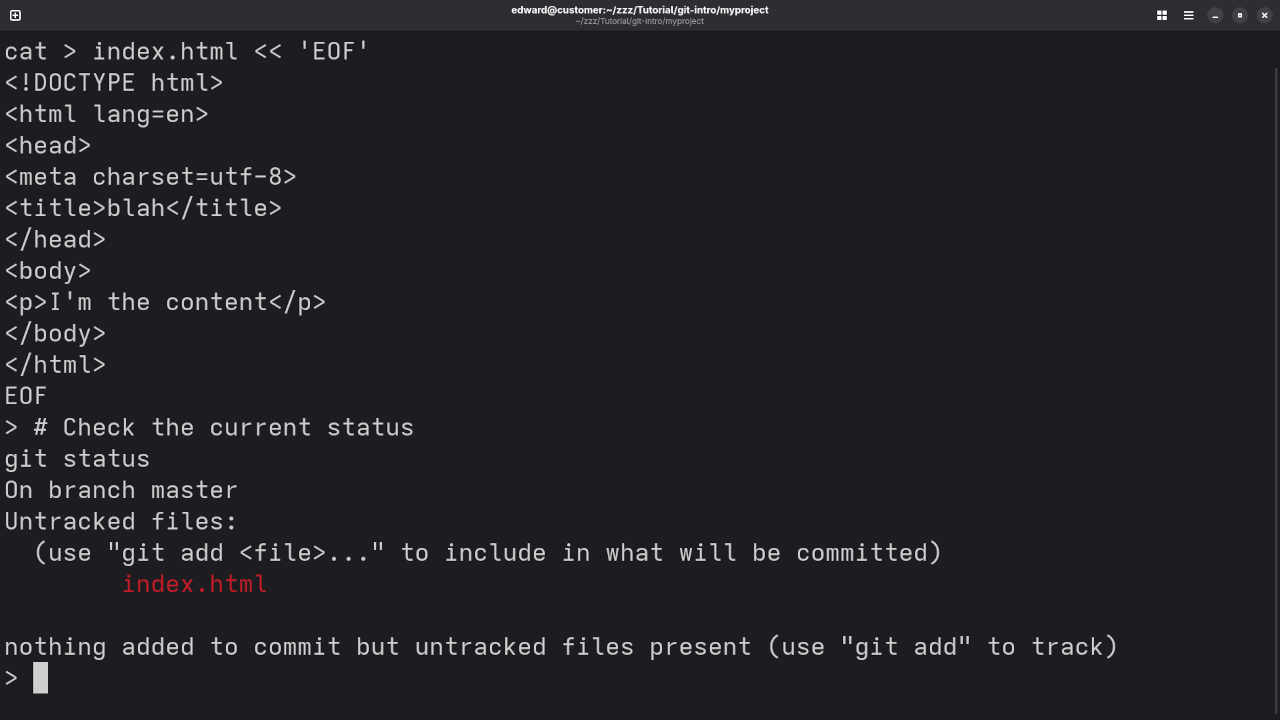
The git status command shows the current state of your working directory and staging area. It tells you:
- Which changes have been staged
- Which changes haven’t been staged
- Which files aren’t being tracked by Git
git status This is usually the first command you run to check what's happening before you commit.
📌 What Is git log?
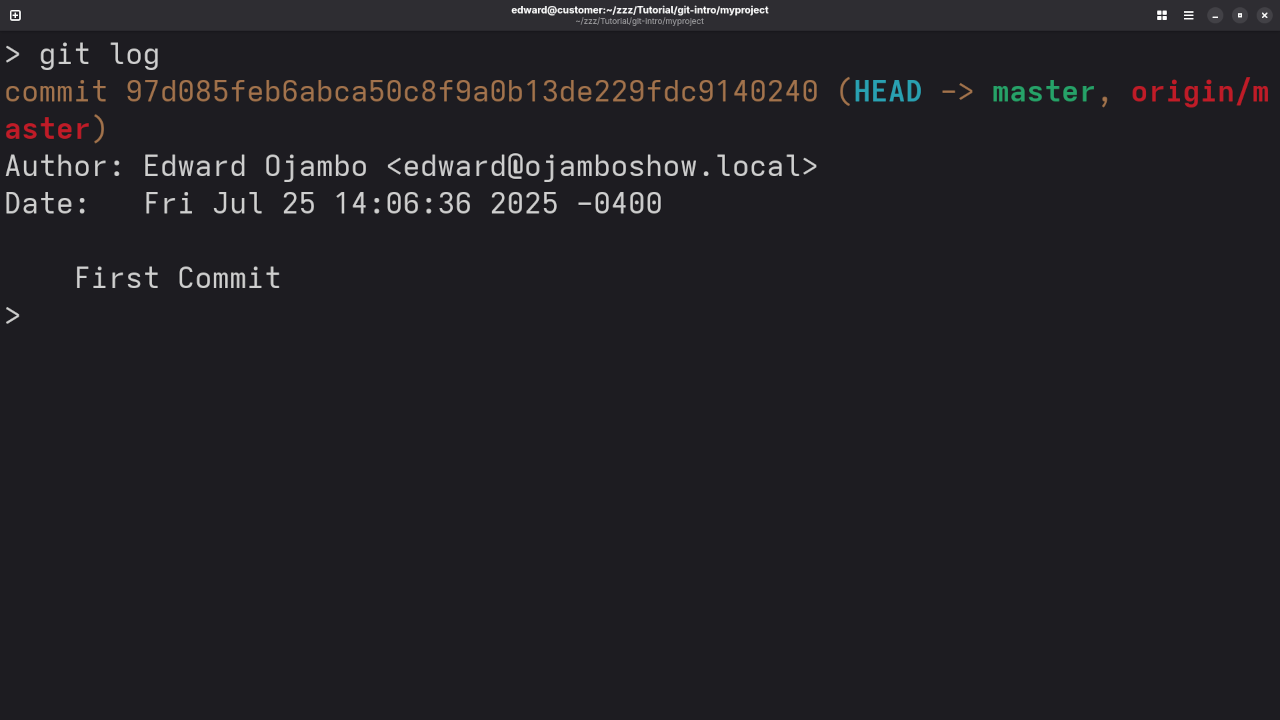
The git log command shows the commit history for your repository. It helps you see what changes were made, who made them, and when.
git log You'll see output like this:
commit 1a2b3c4d5e6f7890
Author: Your Name <your@email.com>
Date: Tue Jul 23 14:00 2025
Added README and updated index.html You can scroll through the commit history and even use filters to find specific changes.
💡 Example: Using Both Commands Together
Let's say you've edited a file in your project but haven't committed yet. Try this:
# Check the current status
git status
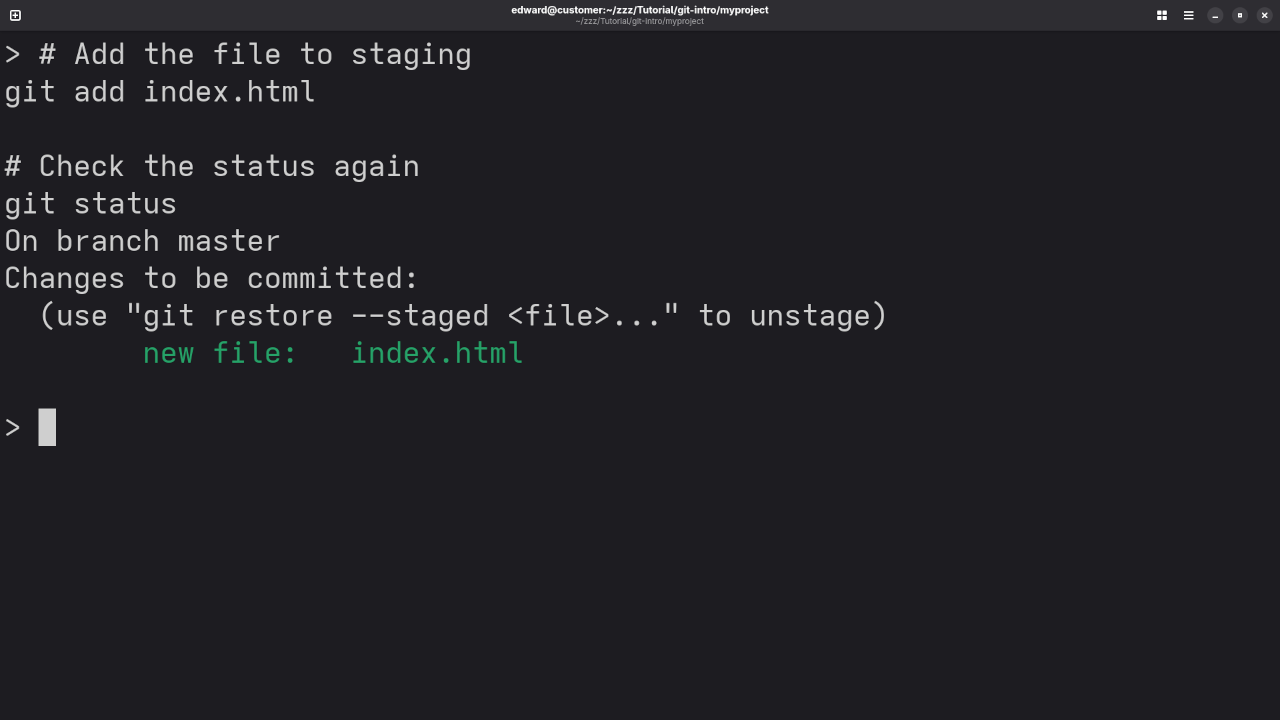
# Add the file to staging
git add filename.html
# Check the status again
git status
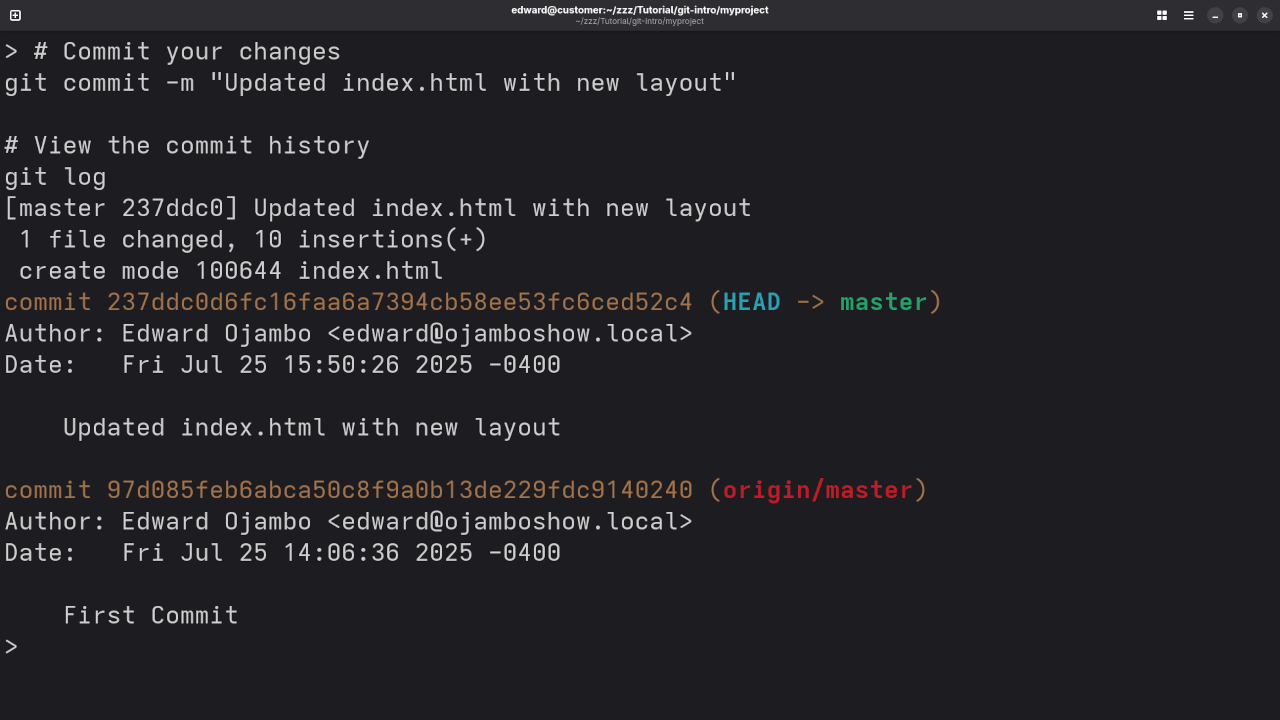
# Commit your changes
git commit -m "Updated filename.html with new layout"
# View the commit history
git log These simple steps help you stay in control of your project’s history.
📷 Screenshots & Live Demo Screencast

🤝 Need Help With Git?
Whether you're just getting started or need help installing, updating, or migrating Git projects, I'm available for:
- One-on-one programming tutorials
- Custom Git installs and migrations
- Fixing broken Git setups
Want more Git tips like this? Leave a comment below or share this post with others learning version control!
🚀 Recommended Resources
Disclosure: Some of the links above are referral links. I may earn a commission if you make a purchase at no extra cost to you.