
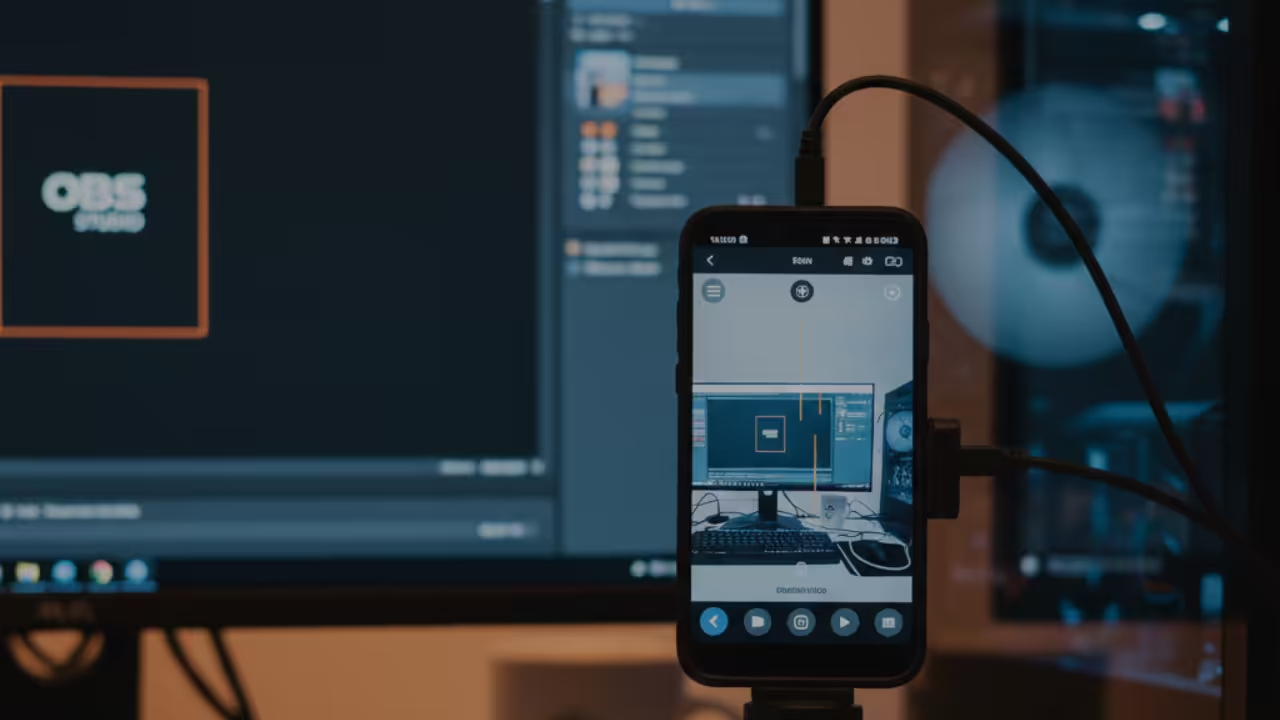
How to Build a Native Android RTSP Webcam for OBS Studio Using Kotlin
Have you ever wanted to use your Android phone as a high quality webcam for live streaming with OBS Studio In this beginner friendly tutorial we will build a native Android RTSP webcam using Kotlin This app will leverage open source libraries to handle complex video encoding and networking while keeping the core logic entirely ad free and under your control
We will test the app on
- Sony Xperia XA1 Ultra supports native H264 encoding
- Samsung Galaxy S21 FE 5G supports H264 H265 and VP9
- Logitech HD Webcam C525 for comparison no hardware encoding
Note While the Samsung Galaxy S21 FE can work with tools like scrcpy it is my daily driver and not appropriate for webcam use in this tutorial
Prerequisites
- Android Studio installed on Fedora 43
- Basic knowledge of Kotlin
- OBS Studio installed on your computer
- Android device connected via USB for testing
Optional but recommended a tripod or stable mount for your phone
Step 1 Create a New Kotlin Project in Android Studio
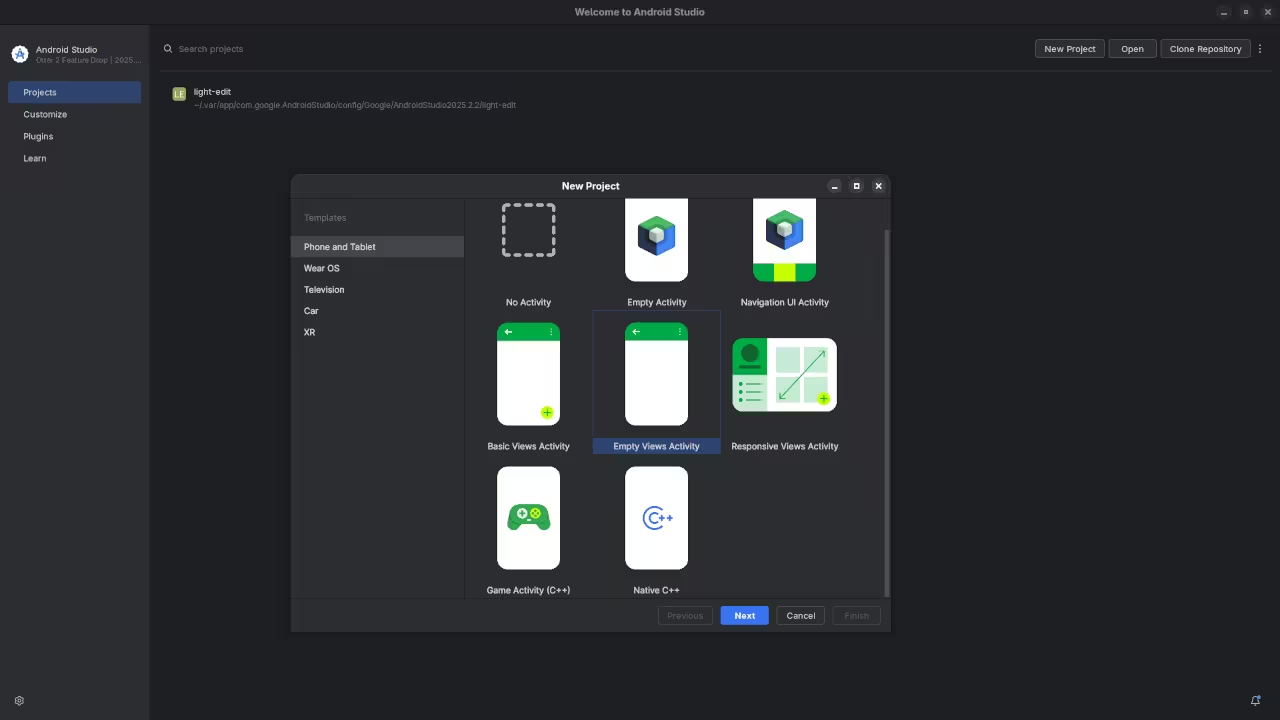
- Open Android Studio New Project Empty Views Activity
- Name your project AndroidRTSPWebcam
- Set Language to Kotlin Minimum SDK to 26
- Click Finish
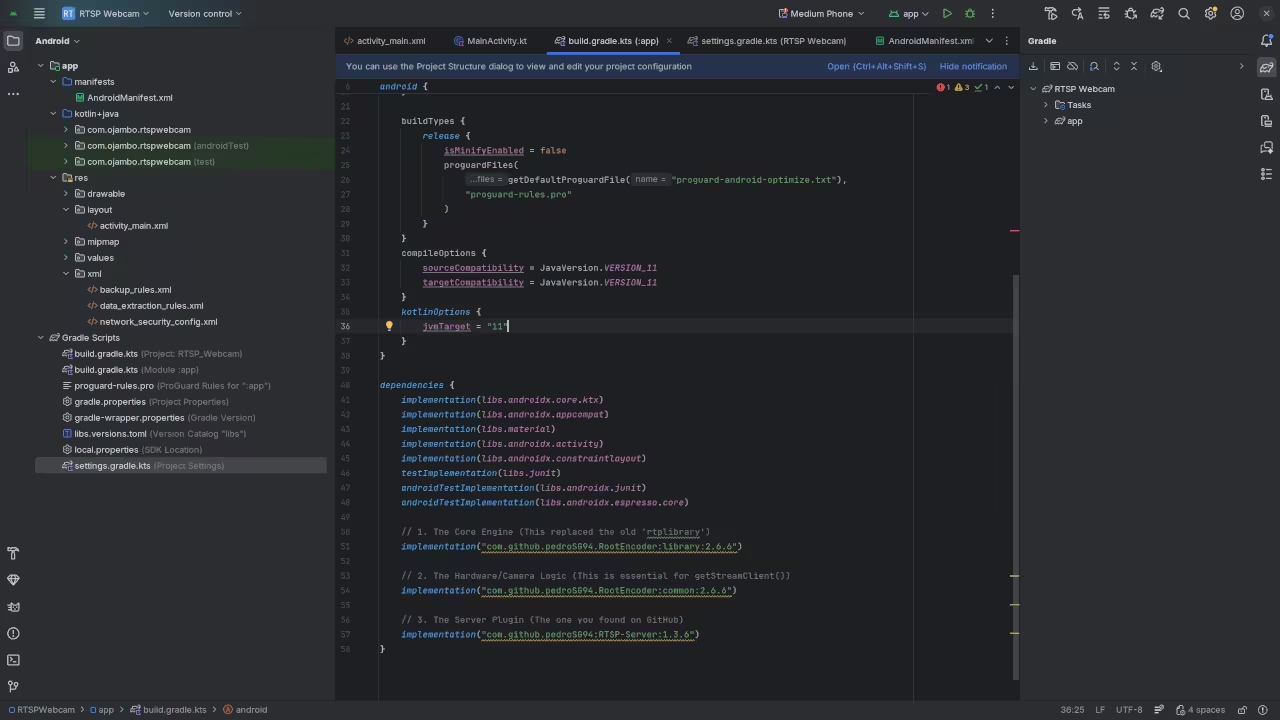
Step 2 Add Dependencies
In your build gradle module file add
dependencies {
implementation 'org.bytedeco:ffmpeg:5.1-1.5.7'
implementation 'com.github.pedroSG94.rtmp-rtsp-stream-client-java:rtplibrary:2.1.8'
implementation 'androidx.core:core-ktx:1.12.0'
} These libraries handle hardware encoding and streaming protocols so you do not have to implement them from scratch
Step 3 Implement RTSP Camera Stream
package com.example.androidrtspwebcam
import android.content.Context
import android.util.Log
import com.pedro.rtplibrary.rtmp.RtmpCamera2
import com.pedro.rtplibrary.view.OpenGlView
import net.ossrs.rtmp.ConnectCheckerRtmp
class RTSPCamera(context Context private val openGlView OpenGlView) ConnectCheckerRtmp {
private var rtmpCamera RtmpCamera2? = null
init {
rtmpCamera = RtmpCamera2(openGlView this)
}
fun startStream(rtspUrl String) {
if !rtmpCamera!!.isStreaming {
rtmpCamera!!.startStream(rtspUrl)
}
}
fun stopStream() {
if rtmpCamera!!.isStreaming {
rtmpCamera!!.stopStream()
}
}
override fun onConnectionSuccessRtmp() {
Log.i("RTSPCamera" "Connected to RTSP server")
}
override fun onConnectionFailedRtmp(reason String) {
Log.e("RTSPCamera" "Connection failed " + reason)
}
override fun onDisconnectRtmp() {}
override fun onAuthErrorRtmp() {}
override fun onAuthSuccessRtmp() {}
}
Step 4 Hook Up UI
package com.example.androidrtspwebcam
import android.os.Bundle
import androidx.activity.ComponentActivity
import com.pedro.rtplibrary.view.OpenGlView
class MainActivity : ComponentActivity() {
private lateinit var rtspCamera RTSPCamera
private lateinit var openGlView OpenGlView
override fun onCreate(savedInstanceState Bundle?) {
super.onCreate(savedInstanceState)
openGlView = OpenGlView(this)
setContentView(openGlView)
rtspCamera = RTSPCamera(this openGlView)
val rtspUrl = "rtsp://YOUR_PC_IP:8554/live/stream"
rtspCamera.startStream(rtspUrl)
}
override fun onDestroy() {
super.onDestroy()
rtspCamera.stopStream()
}
}
Step 5 Test the RTSP Stream
- Connect your Android device via USB
- Run the app from Android Studio
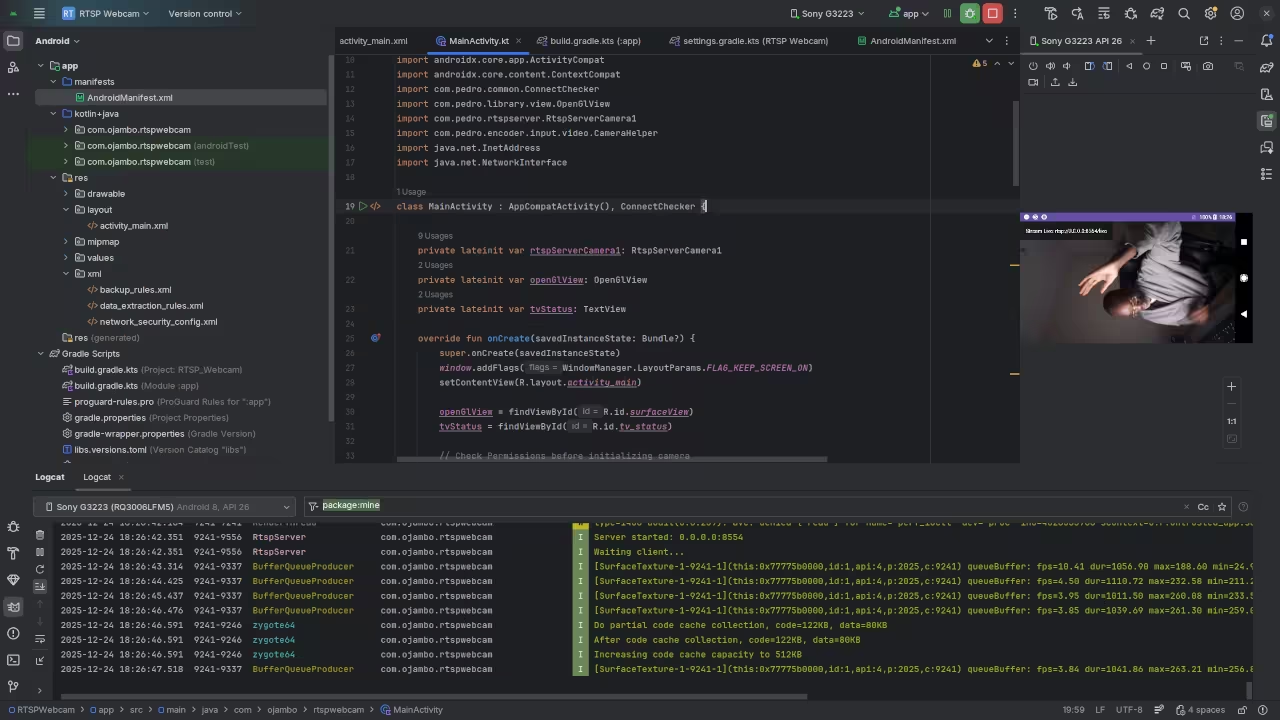
- Ensure the log shows Connected to RTSP server
Step 6 Use the Stream in OBS Studio
- Open OBS Studio
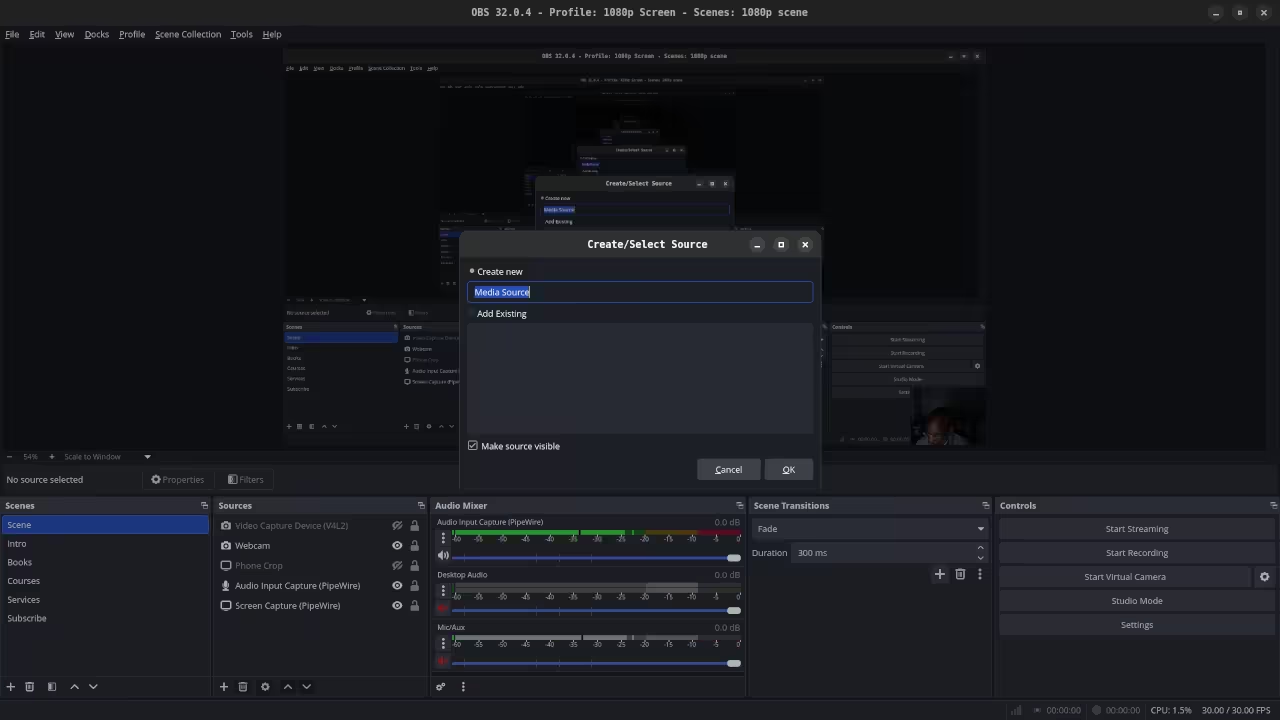
- Click Sources plus Media Source
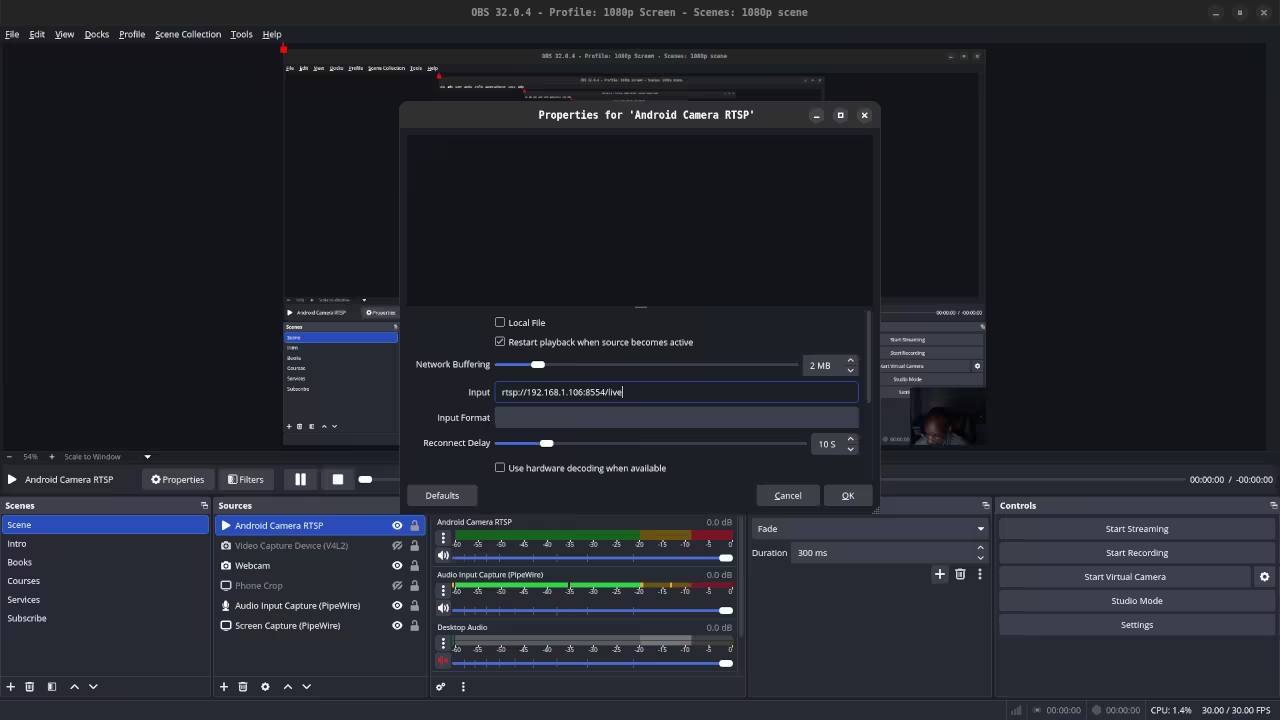
- Enable Input URL and enter your RTSP URL
rtsp://YOUR_PC_IP:8554/live/stream - Click OK
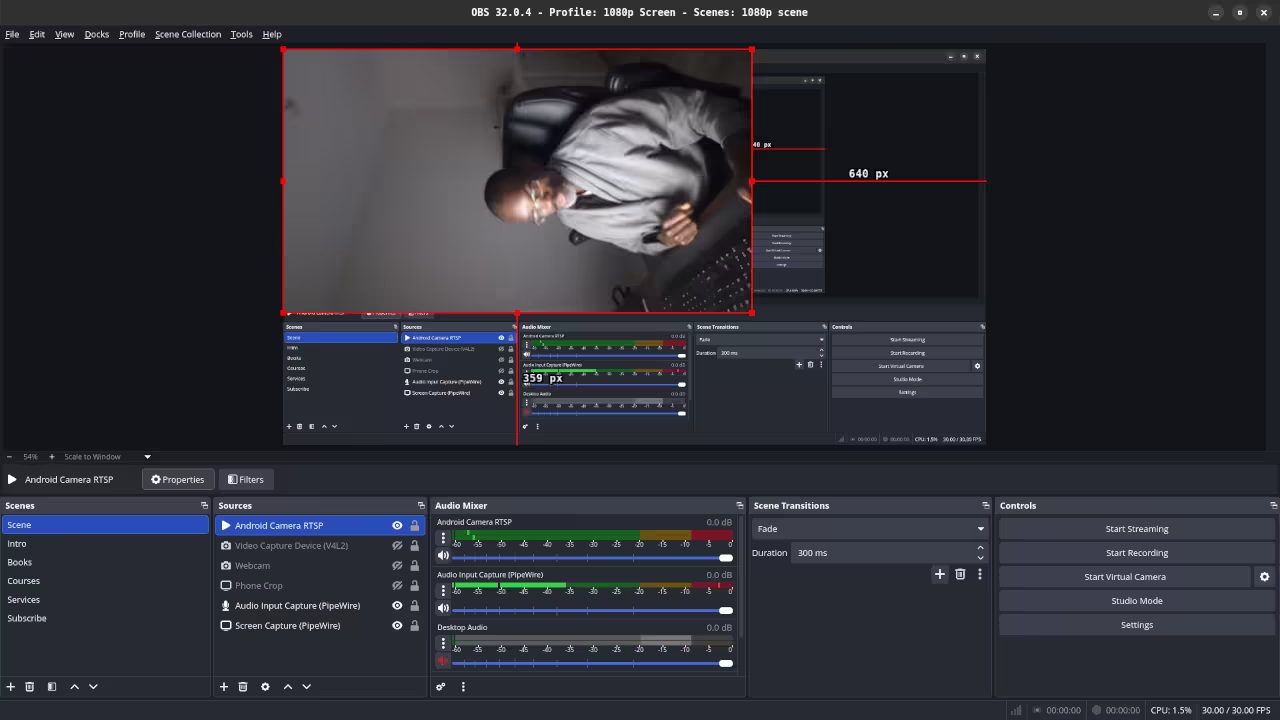
- You should now see the live feed from your Android device
Adjust resolution and FPS in your app if needed Devices like the Galaxy S21 FE can use hardware encoding for smoother streams
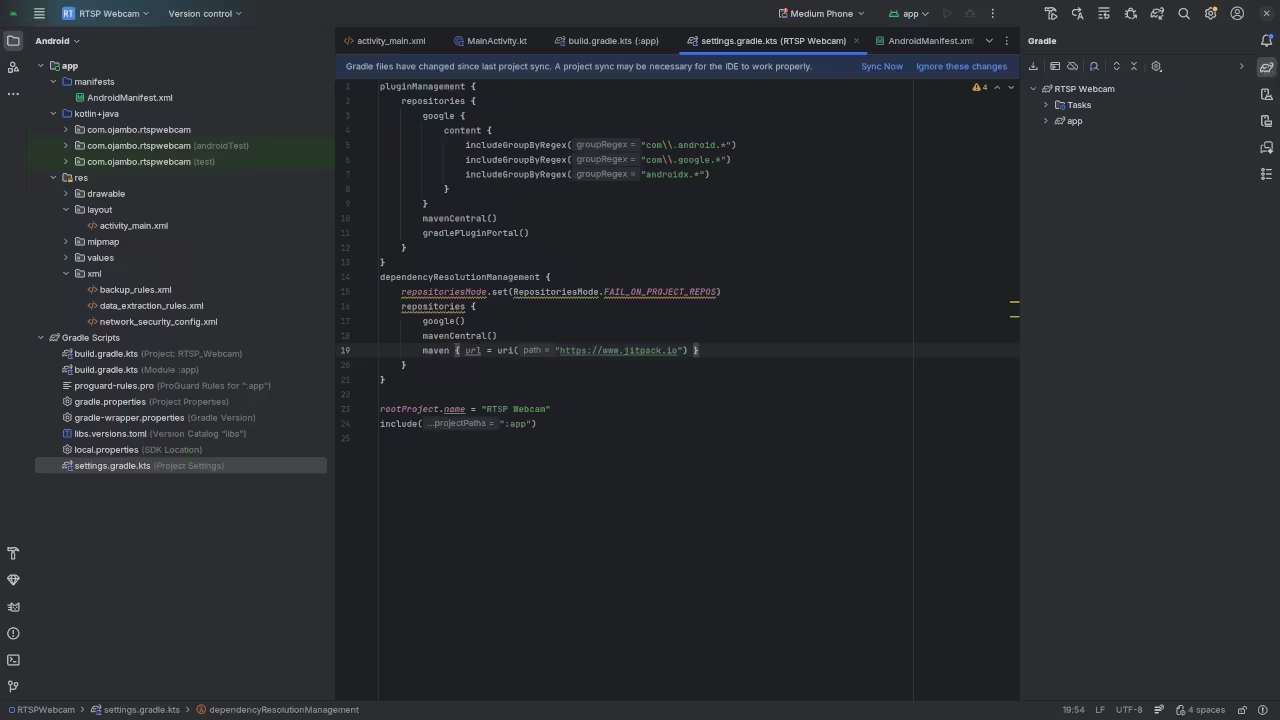
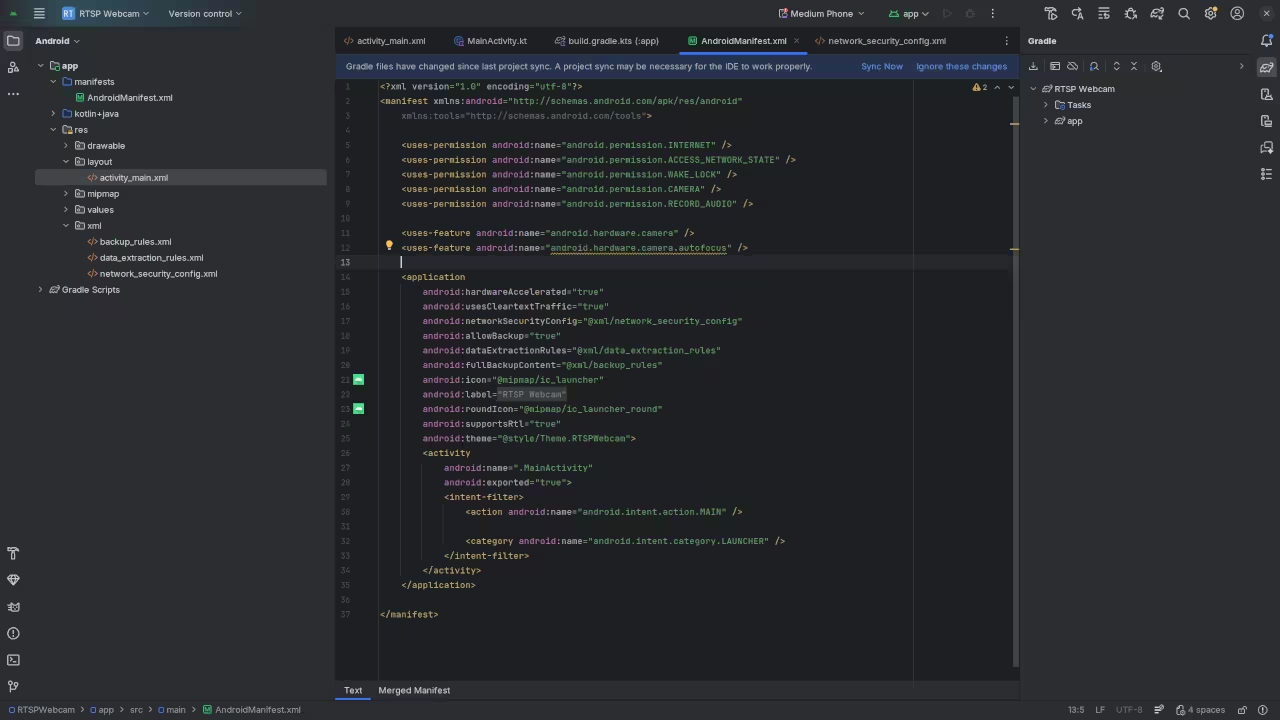
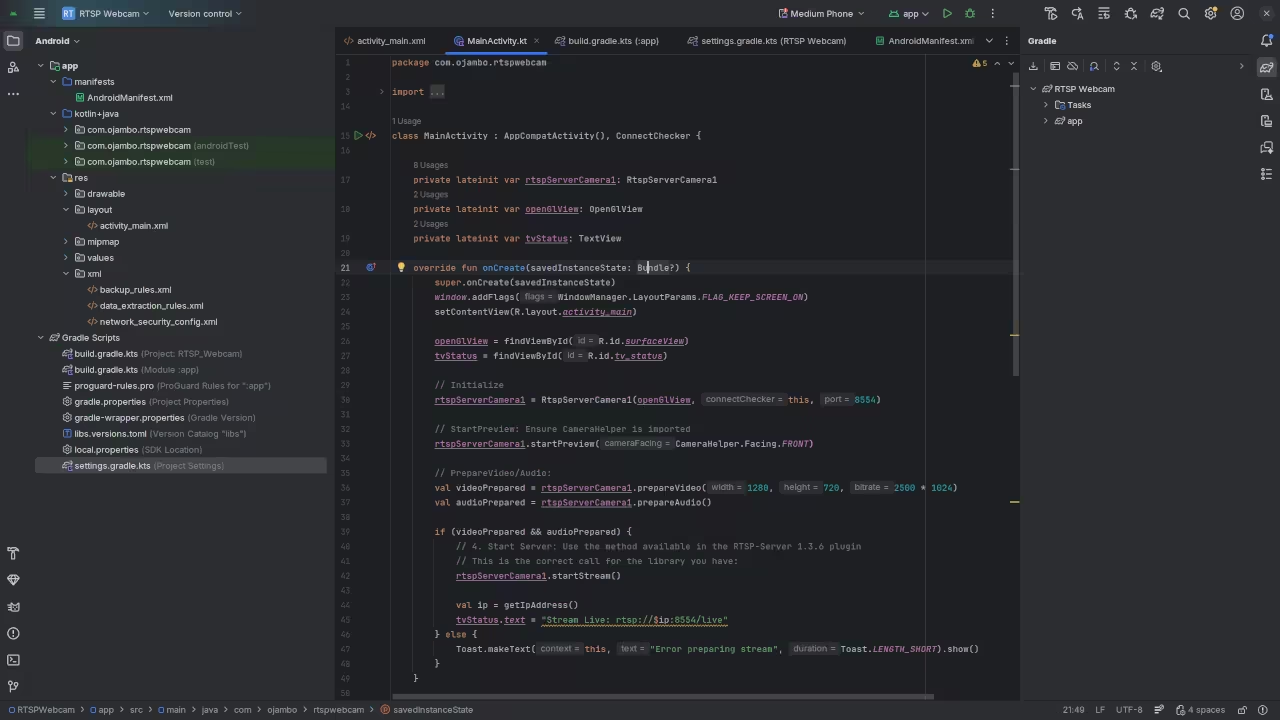
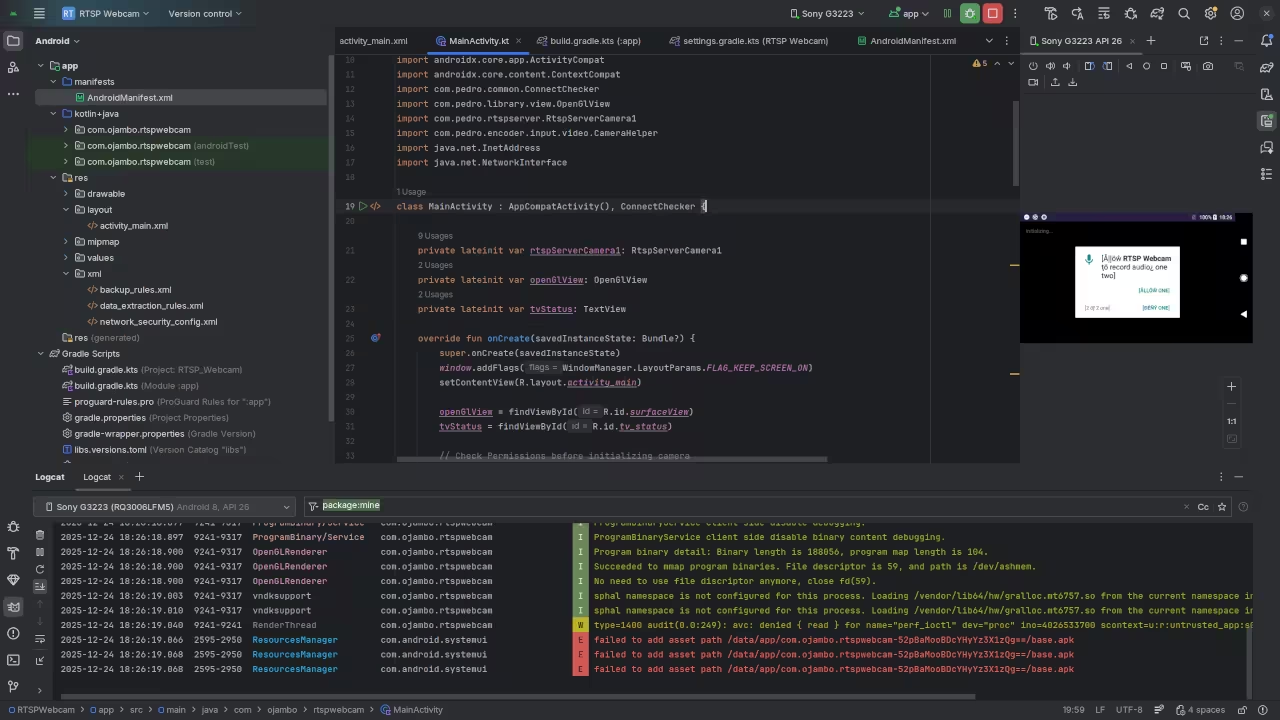
Screenshot

Live Screencast
Additional Resources
- Check out my programming books Amazon Store
- Online programming courses OjamboShop
- One on one programming tutorials Contact Me
- Custom Android app development and consulting Ojambo Services
This tutorial gives you a lightweight ad free native Android RTSP webcam you can use with OBS Studio on Fedora 43 with Gnome 49 and Wayland You can extend it for multiple devices integrate overlays or even use your Logitech webcam for testing
🚀 Recommended Resources
Disclosure: Some of the links above are referral links. I may earn a commission if you make a purchase at no extra cost to you.