

Introduction
Self hosting your own VPN is a rewarding technical project. The Raspberry Pi Zero W provides a low cost hardware solution.
You can secure your internet traffic on public networks easily. This guide helps beginners set up OpenVPN on this tiny device.
Getting Started with Hardware
First you must install the operating system on your microSD card. Use the Raspberry Pi Imager to flash Raspberry Pi OS Lite.
Enable SSH access before you insert the card into the Pi. Connect the device to your local wireless network using wpa_supplicant.
Accessing the Terminal
Open your terminal on Windows or macOS to start the process. Fedora users can open their terminal to begin the remote connection.
Find the IP address of your device using your router dashboard. Type ssh pi@your_pi_ip_address now to log into the small computer.
Installation and Configuration
Update your system packages to ensure everything is current and safe. Run the command sudo dnf update if you use Fedora locally.
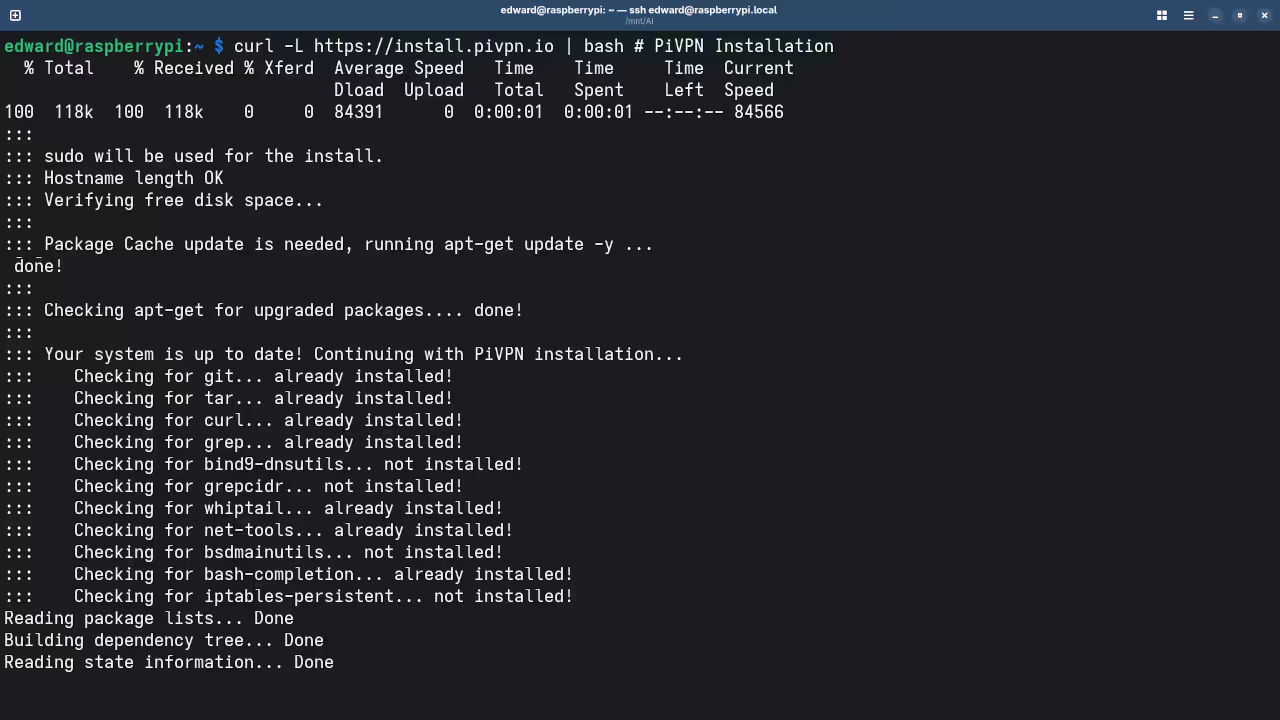
We will use the PiVPN script to simplify the entire installation. Enter the command curl -L https://install.pivpn.io | bash now.
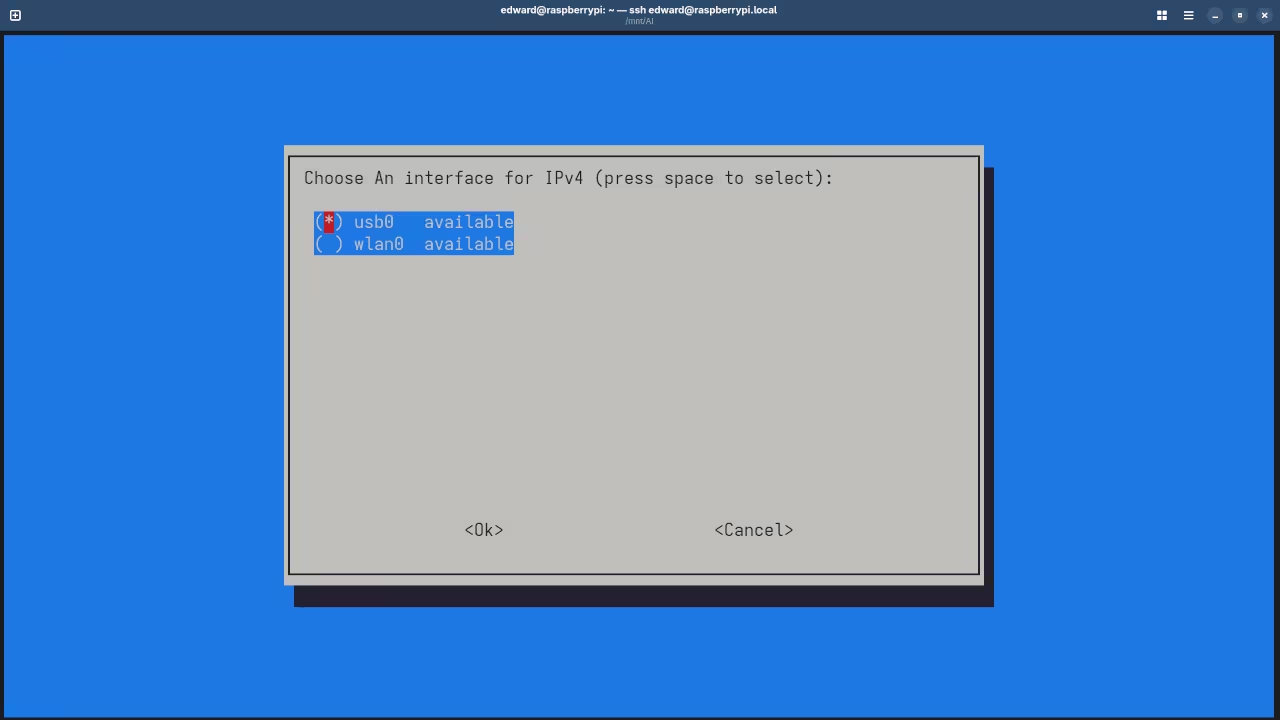
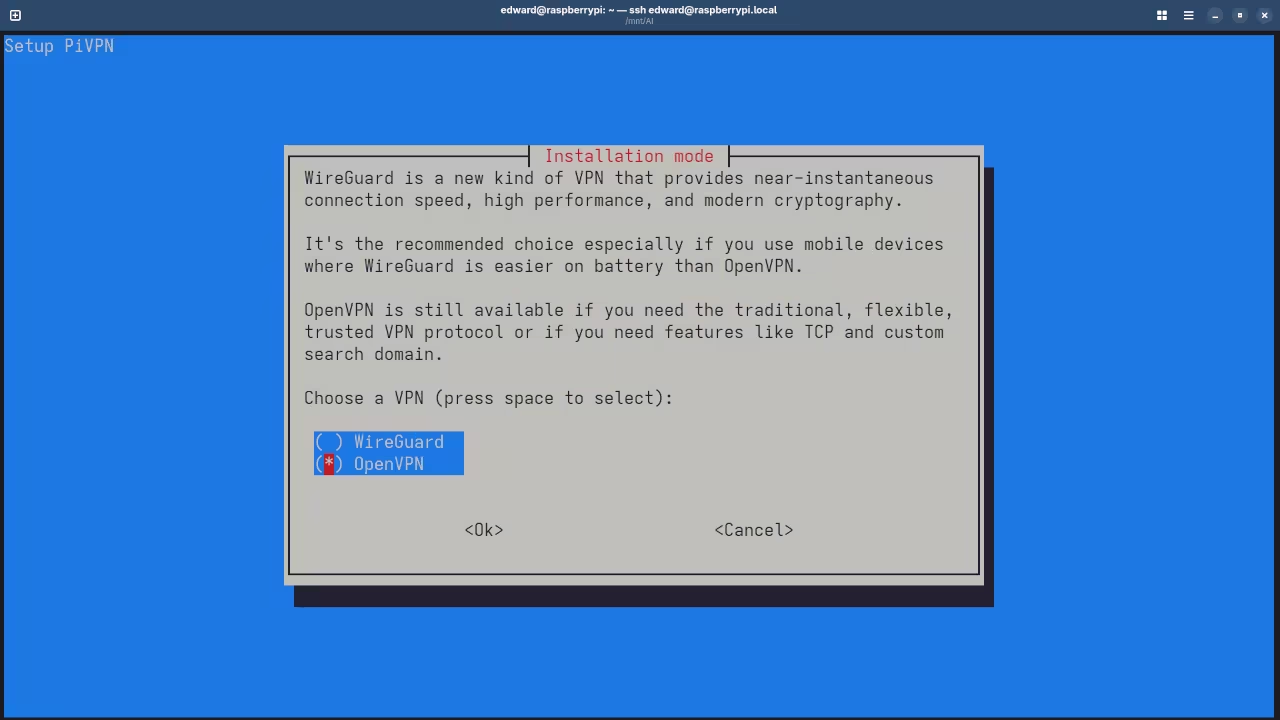
The installer will open a colorful text based interface for you. Choose the OpenVPN option when the script asks for a protocol.
You should select the default port 1194 for your VPN service. Ensure you use a static IP address for the Raspberry Pi.
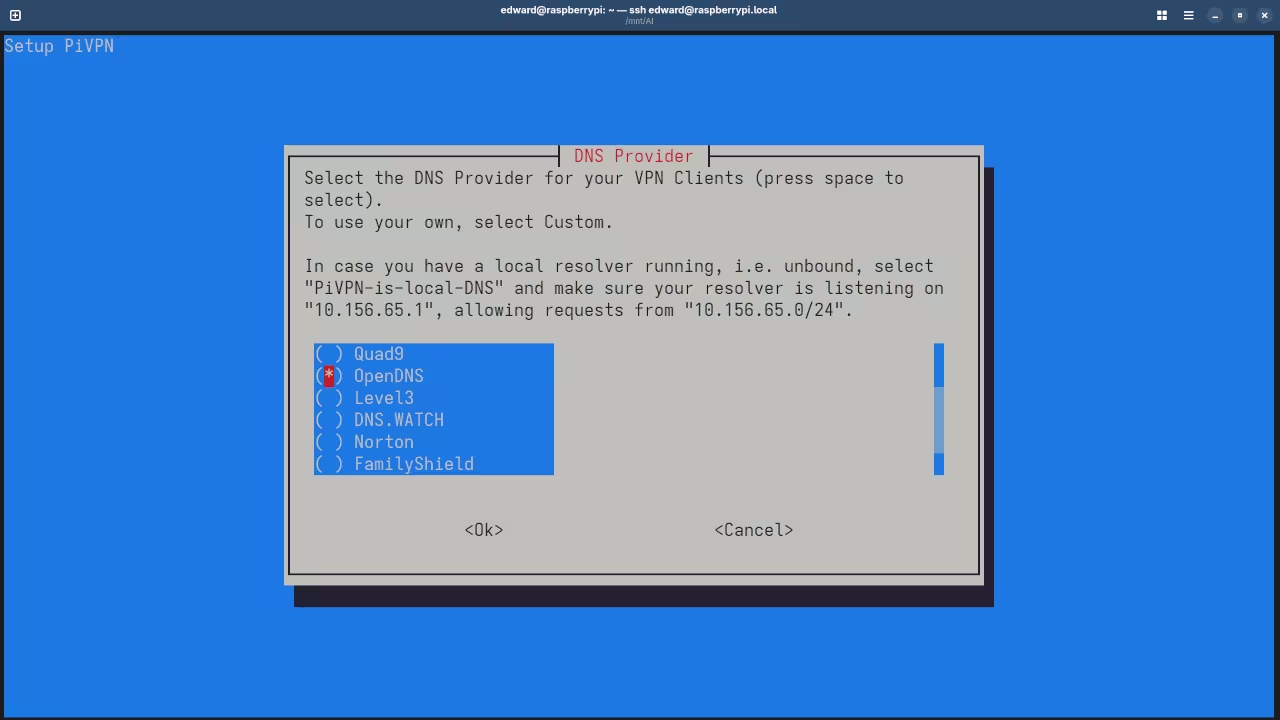
Select a DNS provider like Google or OpenDNS for your queries. The script will generate the necessary server keys and encryption files.
| Parameter | Description | Value |
|---|---|---|
| Protocol | Transport layer protocol for VPN | UDP |
| Port | Standard listening port number | 1194 |
| Encryption | Security level for data packets | AES-256 |
| Parameter | Description | Value |
Wait for the keys to generate on the Pi Zero W. The single core processor might take several minutes to finish this task.
Network and Client Setup
You must configure port forwarding on your home internet router. Forward UDP port 1194 to the IP of your Raspberry Pi.
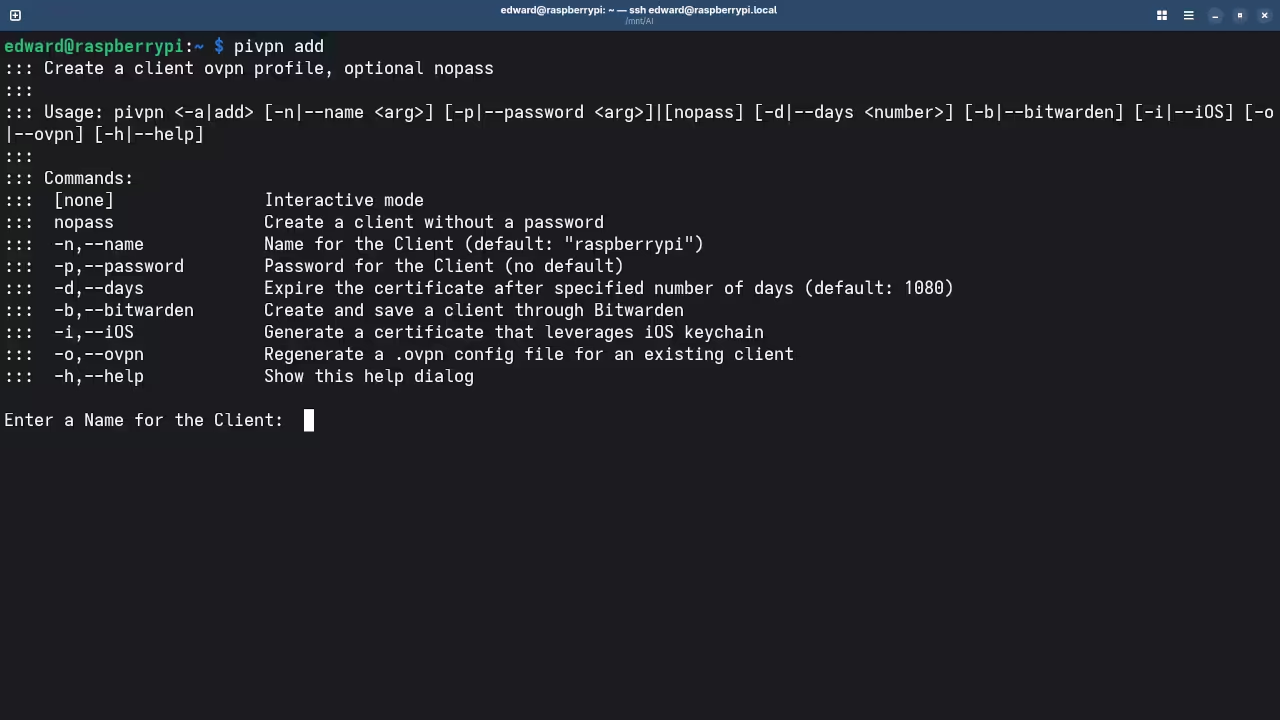
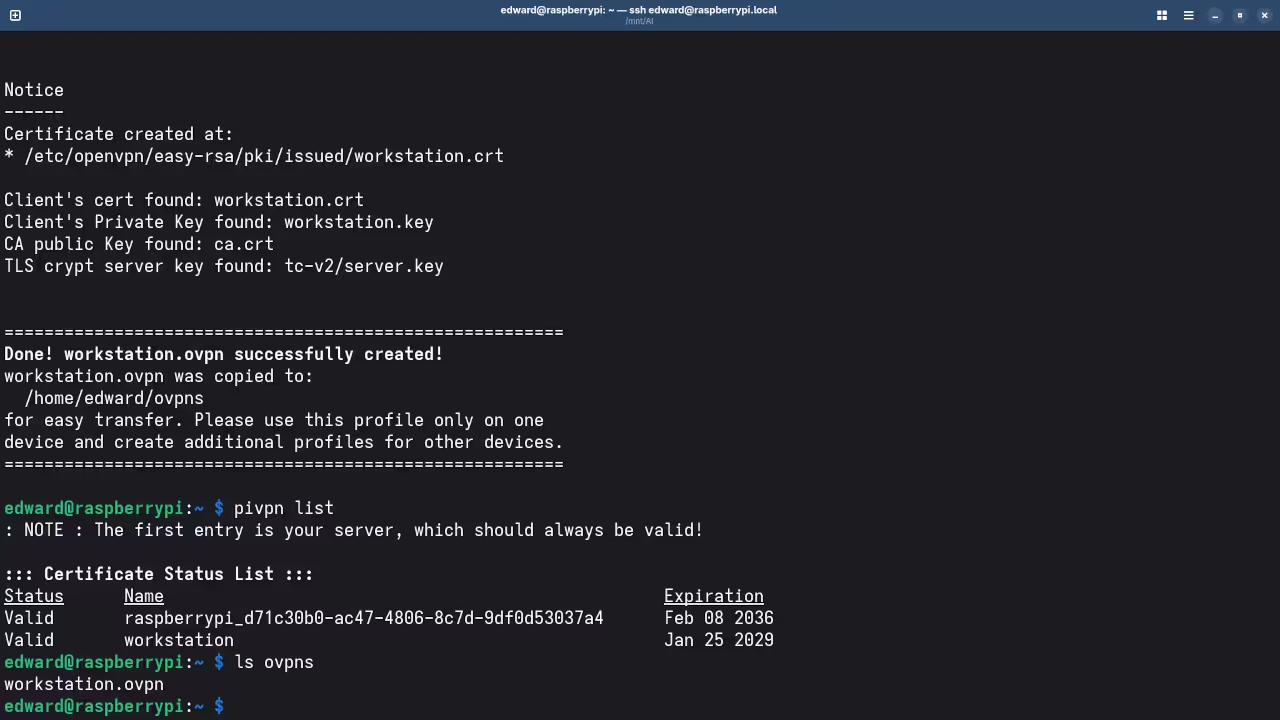
Create a new client profile by typing pivpn add in terminal. Give the profile a name like myphone to identify the device.
The script creates an .ovpn file in the home directory path. Transfer this file to your computer using the secure copy command.
Fedora users can use the scp command to download the profile. Windows users may prefer using a tool like WinSCP or FileZilla.
Install the OpenVPN client app on your phone or laptop computer. Import the .ovpn file into the client to start the connection.
Testing and Final Steps
Test your connection by checking your public IP address online. It should show your home network address instead of your mobile.
Troubleshooting often involves checking the firewall settings on your router. Verify that the VPN service is running with sudo systemctl status.
You now have a private tunnel for all your digital data. This setup keeps your browsing private from local eavesdroppers effectively.
📷 Screenshots
🎬 Live YouTube Screencast
Take Your Skills Further
Expand your knowledge by exploring my published books for deep learning.
Books
Enroll in high quality video courses to master new programming languages.
Courses
Check out free tutorials for more exciting DIY hardware projects.
Tutorials
Book a professional consultation to solve your specific technical challenges.
Consultations
🚀 Recommended Resources
Disclosure: Some of the links above are referral links. I may earn a commission if you make a purchase at no extra cost to you.