
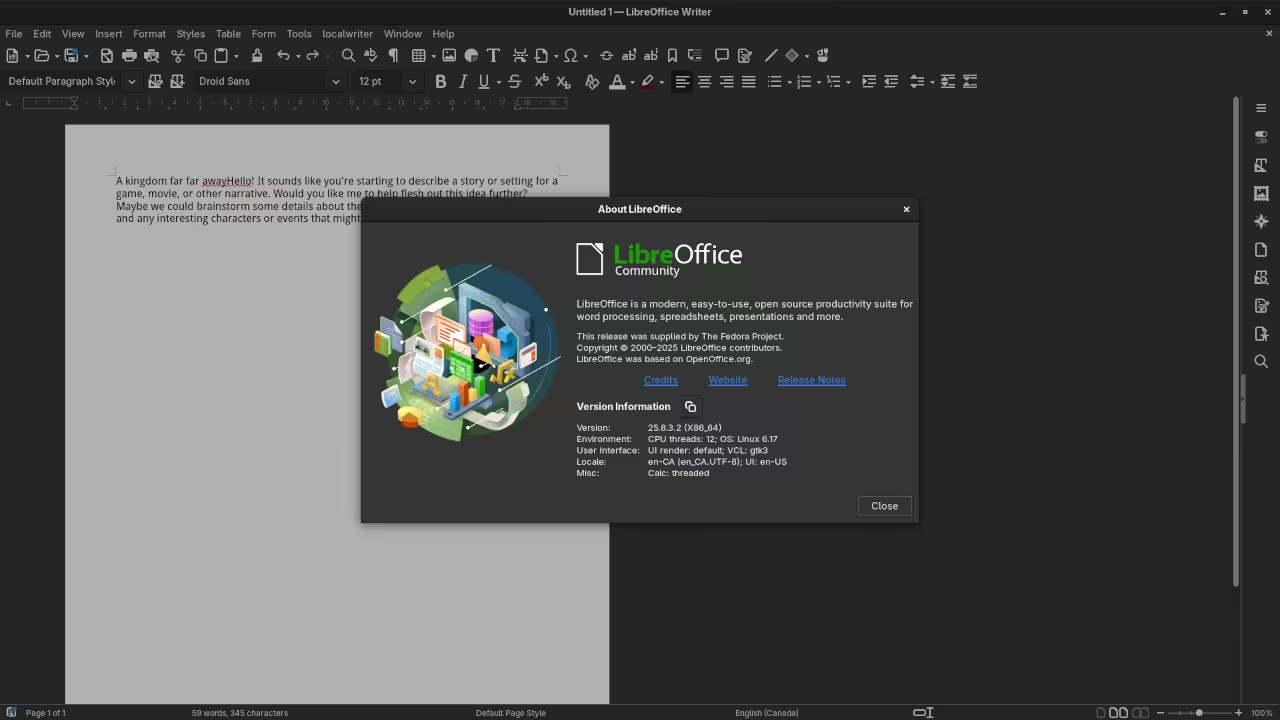
Boost LibreOffice Writer with AI LocalWriter Extension Review
LibreOffice Writer is one of the most popular open source office suites available today. With the rise of AI powered writing assistants the LocalWriter extension adds intelligent capabilities directly inside LibreOffice without sending your data to the cloud.
LocalWriter is open source and can integrate with a server running Ollama with Qwen2.5-Coder for AI assisted writing making it ideal for privacy conscious users and developers.
What is LocalWriter
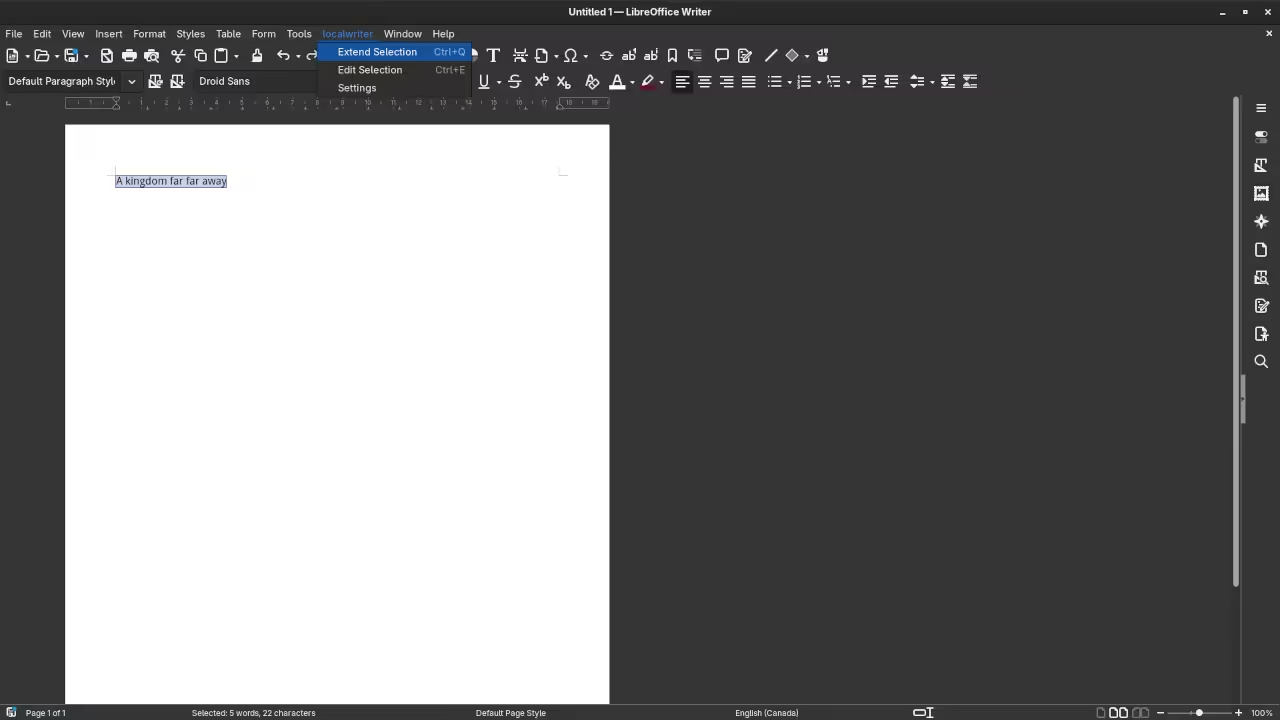
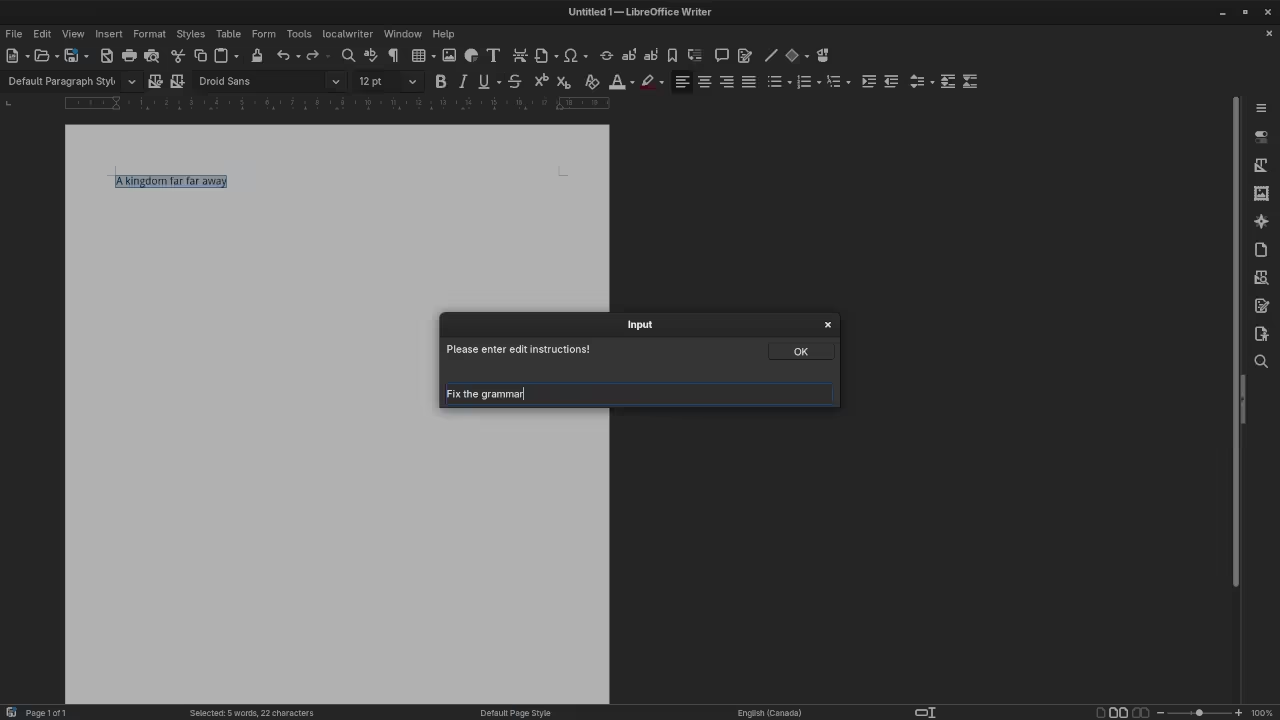
LocalWriter is an AI extension for LibreOffice Writer that allows users to generate edit and improve text using a local or server based LLM. Unlike cloud based AI assistants LocalWriter keeps all data on your machine or server ensuring full privacy and control.
Key Features
- AI assisted text generation and completion
- Server LLM integration with Ollama and Qwen2.5-Coder
- Fully open source and privacy focused
- Works offline or via server without sending data to external servers
- Easy integration into existing LibreOffice Writer setup
Prerequisites
- Fedora Linux system
- LibreOffice installed
- Ollama server with Qwen2.5-Coder model running
Installing LocalWriter on Fedora
Option 1 Using Flathub
flatpak install flathub org.libreoffice.LibreOffice
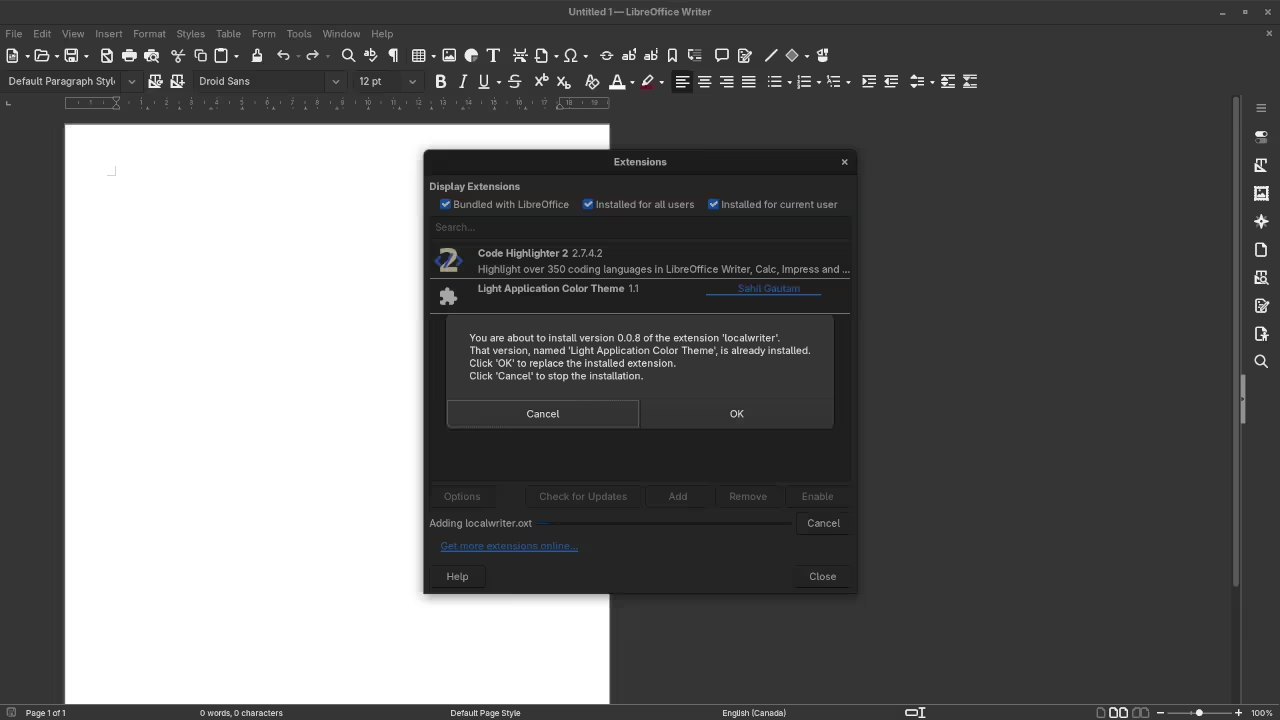
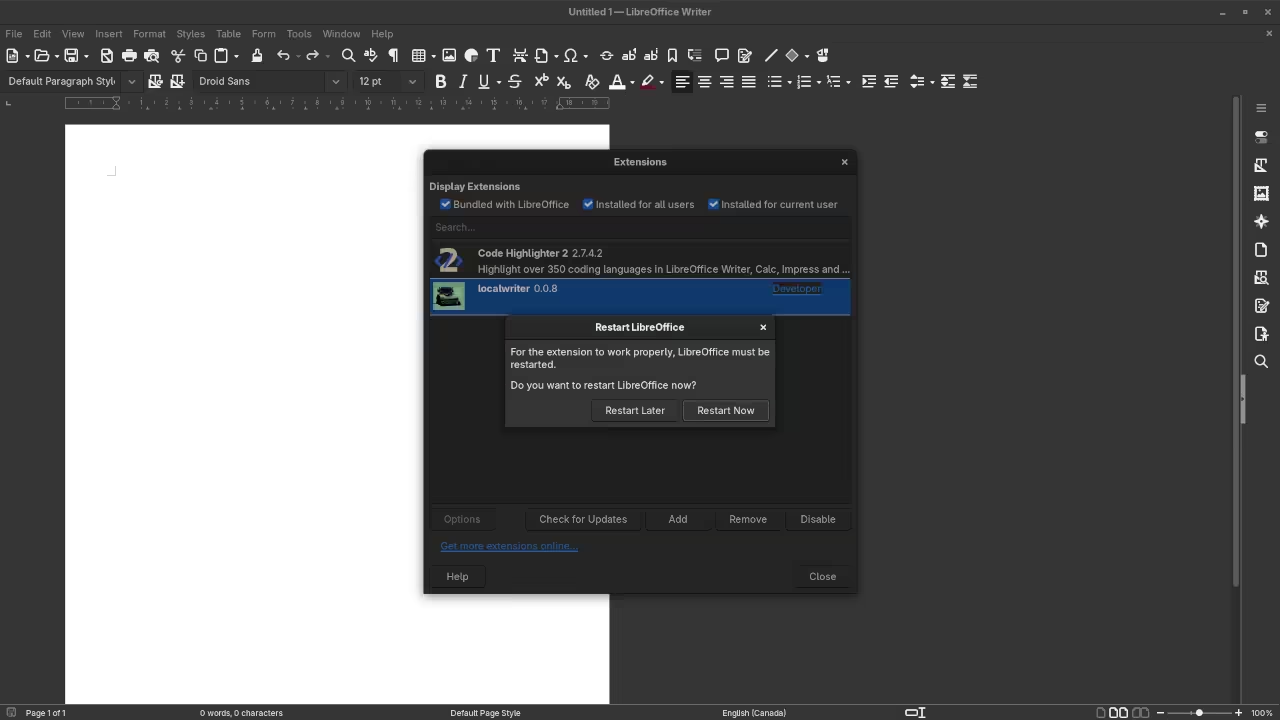
flatpak run org.libreoffice.LibreOffice Then open LibreOffice Writer go to Tools Extension Manager click Add and select the LocalWriter .oxt file downloaded from https://github.com/balisujohn/localwriter
Option 2 Using Fedora Distro Packages
sudo dnf install libreoffice libreoffice-writer Then download the LocalWriter .oxt extension from GitHub open LibreOffice Writer navigate to Tools Extension Manager click Add and install LocalWriter
Setting Up Ollama Server with Qwen2.5-Coder
Install Ollama on Server
sudo dnf install ~/Downloads/ollama-x.y.z.rpm Verify installation:
ollama version Pull Qwen2.5-Coder Model
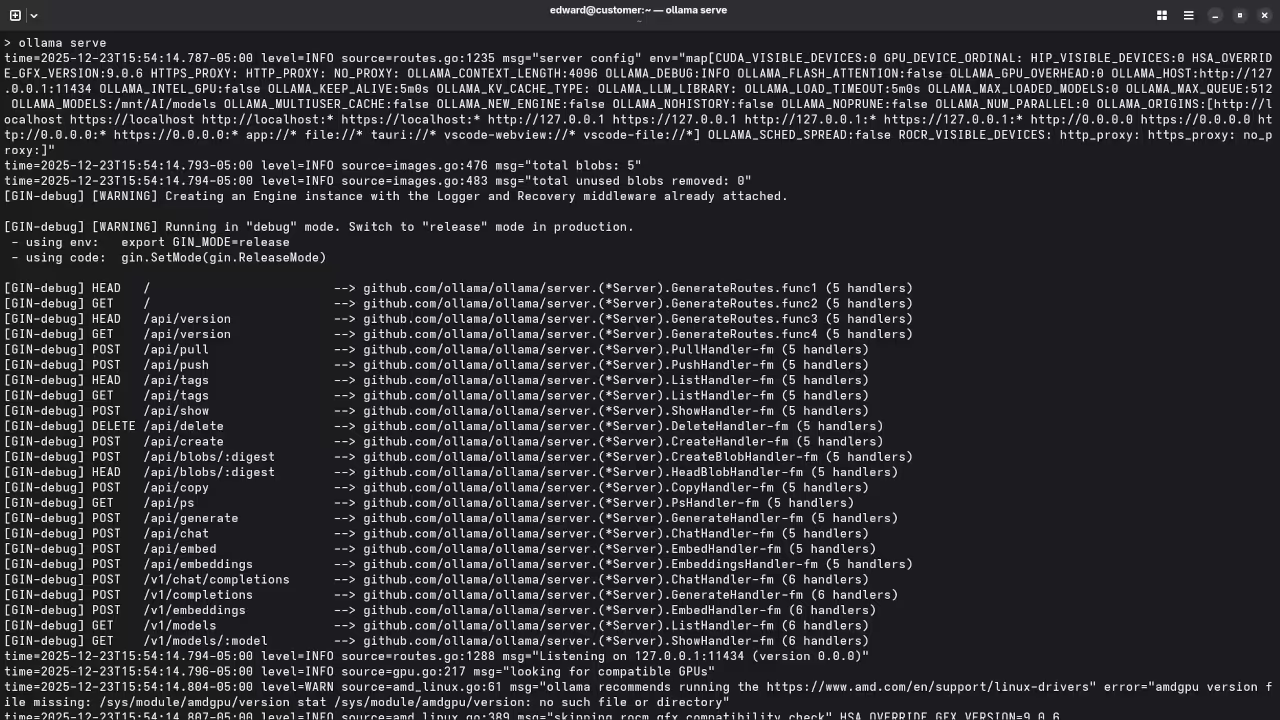
ollama pull Qwen2.5-Coder Start Ollama in Server Mode
ollama serve --host 0.0.0.0 --port 11434 Check models are available:
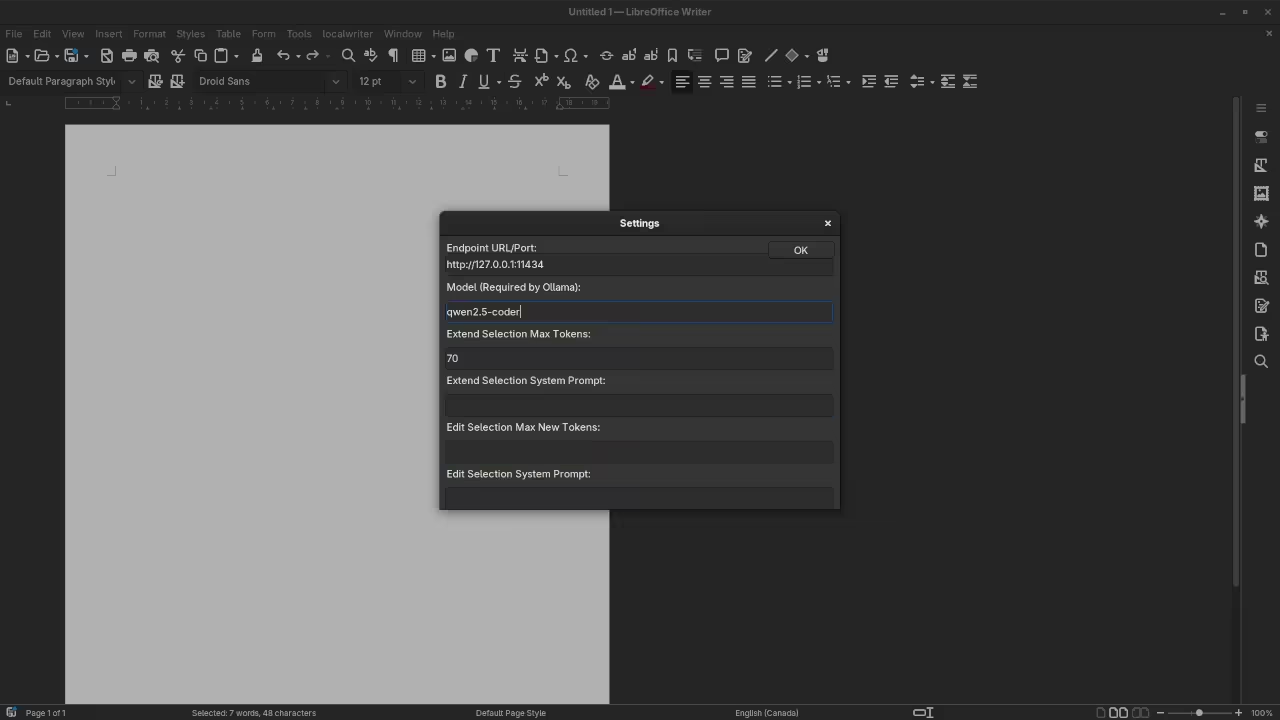
ollama list Configure LocalWriter to Use Ollama Server
- Open LibreOffice Writer
- Go to Tools LocalWriter Settings
- Select Ollama as the LLM provider
- Enter the server IP and port for example 192.168.1.100:11434
- Select Qwen2.5-Coder as the active model
- Save settings and start using AI assisted writing
Ensure server firewall allows incoming traffic:
sudo firewall-cmd --add-port=11434/tcp --permanent
sudo firewall-cmd --reload 📷 Screenshots & 📽️ Screencast

Additional Resources
- Programming books https://www.amazon.com/stores/Edward-Ojambo/author/B0D94QM76N
- Online programming courses https://ojamboshop.com/product-category/course
- One on one programming tutorials https://ojambo.com/contact
- Office Suite installation or consulting https://ojamboservices.com/contact
Conclusion
LocalWriter brings AI assisted writing to LibreOffice while keeping everything local or on your server. With integration to Ollama Qwen2.5-Coder it offers a powerful open source solution for writers developers and anyone looking to boost productivity in a secure environment.
🚀 Recommended Resources
Disclosure: Some of the links above are referral links. I may earn a commission if you make a purchase at no extra cost to you.