
📊 Open Web Analytics (OWA) — Is Free, Open Source Website Tracking
If you’re just starting out with a website or blog and looking for a privacy-conscious, free, open source alternative to tools like Google Analytics, Open Web Analytics (OWA) might be the perfect solution.
In this article, I’ll guide you through what OWA is, how to install it on your site, and how to start tracking your visitors. I’ve also included a video walkthrough and screenshots to make the process even easier. If you ever need professional help setting things up, I’m here to assist!
🔱 What is Open Web Analytics?
Open Web Analytics is a free and open-source web analytics software that you can install on your own server. It helps you understand how users interact with your website—track visits, clicks, pageviews, and more—all without sending your data to third parties.
🔑 Key Features
- Visitor tracking and heatmaps
- Clickstream analysis
- Referrer and keyword tracking
- Self-hosted = more privacy and control
- Integrates easily with WordPress and other platforms
And best of all, it’s completely free and you own all your data.
🔧 How to Install Open Web Analytics (Beginner Guide)
Here’s a step-by-step guide to installing OWA on a typical hosting environment:
✅ Prerequisites
- A web hosting account with PHP and MySQL support
- FTP access or a file manager
- A WordPress website (optional but recommended)
🔻 Step 1: Download OWA
Go to the official GitHub repository or openwebanalytics.com and download the latest version of the software.
📁 Step 2: Upload to Your Server
Unzip the downloaded file and upload it to your server using FTP. You can upload it to a subdirectory like yourdomain.com/owa.
⚙️ Step 3: Create a Database
Log into your web hosting control panel (cPanel, Plesk, etc.), and create a new MySQL database and user. Note the credentials.
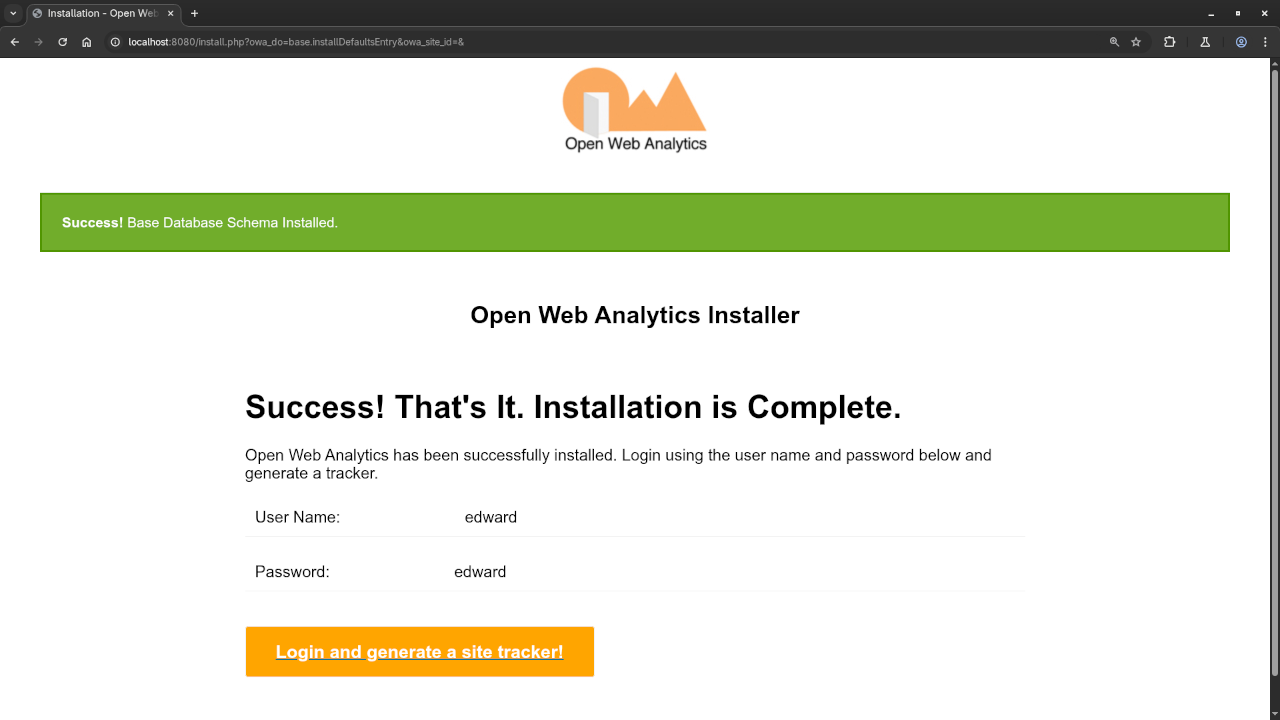
🚀 Step 4: Run the Installer
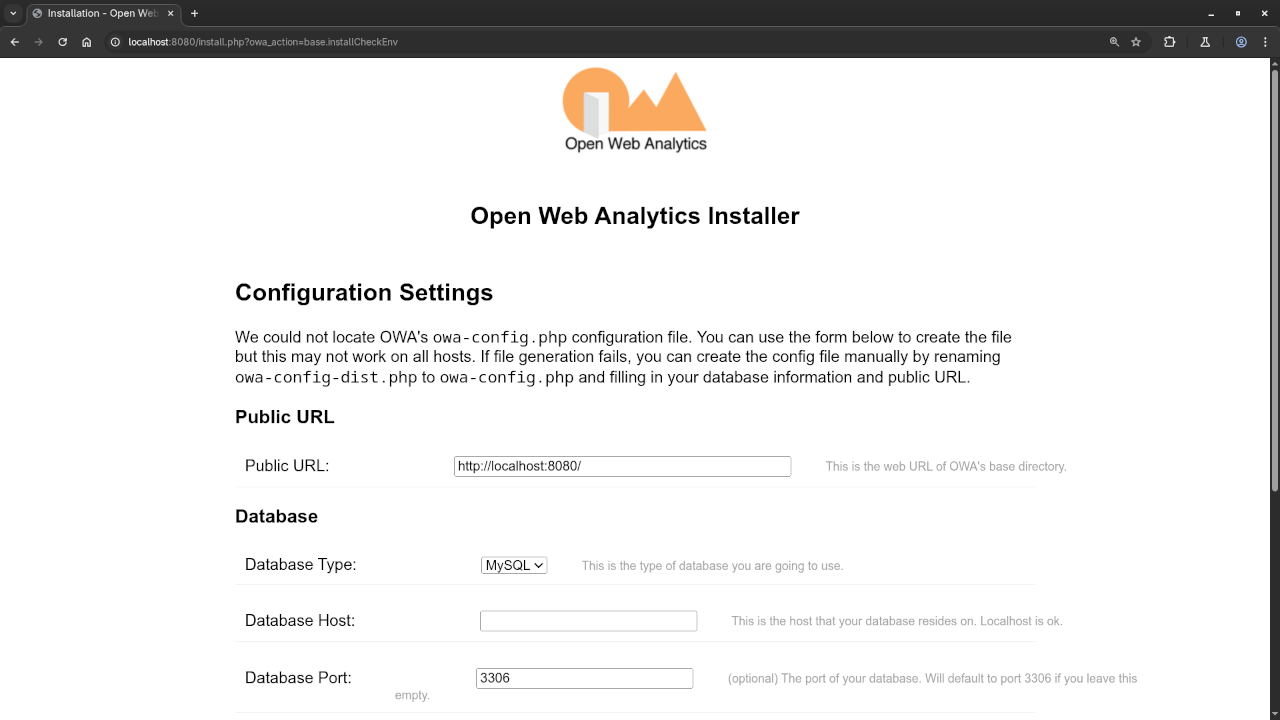
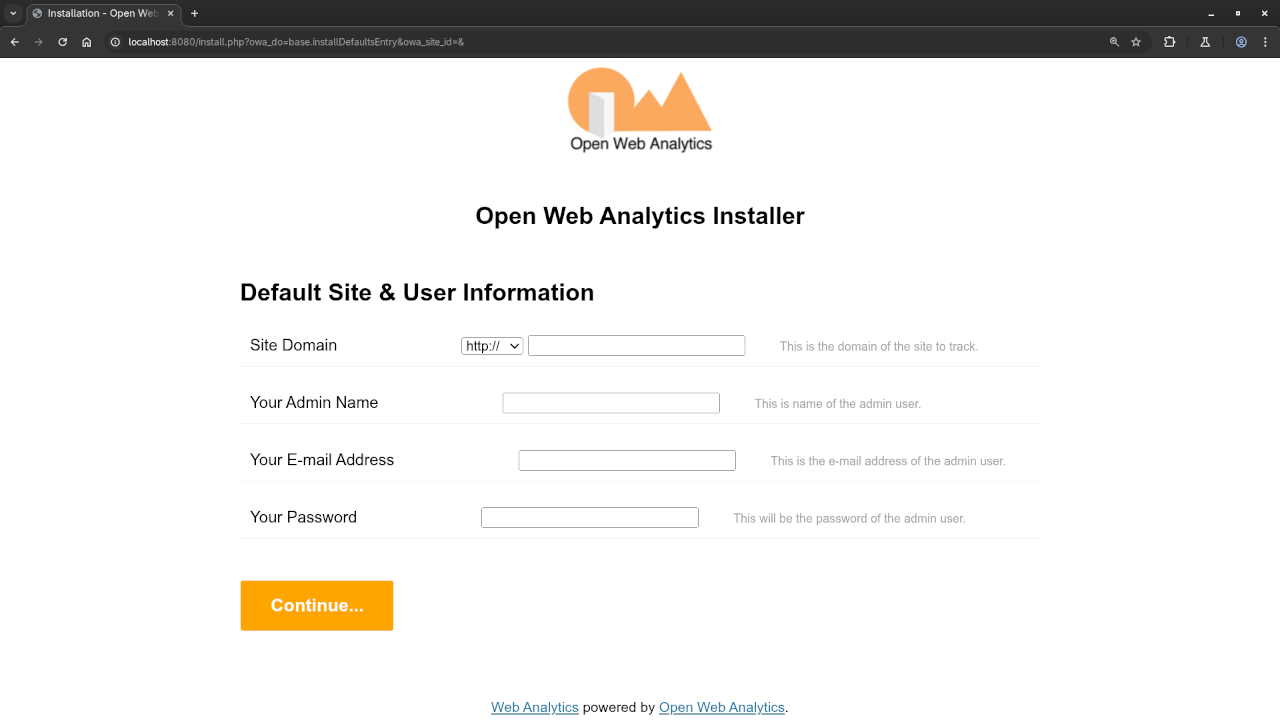
Navigate to the URL where you uploaded OWA (e.g., yourdomain.com/owa) and follow the on-screen setup instructions:
- Enter your database info
- Create an admin account
- Set up your tracking site profile
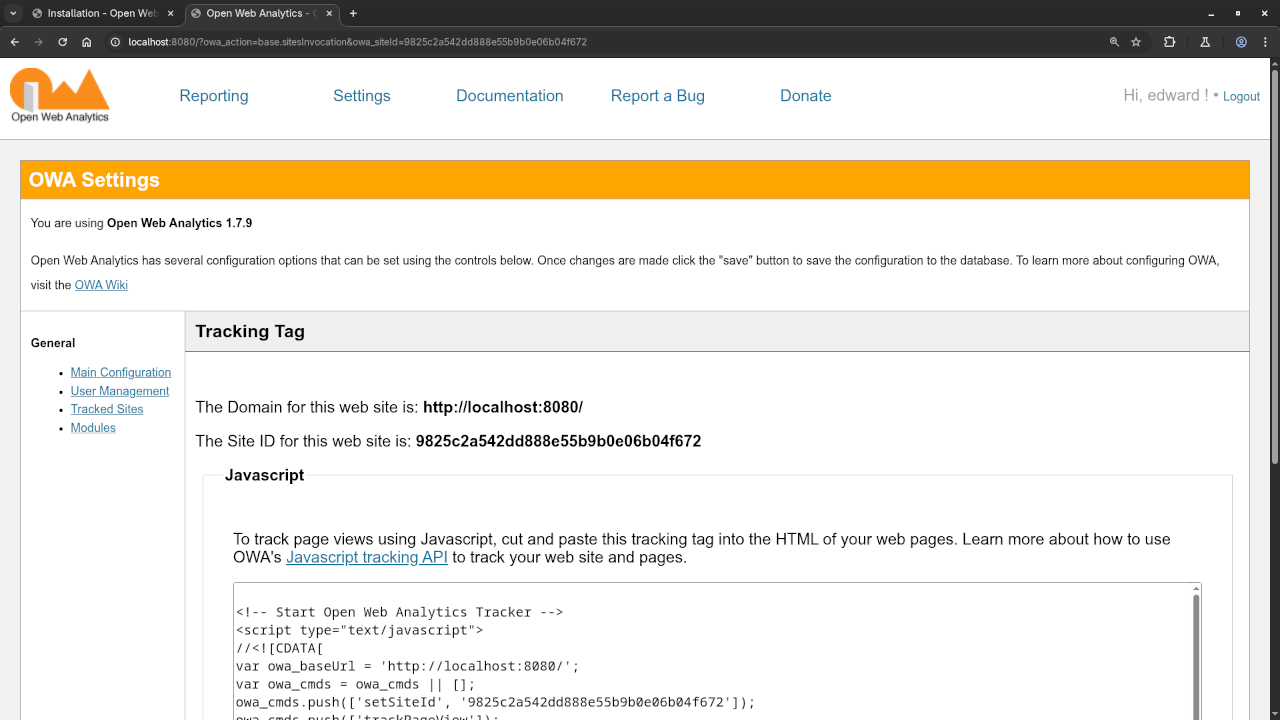
📑 Step 5: Add the Tracking Code
Once installed, OWA will give you a JavaScript tracking code. You can:
- Paste it directly into your WordPress theme footer, or
- Use a plugin like Insert Headers and Footers
✅ Done! You’re now tracking visits to your website.
🎥 Video Walkthrough: Installing Open Web Analytics
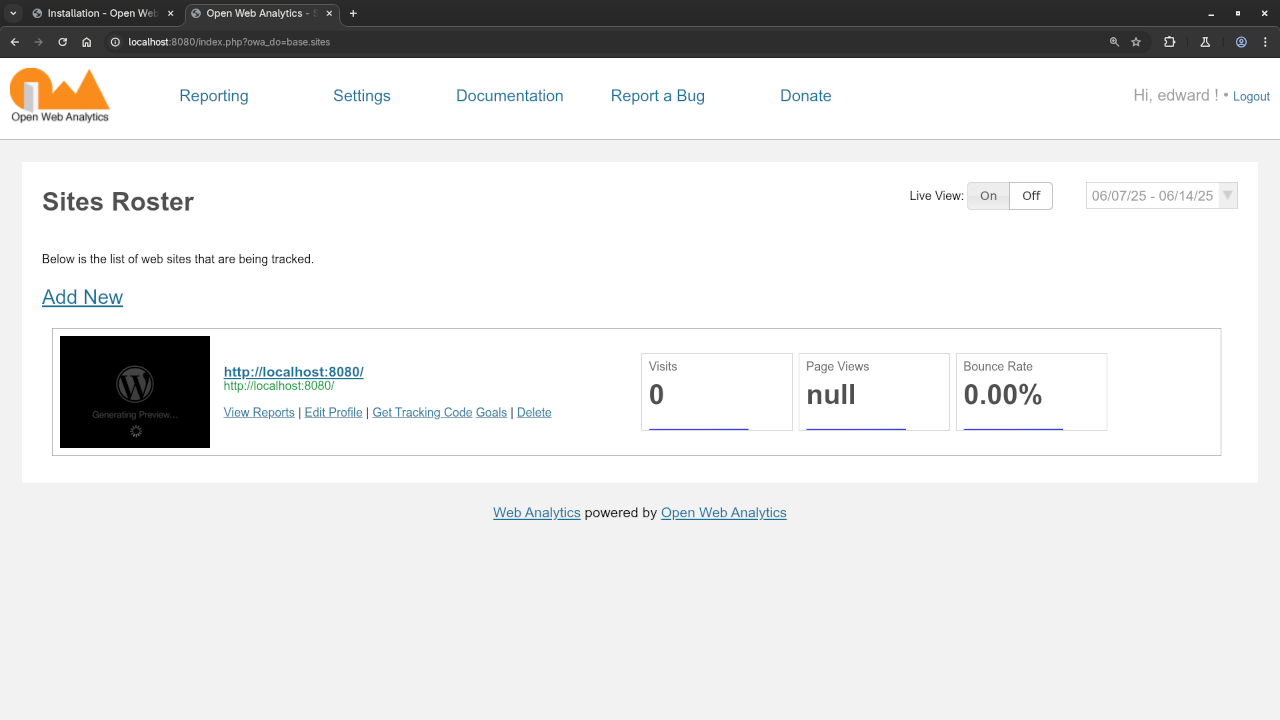
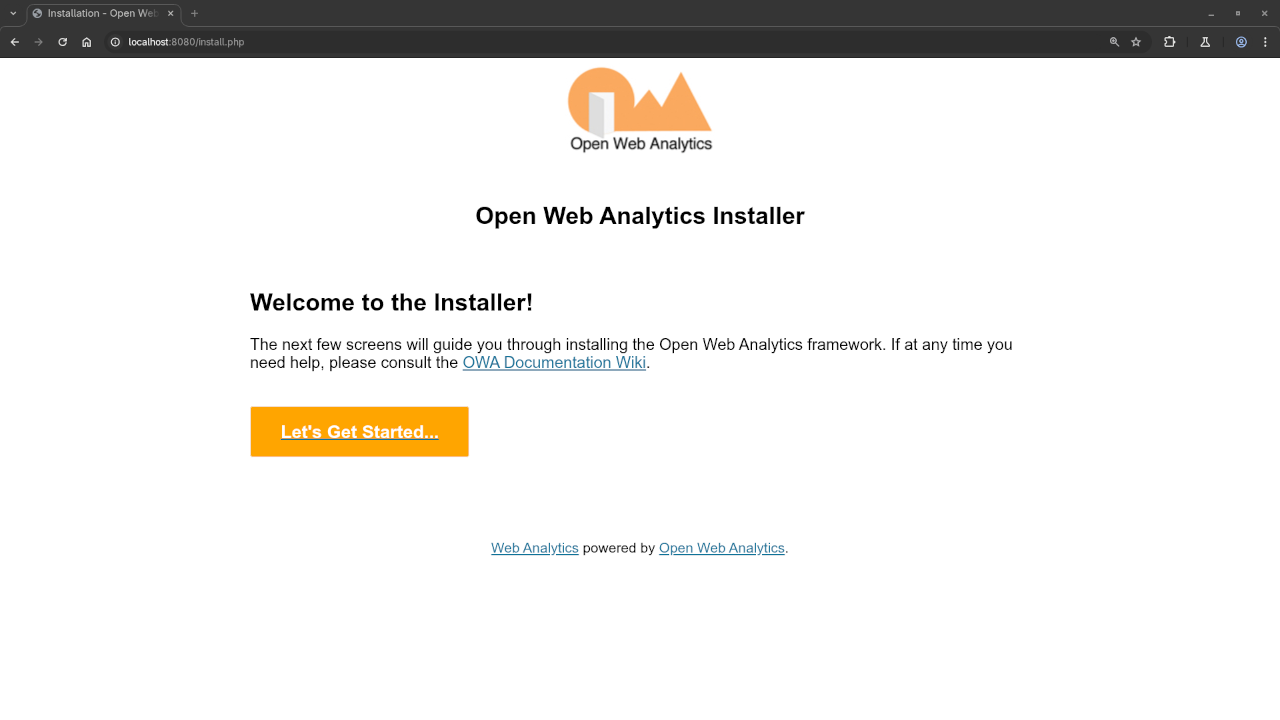
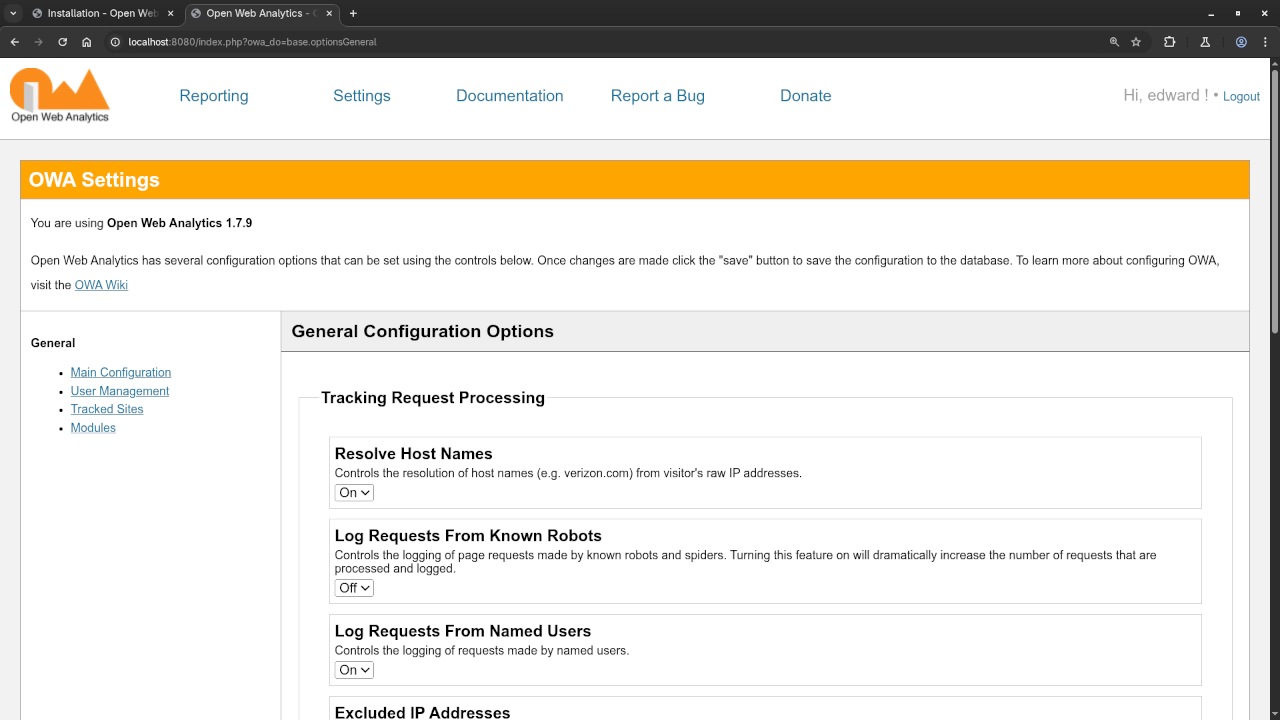
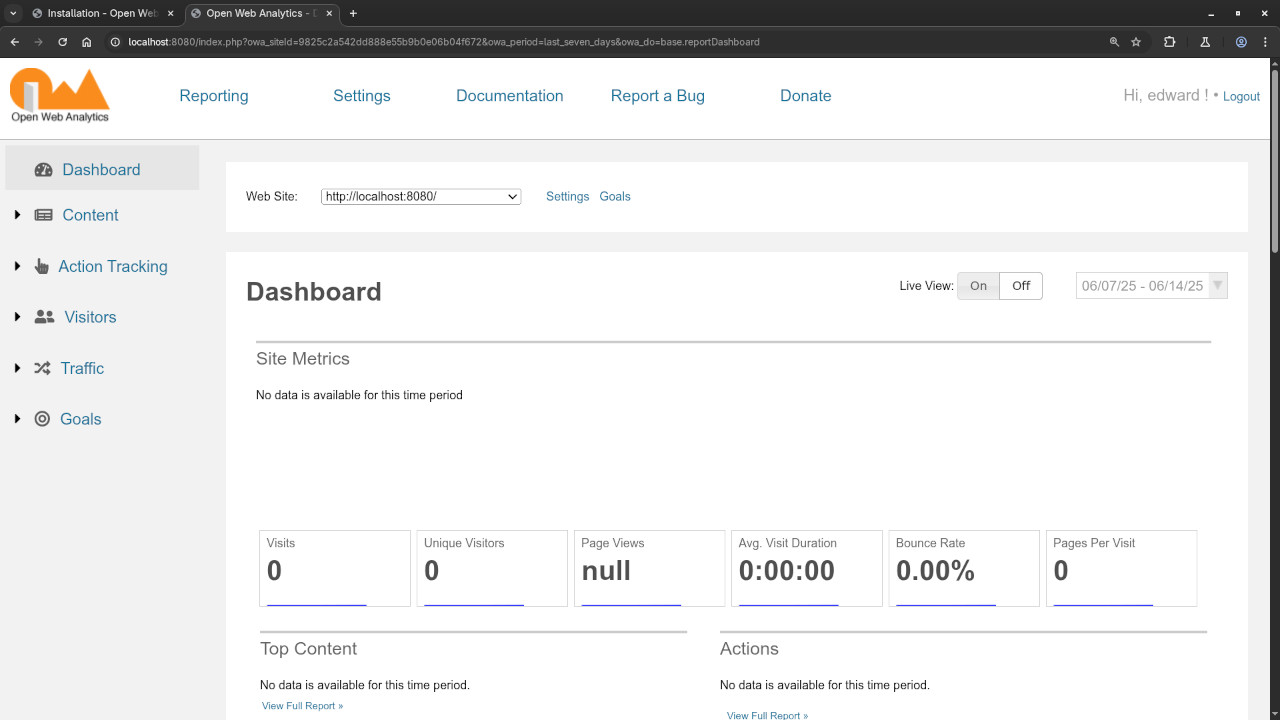
📷 Screenshots of the Setup Process

📈 Using Open Web Analytics
After installation, OWA will begin tracking visits automatically. You can log into your OWA dashboard to view:
- Real-time visitor data
- Pages viewed
- Referrer websites
- Visitor behavior (click paths, time on site)
It’s a great way to see what’s working on your website—and what’s not.
Open Source
Open Web Analytics is licensed under the GNU General Public License Version 2.0 or later. The copyleft license comes with strict rules and requirements to ensure the software remains free and open-source. It allows commercial use, modification, distribution, and does not allow making derivatives proprietary, consult the license for more specific details.
🤝 Need Help Setting It Up?
If you’d rather focus on your content and business while leaving the tech stuff to someone else, I can help you set up Open Web Analytics on your WordPress website. Whether it’s installation, integration, or even customization, I offer professional assistance tailored to your needs.
🔝 Conclusion
Open Web Analytics is a powerful tool that gives you full control over your website analytics—without the privacy trade-offs of commercial platforms. If you’re a beginner and want to track your traffic in a private, open-source way, OWA is a great place to start.
🚀 Recommended Resources
Disclosure: Some of the links above are referral links. I may earn a commission if you make a purchase at no extra cost to you.