
Blog

  • Grow Your Business With These Essential Website Strategies

    Grow Your Business With These Essential Website Strategies
    Grow Your Business With These Essential Website Strategies

    Building a website is much easier to do these days than it used to be, but it still takes some careful thought and a lot of planning to ensure that it’s done right. Not only that, it’s essential to make sure your business site includes everything you need to grow while remaining productive and efficient. It should work with all your internal tools in order to optimize those processes, and it should also have resources in place to protect your information and customer data. If you need help creating a professional website that includes all of these aspects, utilize the web design and app development services available at Ojambo.com. Here are a few key aspects your business website needs to include:

    Security

    When your website is secure, you’ll have peace of mind that your most sensitive data is safe, but how do you eliminate cyber security threats? For starters, you’ll want to use anti-virus and malware protection, but you should also train your employees well on how to spot scams and other security issues, as well as how to keep passwords safe. It’s also a good idea to have a plan in place in case there is a data breach; this will help you resume your daily operations quickly and prevent a loss in revenue. An effective plan will allow you to figure out which applications need to be recovered first while establishing a timeline, as well as determining which individuals should be involved in the recovery efforts.

    Make sure you can be found

    Once your website is secure, it’s essential to make sure your customers and potential customers can find it. The key is to ensure that your site is favored by search engines, which means creating the right content–including different mediums such as text, videos, and images–and making it accessible for all abilities as well as SEO-friendly. Search engine optimization may sound like a complicated term, but it’s essentially just a way to get noticed by utilizing the right keywords. If you’re unsure of where to start, consider using the Google keyword planner tool.

    Use all the tools at your disposal

    When you’ve found your customer base, it’s important to learn all you can about their behavior and decisions in order to better cater to their needs, predict buying patterns, and grow your business. One essential tool you can use is process mining, which uses data analytics to show you how to increase sales, minimize risk, and look for new opportunities. It can also help you eliminate processes that are no longer efficient so you can save time and money. To get started, think about which data sources you can use, determine key stakeholders, and create a timeline.

    Integrate systems for more efficiency

    When it comes to making your website more efficient, few tools are better than CRM and ERP, and you can actually integrate them for maximum benefits. Customer relationship management and enterprise resource planning are processes created with software that allows business owners to nail down the details concerning customer service, purchase info, and contact information as well as the workflows that are involved in daily operations. When brought together, these tools will allow you to see customer information and things like inventory or shipping data at the same time, which provides a much more efficient way to manage your processes.

    Ensuring that your business’s website is maximized can take some time, so do a little research on the different tools you can use and how to utilize their potential. It might also be helpful to take a look at what your competitors are doing so you can stand out from the crowd.

    Ready to get started with the professional services offered at Ojambo? Get in touch today to find out more.References:
  • CodeLobster PHP Edition Review

    CodeLobster PHP IDE Review

    CodeLobster is a light-weight PHP integrated programming environment (IDE). CodeLobster requires a PC running Windows and has two versions. The Free Edition can be downloaded and the Professional Edition can be purchased.

    Stas from CodeLobster asked me to review their PHP IDE. I was frustrated with my current workflow for PHP web development on Linux and agreed to the review request.

    CodeLobster PHP Edition IDE can be obtained from http://www.codelobster.com. The free download for Windows systems does not require a signup.

    Test Tools

      Test system:

    • CPU: Intel(R) i7 2600 @ 3.40GHz.
    • Memory: 8GB DDR3.
    • Operating System: Debian Stretch Testing 64bit.
    • Desktop: KDE Desktop Environment 4.14
    • Virtual Machine: Windows XP

      Test suite:

    • Remote file: Empty PHP file.
    • CMS file: WordPress index file.
    • Regex file: text with word “color” repeated.
    • Syntax file: PHP file containing HTML, CSS & JavaScript.
    • Media file: Smiley face JPEG file.
    • PHP: 5.4
    • CodeLobster: Version 5.5 32bit

      Test Score:

    1. Each feature with a minimum of two parts.
    2. Editor was used by experienced PHP programmer.
    3. The main focus on the PHP portion of the IDE.

    Three bias elimination steps were utilized. The editor was used immediately after installation. Current workflow or editing remote files was attempted. Key web developer features were tested.

    Installing The IDE

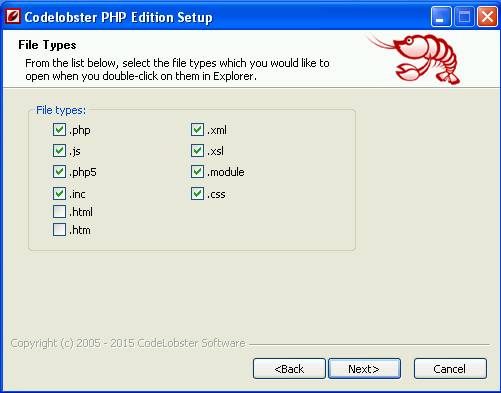
    CodeLobster was downloaded from the developer’s website for portability. Let it associate with unchecked HTML and HTM files. Selected Standard version instead of pre-selected Portable version.

    Chose Codelobster for the color theme. Selected English language. Left all components selected

    Image Missing
    CodeLobster Setup

    Image Missing
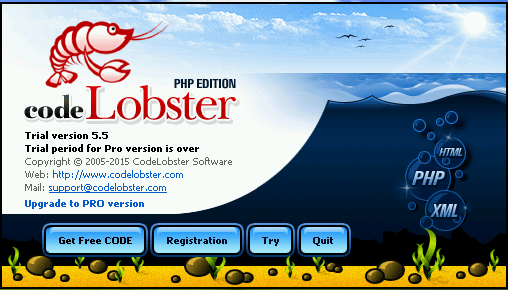
    CodeLobster Open

    Features

    On the first open, the try version was selected. CodeLobter was always very fast to open.

    For remote files, SFTP using IP address connects and disconnects immediately. FTP connections were not attempted.

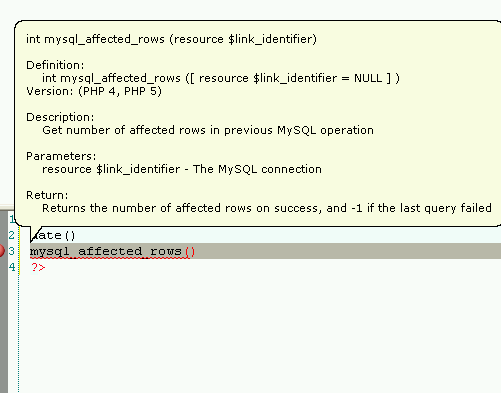
    PHP Code assist bubble on mouse-over or backspace. Line errors were marked with red indicators. Pleasant multi-line comment formatting because it only applies closing. Custom classes were detected and available.

    Image Missing
    CodeLobster PHP Docs Hint

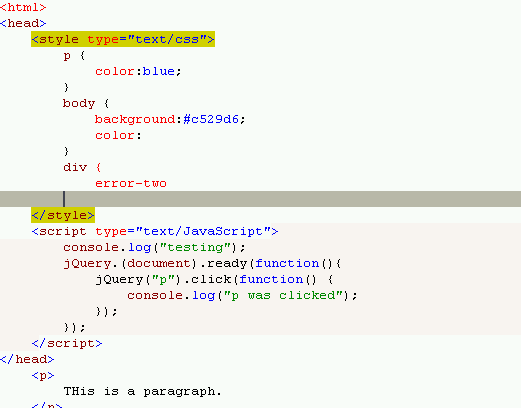
    HTML can be added in a PHP file. Tags automatically close. Closes quotes for defining rules. HTML can be previewed. Does not detect tags. Zen Coding works With CTRL-E

    JavaScript content assist in a PHP file. Automatically detects jQuery. Does not detect JavaScript errors.

    CSS content assist in a PHP file. Can pick colour or image for background. Does not detect CSS mistakes or errors.

    Image Missing
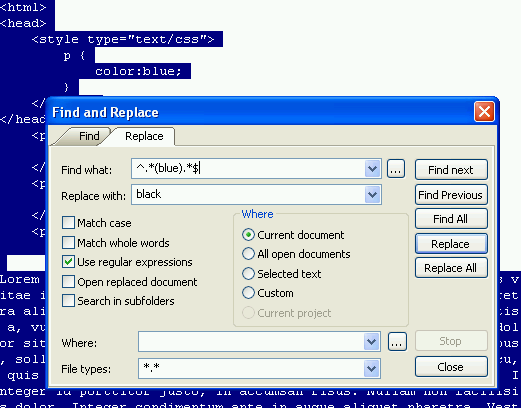
    CodeLobster Regex

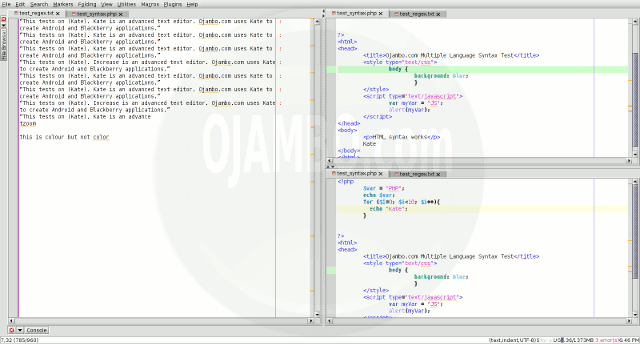
    Editor remembers cursor position on close. Zoom using the middle mouse button works. Does not remember split view after closing. Regular Expression format unknown or does not work properly. Missing Spellchecker for all languages.

    Image Missing
    CodeLobster Regex

    CodeLobster touted features were tested. FTP/SFTP was not able to use SFTP. Created CMS Projects by selecting WordPress. Not able to create project from existing CMS projects. Compare files works if they are in separate views.

      Supported Features:

    • Source Code Management is available for GIT, Mercurial, SVN and TortoiseSVN.
    • Drupal CMS
    • Joomla CMS
    • Smarty template engine
    • Twig
    • JQuery library
    • CodeIgniter framework
    • CakePHP framework
    • Symfony framework
    • Laravel framework
    • Phalcon framework
    • Yii framework and WordPress

    Results

    CodeLobster is a very lightweight IDE with many features. The PHP editor is very good and is one of the best I have ever used. Some of the features included with CodeLobster need to be improved as they did not work as intended during this review. On PHP alone, the IDE gets an 8.5 out of 10.

    Conclusion

    The review focused on PHP editing and tested some other languages which are important for PHP developers such as HTML, JavaScript and CSS. As a PHP editor, CodeLobster is good that I would use on a Windows PC if SFTP worked. With error detection for the three web languages, this program can be great.

    I was able to figure out how the IDE works without reading its manual or seeking help. It was really simple to start using immediately which was one of the reasons for its 8.5 score.

      Recommendations:

    1. Have a local webserver installed if you are testing locally first.
    2. Install your favourite source code management tools for Windows if applicable.

  • Emacs Advanced Editor Review

    Emacs Editor Features Review

    Emacs is a lightweight Integrated Development Environment. Emacs is free, open source and cross-platform (Mac, Windows and Linux).

    This review is based on features I require of an advanced text editor. A list of required features was created after using different editors. Some features require extensions or plug-ins.

    Emacs is a free text editor from http://www.gnu.org/software/emacs. There are downloadable packages for Linux, Mac and Windows systems. Emacs can easily be extended by plug-ins to ease application development in different programming languages.

    Test Tools

      Test system:

    • CPU: Intel(R) i7 2600 @ 3.40GHz.
    • Memory: 8GB DDR3.
    • Operating System: Debian Jessie Testing 64bit.
    • Desktop: Xfce Desktop Environment 4.10.

      Test suite:

    • Large file: 1GB human-readable text.
    • Regex file: text with word “Emacs” repeated.
    • Syntax file: PHP file containing HTML, CSS & JavaScript.
    • Media file: Smiley face JPEG file.
    • Emacs: Version 23.4.1 64bit

      Test Score:

    1. Each feature has two parts
    2. Score of zero indicates missing feature
    3. A part of a feature is worth a score of 0.5

    Three bias elimination steps were utilized. The editor was used for at least three years on different platforms. Attempts were made to get stable plug-ins for missing features. The same editor was compared between the one in the repository, the developers website, and the compiled version if applicable.

    Selecting Editor Version

    Emacs was installed from the Debian repository. Emacs and its plug-ins do require GTK2 runtime dependencies. Emacs needs re-installation every time I change my distribution unless built from source.

    Emacs was installed in the system folder and was never available for other installed Linux distributions. All plug-ins also require re-installation.

    Image Missing
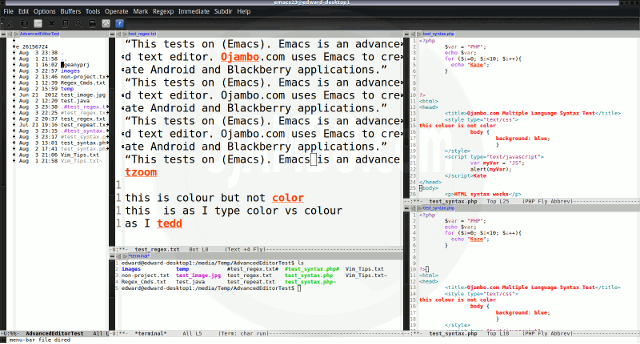
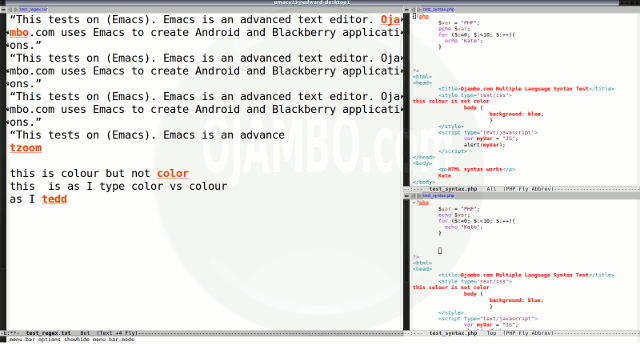
    Emacs Multiple Editor View

    Features

    The theme can be native for the editor in terms of the background. Emacs dark and light themes can be created or downloaded. The score for the theme was a perfect 1.0.

    Dragging and dropping a text file into the editor opens a new tab or buffer. It is possible to specify the tab location during the drag and drop operation using the tabbar-mode plugin. The score for drag and drop into editor was a perfect 1.0.

    Opening a very large text file did not crash Emacs. Emacs was able to edit the large file. The score for opening a large file was a perfect 1.0.

    Multiple documents can opened in multiple tabs or buffers. Tear-off tabs can be mimicked by having Emacs open the current buffer in a new window as a new instance which is handy for multiple monitors. The score for multiple documents was a perfect 1.0.

    Multiple editors can be opened as new tabs with drag options. Each tab window view can be split either vertically or horizontally as a multiple editor view. The score for multiple editor view was a perfect 1.0.

    Creating non-project files is possible. Non-project files can be opened by the drag and drop operation. The score for creating non-project files was a perfect 1.0.

    Soft word wrap can be enabled on all documents as line wrapping. Automatic soft wrap for documents is available from the Emacs settings. The score for word wrap was a perfect 1.0.

    Spell check works as words are typed. Spelling errors are not shown in opened documents automatically, but spell check can work if an entire document is selected. The score for spell check was a perfect 1.0.

    Word count is available for Emacs. Selection word count is available as part of word count plugin or using a shell pipe. The score for word count was a perfect 1.0.

    Go to line can jump to a specified line. It is possible to jump to either the first or last line. The score for go to line is a perfect 1.0.

    Indentation can default to user-defined tab stops. Children are automatically indented. The score for indentation was a perfect 1.0.

    Fonts can be dynamically scaled. The system font can be bypassed and a new editor font and size can be set. The score for fonts was a perfect 1.0.

    Find and replace using regular expressions can not be utilized for all open documents in the current session. Find and replace will work for the current document or a selection in the current document. The score for find and replacing using regular expressions was 0.5.

    Multiple language syntax highlighting in one file is enabled if the language plug-ins are installed. Each language has code-sensitive syntax colours which can be modified. The score for multiple language syntax highlighting was a perfect 1.0.

    Code folding does not work for markup languages such as HTML. Code folding also does not work for programming languages such as PHP and Java. The score for code folding was 0.0.

    Selecting rectangular block per column works. Rectangular block selection works with word wrap enabled. The score for selecting rectangular block was a perfect 1.0.

    Multiple selection is available for Emacs using the multiple cursors plugin by Magnar Sveen. Search multiple selection is not available. The score for multiple selection was 0.5.

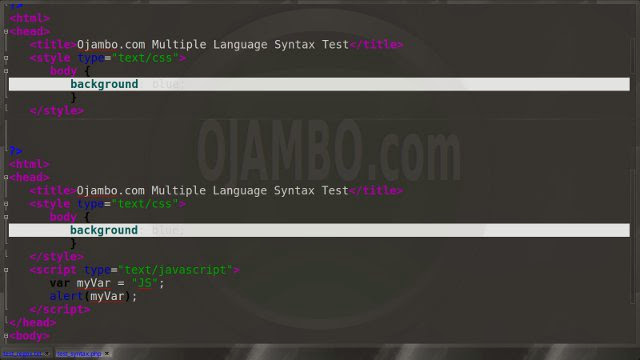
    Distraction-free mode to hide panes works. Line numbers can be toggled to improve distraction-free mode. The score for distraction-free was a perfect 1.0.

    Image Missing
    Emacs Distraction-free

    The file manager is available in Emacs. Media files can be dragged and dropped into the file manager pane. The score for file manager was 1.0.

    Terminal does not require a plugin. The terminal can follow folder. Terminal can execute system commands. The score for terminal was a perfect 1.0.

    Results

    Emacs is a very powerful text editor. By default, the Emacs editor is missing required features which can be installed by using extensions. For my required features, the Emacs editor scored 90.0% or 9.00 out of 10.

    Conclusion

    Emacs is a very powerful text editor. Basic editor features are missing in Emacs. Important editor features require Emacs plug-ins. Overall Emacs only scored 9.00 out of 10 for essential text editor features.

    Emacs is able to use the system native theme and fonts. Emacs has one of the multiple select features available for any editor. The file manager can incorporate native GUI features in Emacs.

      Recommendations:

    1. Look for required plug-ins before deciding to try Emacs.
    2. Download desired Emacs editor themes.
    3. Install Emacs from your distribution repository if applicable.

  • Bluefish Advanced Editor Review

    Bluefish Editor Features Review

    Bluefish is a programmer’s text editor. Bluefish is free, open source and cross-platform (Mac, Windows and Linux).

    This review is based on features I require of an advanced text editor. A list of required features was created after using different editors. Some features require extensions or plug-ins.

    Bluefish is a free text editor from http://bluefish.openoffice.nl. There are downloadable packages for Linux, Mac and Windows systems. Bluefish can easily be extended by plug-ins to ease application development in different programming languages.

    Test Tools

      Test system:

    • CPU: Intel(R) i7 2600 @ 3.40GHz.
    • Memory: 8GB DDR3.
    • Operating System: Debian Jessie Testing 64bit.
    • Desktop: Xfce Desktop Environment 4.10.

      Test suite:

    • Large file: 1GB human-readable text.
    • Regex file: text with word “Bluefish” repeated.
    • Syntax file: PHP file containing HTML, CSS & JavaScript.
    • Media file: Smiley face JPEG file.
    • Bluefish: Version 2.2.4 64bit

      Test Score:

    1. Each feature has two parts
    2. Score of zero indicates missing feature
    3. A part of a feature is worth a score of 0.5

    Three bias elimination steps were utilized. The editor was used for at least three years on different platforms. Attempts were made to get stable plug-ins for missing features. The same editor was compared between the one in the repository, the developers website, and the compiled version if applicable.

    Selecting Editor Version

    Bluefish was installed from the Debian repository. Bluefish and its plug-ins do require GTK2 and Python runtime dependencies. Bluefish needs re-installation every time I change my distribution unless it is built from source.

    Bluefish was installed in the system folder and was never available for other installed Linux distributions. All plug-ins also require re-installation.

    Image Missing
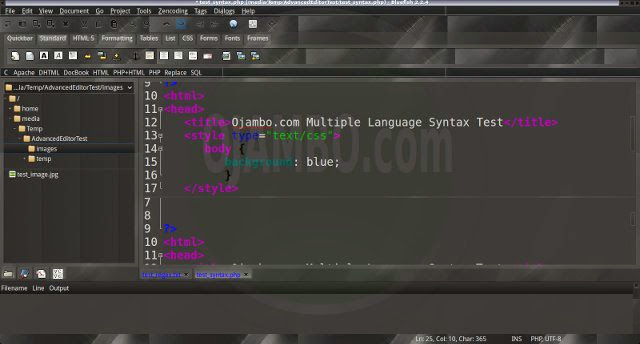
    Bluefish Multiple Editor View

    Features

    The theme can be native for the editor in terms of the background. Bluefish dark and light themes can be created or downloaded. The score for the theme was a perfect 1.0.

    Dragging and dropping a text file into the editor opens a new tab which requires the Buffer Tabs plugin. It is not possible to specify the tab location during the drag and drop operation. The score for drag and drop into editor was 0.5.

    Opening a very large text file crashed Bluefish. Bluefish did not save the session and was not able to edit the large file. The score for opening a large file was 0.0.

    Multiple documents can opened in multiple tabs. Tear-off tabs do not work by opening in new window as a new instance which is handy for multiple monitors. The score for multiple documents was 0.5.

    Multiple editors can be opened as new tabs with drag options. The window view can be split horizontally seperately for each tab and not in a multiple editor view. The score for multiple editor view was 0.5.

    Creating non-project files is possible. Non-project files can be opened by the drag and drop operation. The score for creating non-project files was a perfect 1.0.

    Soft word wrap can be enabled on all documents as word wrap. Automatic soft wrap for documents is available from the Bluefish settings. The score for word wrap was a perfect 1.0.

    Spell check does not work as words are typed. Spelling errors are shown in opened documents. The score for spell check was 0.5.

    Word count is available for Bluefish. Selection word count is available as part of word count. The score for word count was a perfect 1.0.

    Go to line can jump to a specified line. It is possible to jump to either the first or last line. The score for go to line is a perfect 1.0.

    Indentation can default to user-defined tab stops. Children are automatically indented. The score for indentation was a perfect 1.0.

    Fonts can be dynamically scaled. The system font can be bypassed and a new editor font and size can be set. The score for fonts was a perfect 1.0.

    Find and replace using regular expressions can be utilized for all open documents in the current session. Find and replace will work for the current document or a selection in the current document. The score for find and replacing using regular expressions was a perfect 1.0.

    Multiple language syntax highlighting in one file is enabled if the language plug-ins are installed. Each language has code-sensitive syntax colours which can be modified. The score for multiple language syntax highlighting was a perfect 1.0.

    Code folding works for markup languages such as HTML. Code folding also works for programming languages such as PHP and Java. The score for code folding was a perfect 1.0.

    Selecting rectangular block per column does not work. Rectangular block selection does not work with word wrap enabled. The score for selecting rectangular block was 0.0.

    Multiple selection is not available for Bluefish. Search multiple selection is not available. The score for multiple selection was 0.0.

    Distraction-free mode to hide panes works. Line numbers can be toggled to improve distraction-free mode. The score for distraction-free was a perfect 1.0.

    Image Missing
    Bluefish Distraction-free

    The file manager can to create and delete folders. Media files can be dragged and dropped into the file manager pane. The score for file manager was a perfect 1.0.

    Terminal feature is not available for Bluefish. The terminal does not follow folder of the file browser. Terminal can not execute system commands. The score for terminal was 0.0.

    Results

    Bluefish is a very powerful text editor. By default, the Bluefish editor is missing required features which can be installed by using extensions. For my required features, the Bluefish editor scored 70.0% or 7.00 out of 10.

    Conclusion

    Bluefish is a very powerful text editor. Basic editor features are missing in Bluefish. Important editor features require Bluefish plug-ins. Overall Bluefish only scored 7.00 out of 10 for essential text editor features.

    Bluefish can use and render native theme and fonts. Bluefish has one of the fastest file managers available for any editor. The scroll and select features of Bluefish were some of the best available for any editor.

      Recommendations:

    1. Look for required plug-ins before deciding to try Bluefish.
    2. Download desired Bluefish editor themes.
    3. Install Bluefish from your distribution repository if applicable.

  • JEdit Advanced Editor Review

    JEdit Editor Features Review

    JEdit is a programmer’s text editor. JEdit is free, open source and cross-platform (Mac, Windows and Linux).

    This review is based on features I require of an advanced text editor. A list of required features was created after using different editors. Some features require extensions or plug-ins.

    JEdit is a free text editor from http://www.jedit.org. There are downloadable packages for Linux, Mac and Windows systems. JEdit can easily be extended by plug-ins to ease application development in different programming languages.

    Test Tools

      Test system:

    • CPU: Intel(R) i7 2600 @ 3.40GHz.
    • Memory: 8GB DDR3.
    • Operating System: Debian Jessie Testing 64bit.
    • Desktop: Xfce Desktop Environment 4.10.

      Test suite:

    • Large file: 1GB human-readable text.
    • Regex file: text with word “JEdit” repeated.
    • Syntax file: PHP file containing HTML, CSS & JavaScript.
    • Media file: Smiley face JPEG file.
    • Java: OpenJDK7
    • JEdit: Version 5.1.0 64bit

      Test Score:

    1. Each feature has two parts
    2. Score of zero indicates missing feature
    3. A part of a feature is worth a score of 0.5

    Three bias elimination steps were utilized. The editor was used for at least three years on different platforms. Attempts were made to get stable plug-ins for missing features. The same editor was compared between the one in the repository, the developers website, and the compiled version if applicable.

    Selecting Editor Version

    JEdit was downloaded from the developer’s website for portability. JEdit and its plug-ins do require GTK2 and Java runtime dependencies. JEdit does not need re-installation every time I change my distribution because it is built from source.

    JEdit was installed on a separate partition that is immediately available for other installed Linux distributions. All plug-ins were installed once and never require re-installation.

    Image Missing
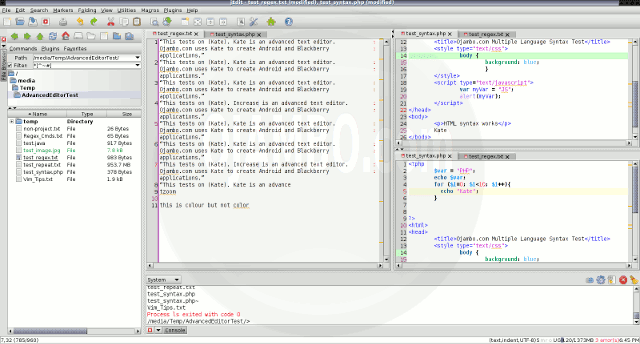
    JEdit Multiple Editor View

    Features

    The theme cannot be native for the editor in terms of the background. JEdit dark and light themes can be created or downloaded using the Look And Feel plugin. The score for the theme was 0.5.

    Dragging and dropping a text file into the editor opens a new tab which requires the Buffer Tabs plugin. It is not possible to specify the tab location during the drag and drop operation. The score for drag and drop into editor was 0.5.

    Opening a very large text file did not crash JEdit. JEdit provided a warning but was not able to edit the large file. The score for opening a large file was 0.5.

    Multiple documents can opened in multiple tabs. Tear-off tabs do not work by opening in new window as a new instance which is handy for multiple monitors. The score for multiple documents was 0.5.

    Multiple editors can be opened as new tabs with drag options. The window view can be split either vertically or horizontally in a multiple editor view. The score for multiple editor view was 1.0.

    Creating non-project files is possible. Non-project files can be opened by the drag and drop operation. The score for creating non-project files was a perfect 1.0.

    Soft word wrap can be enabled on all documents as word wrap. Automatic soft wrap for documents is available from the JEdit settings. The score for word wrap was a perfect 1.0.

    Spell check works as words are typed using the Spell Check plugin. Spelling errors are shown in opened documents. The score for spell check was a perfect 1.0.

    Word count is available for JEdit using the Real Time Word Counter plugin. Selection word count is available as part of word count. The score for word count was a perfect 1.0.

    Go to line can jump to a specified line. It is possible to jump to either the first or last line. The score for go to line is a perfect 1.0.

    Indentation can default to user-defined tab stops. Children are automatically indented. The score for indentation was a perfect 1.0.

    Fonts can be dynamically scaled by macros. The system font can be bypassed and a new editor font and size can be set. The score for fonts was a perfect 1.0.

    Find and replace using regular expressions can be utilized for all open documents in the current session. Find and replace will work for the current document or a selection in the current document. The score for find and replacing using regular expressions was a perfect 1.0.

    Multiple language syntax highlighting in one file is enabled if the language plug-ins are installed. Each language has code-sensitive syntax colours which can be modified. The score for multiple language syntax highlighting was a perfect 1.0.

    Code folding does not work for markup languages such as HTML. Code folding also does not work for programming languages such as PHP and Java. The score for code folding was 0.0.

    Selecting rectangular block per column works. Rectangular block selection works with word wrap enabled. The score for selecting rectangular block was a perfect 1.0.

    Multiple selection is available for JEdit. Search multiple selection is available. The score for multiple selection was 1.0.

    Distraction-free mode to hide panes works. Line numbers can be toggled to improve distraction-free mode. The score for distraction-free was a perfect 1.0.

    Image Missing
    JEdit Distraction-free

    The file manager can to create and delete folders. Media files cannot be dragged and dropped into the file manager pane. The score for file manager was 0.5.

    Terminal requires the Console plugin. The terminal does follow folder of the file browser. Terminal can execute system commands. The score for terminal was a perfect 1.0.

    Results

    JEdit is a very powerful text editor. By default, the JEdit editor is missing required features which can be installed by using extensions. For my required features, the JEdit editor scored 82.5% or 8.25 out of 10.

    Conclusion

    JEdit is a very powerful text editor. Basic editor features are missing in JEdit. Important editor features require JEdit plug-ins. Overall JEdit only scored 8.25 out of 10 for essential text editor features.

    JEdit uses and renders non-native theme and fonts. JEdit has one of the fastest rectangular select modes available for any editor. The find and replace feature for JEdit can use all open documents or filtered documents in the current session.

      Recommendations:

    1. Look for required plug-ins before deciding to try JEdit.
    2. Download desired JEdit editor themes.
    3. Install JEdit from developer’s website.

  • Sublime Text Advanced Editor Review

    Sublime Text Editor Features Review

    Sublime Text is a source code editor. Sublime Text is non-free, non-open source and cross-platform (Mac, Windows and Linux).

    This review is based on features I require of an advanced text editor. A list of required features was created after using different editors. Some features require extensions or plug-ins.

    Sublime Text is a free text editor from http://www.sublimetext.com. There are downloadable packages for Linux, Mac and Windows systems. Sublime Text can easily be extended by plug-ins to ease application development in different programming languages.

    Test Tools

      Test system:

    • CPU: Intel(R) i7 2600 @ 3.40GHz.
    • Memory: 8GB DDR3.
    • Operating System: Debian Jessie Testing 64bit.
    • Desktop: Xfce Desktop Environment 4.10.

      Test suite:

    • Large file: 1GB human-readable text.
    • Regex file: text with word “Sublime Text” repeated.
    • Syntax file: PHP file containing HTML, CSS & JavaScript.
    • Media file: Smiley face JPEG file.
    • Sublime Text: Version 2.0.2 64bit

      Test Score:

    1. Each feature has two parts
    2. Score of zero indicates missing feature
    3. A part of a feature is worth a score of 0.5

    Three bias elimination steps were utilized. The editor was used for at least three years on different platforms. Attempts were made to get stable plug-ins for missing features. The same editor was compared between the one in the repository, the developers website, and the compiled version if applicable.

    Selecting Editor Version

    Sublime Text was installed from the Debian repository. Sublime Text and its plug-ins do require GTK2 and Python runtime dependencies. Sublime Text does not need re-installation every time I change my distribution because it is built from source.

    Sublime Text was installed on a separate partition that is immediately available for other installed Linux distributions. All plug-ins were installed once and never require re-installation.

    Image Missing
    Sublime Text Multiple Editor View

    Features

    The theme can be native for the editor in terms of the background. Sublime Text dark and light themes can be created or downloaded. The score for the theme was a perfect 1.0.

    Dragging and dropping a text file into the editor opens a new tab. It is not possible to specify the tab location during the drag and drop operation. The score for drag and drop into editor was 0.5.

    Opening a very large text file did not crash Sublime Text. Sublime Text was able to edit the large file. The score for opening a large file was 1.0.

    Multiple documents can opened in multiple tabs. Tear-off tabs work by opening in new window as a new instance which is handy for multiple monitors. The score for multiple documents was 1.0.

    Multiple editors can be opened as new tabs with drag options. The window view can be split either vertically or horizontally but Sublime Text does not have a multiple editor view. The score for multiple editor view was 0.5.

    Creating non-project files is possible. Non-project files can be opened by the drag and drop operation. The score for creating non-project files was a perfect 1.0.

    Soft word wrap can be enabled on all documents as word wrap. Automatic soft wrap for documents is available from the Sublime Text settings. The score for word wrap was a perfect 1.0.

    Spell check works as words are typed. Spelling errors are shown in opened documents. The score for spell check was a perfect 1.0.

    Word count is available for Sublime Text using the Real Time Word Counter plugin. Selection word count is available as part of word count. The score for word count was a perfect 1.0.

    Go to line can jump to a specified line. It is possible to jump to either the first or last line. The score for go to line is a perfect 1.0.

    Indentation can default to user-defined tab stops. Children are automatically indented. The score for indentation was a perfect 1.0.

    Fonts can be dynamically scaled. The system font can be bypassed and a new editor font and size can be set. The score for fonts was a perfect 1.0.

    Find and replace using regular expressions can be utilized for all open documents in the current session. Find and replace will work for the current document or a selection in the current document. The score for find and replacing using regular expressions was a perfect 1.0.

    Multiple language syntax highlighting in one file is enabled if the language plug-ins are installed. Each language has code-sensitive syntax colours which can be modified. The score for multiple language syntax highlighting was a perfect 1.0.

    Code folding does not work for markup languages such as HTML. Code folding also does not work for programming languages such as Java. The score for code folding was 0.0.

    Selecting rectangular block per column works. Rectangular block selection works with word wrap enabled. The score for selecting rectangular block was a perfect 1.0.

    Multiple selection is available for Sublime Text. Search multiple selection is available. The score for multiple selection was 1.0.

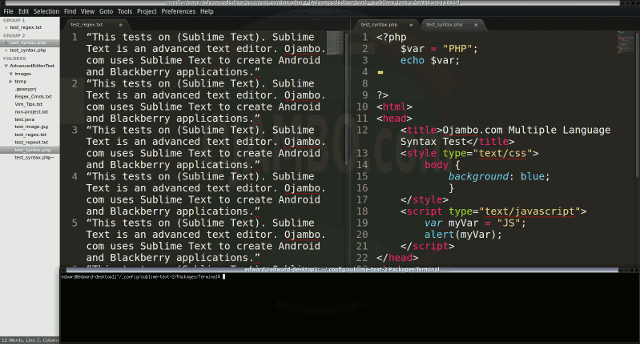
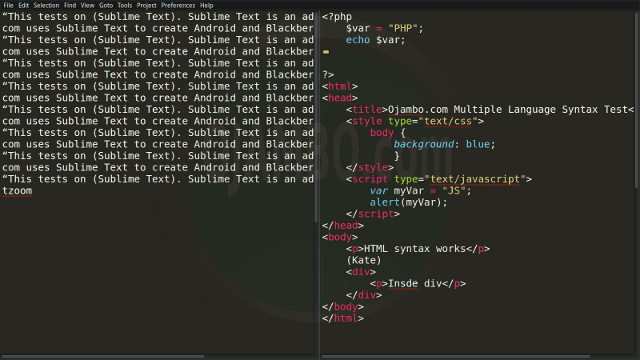
    Distraction-free mode to hide panes works. Line numbers can be toggled to improve distraction-free mode. The score for distraction-free was a perfect 1.0.

    Image Missing
    Sublime Text Distraction-free

    The file manager can to create and delete folders. Media files cannot be dragged and dropped into the file manager pane. The score for file manager was 0.5.

    Terminal requires the non-embedded Terminal plugin. The terminal does follow folder if enabled. Terminal can execute system commands. The score for terminal was a perfect 1.0.

    Results

    Sublime Text is a very powerful text editor. By default, the Sublime Text editor is missing required features which can be installed by using extensions. For my required features, the Sublime Text editor scored 87.5% or 8.75 out of 10.

    Conclusion

    Sublime Text is a very powerful text editor. Basic editor features are missing in Sublime Text. Important editor features require Sublime Text plug-ins. Overall Sublime Text only scored 8.75 out of 10 for essential text editor features.

    Sublime Text is able to use the system native theme and fonts. Sublime Text has one of the best multiple selections available for any editor. The find and replace feature for Sublime Text can use all open documents in the current session.

      Recommendations:

    1. Look for required plug-ins before deciding to try Sublime Text.
    2. Download desired Sublime Text editor themes.
    3. Install Sublime Text from developer’s website.

  • Netbeans Advanced Editor Review

    Netbeans Editor Features Review

    Netbeans is a Java-based integrated programming environment (IDE). Netbeans is free, open source and cross-platform (Mac, Windows and Linux).

    This review is based on features I require of an advanced text editor. A list of required features was created after using different editors. Some features require extensions or plug-ins.

    Netbeans is a free IDE for Java from https://netbeans.org. There are downloadable packages for Linux, Mac and Windows systems. Netbeans can easily be extended by plug-ins to develop applications in other programming languages.

    Test Tools

      Test system:

    • CPU: Intel(R) i7 2600 @ 3.40GHz.
    • Memory: 8GB DDR3.
    • Operating System: Debian Jessie Testing 64bit.
    • Desktop: Xfce Desktop Environment 4.10.

      Test suite:

    • Large file: 1GB human-readable text.
    • Regex file: text with word “Netbeans” repeated.
    • Syntax file: PHP file containing HTML, CSS & JavaScript.
    • Media file: Smiley face JPEG file.
    • Java: OpenJDK7
    • Netbeans: Version 7.1 64bit

      Test Score:

    1. Each feature has two parts
    2. Score of zero indicates missing feature
    3. A part of a feature is worth a score of 0.5

    Three bias elimination steps were utilized. The editor was used for at least three years on different platforms. Attempts were made to get stable plug-ins for missing features. The same editor was compared between the one in the repository, the developers website, and the compiled version if applicable.

    Selecting Editor Version

    Netbeans was downloaded from the developer’s website for portability. Netbeans and its plug-ins are bloated. I did not wish to reinstall Netbeans every time I changed my distribution.

    Netbeans was installed on a separate partition that is immediately available for other installed Linux distributions. All plug-ins such as PHP and Git were installed once and never require re-installation.

    Image Missing
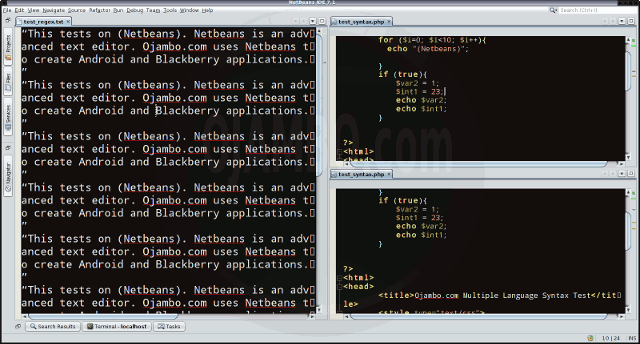
    Netbeans Multiple Editor View

    Features

    The theme cannot be native for the editor in terms of the background. Netbeans dark and light themes can be created or downloaded. The score for the theme was 0.5.

    Dragging and dropping a text file into the editor opens a new tab. It is not possible to specify the tab location during the drag and drop operation. The score for drag and drop into editor was 0.5.

    Opening a very large text file did not crash Netbeans. An out of memory window was shown and it was not possible to edit the large file. The score for opening a large file was 0.5.

    Multiple documents can opened in multiple tabs. Tear-off tabs work by opening a new Netbeans editor instances which is handy for multiple monitors. The score for multiple documents was a perfect 1.0.

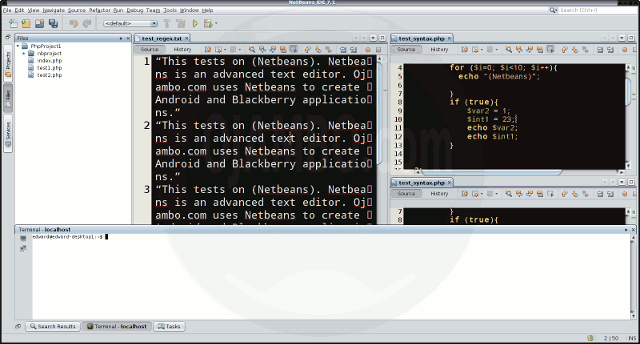
    Multiple editors can be opened as new tabs with drag options. Every new editor tab can be split vertically or horizontally. The score for multiple editor view was a perfect 1.0.

    Creating non-project files is impossible. Non-project files can be opened by the drag and drop operation. The score for creating non-project files was 0.5.

    Soft word wrap can be enabled in the editor settings. Automatic soft wrap for documents is available for Netbeans. The score for word wrap was a perfect 1.0.

    Spell check works as words are typed. Spelling errors are shown in opened documents. The score for spell check was a perfect 1.0.

    Word count is not available for Netbeans. Selection word count is not available. The score for word count was 0.0.

    Go to line can jump to a specified line. It is possible to jump to either the first or last line. The score for go to line was a perfect 1.0.

    Indentation can default to user-defined tab stops. Children are automatically indented. The score for indentation was a perfect 1.0

    Fonts can be dynamically scaled. The system font can be bypassed and a new editor font and size can be set. The score for fonts was a perfect 1.0.

    Find and replace using regular expressions cannot be utilized for all open documents in the current session. Find and replace will work for the current document or a selection in the current document. The score for find and replacing using regular expressions was 0.5.

    Multiple language syntax highlighting in one file is enabled if the language plug-ins are installed. Each language has code-sensitive syntax colours which can be modified. The score for multiple language syntax highlighting was a perfect 1.0.

    Code folding works for markup languages such as HTML. Code folding does not work for programming languages such as Java. The score for code folding was 0.5.

    Selecting rectangular block per column works. Rectangular block selections work with word wrap enabled. The score for selecting rectangular block was a perfect 1.0.

    Multiple selection is not available for Netbeans. Search multiple selection is not available. The score for multiple selection was 0.0.

    Distraction-free mode to hide panes works. Line numbers can be toggled to improve distraction-free mode. The score for distraction-free was a perfect 1.0.

    Image Missing
    Netbeans Distraction-free

    The file manager can create and delete folders. Media files can be dragged and dropped into the file manager pane. The score for file manager was a perfect 1.0.

    Terminal is integrated into Netbeans. The terminal does not follow folder. Terminal can execute system commands. The score for terminal was 0.5.

    Results

    Netbeans is a very powerful IDE. By default, the Netbeans editor is missing required features which can be installed by using extensions. For my required features, the Netbeans editor scored 72.5% or 7.25 out of 10.

    Conclusion

    Netbeans is a very powerful integrated programming environment. Basic editor features are missing in Netbeans. Important editor features require Netbeans plug-ins. Overall Netbeans only scored 7.25 out of 10 for essential text editor features.

    Netbeans uses and renders non-native theme and fonts. Netbeans has one of the best multiple language spell checkers available for any editor. The dynamic font zoom is one of the easiest to use of any editor.

      Recommendations:

    1. Look for required plug-ins before deciding to try Netbeans.
    2. Download Netbeans from the developer’s website.
    3. Install Netbeans in a permanent location.