
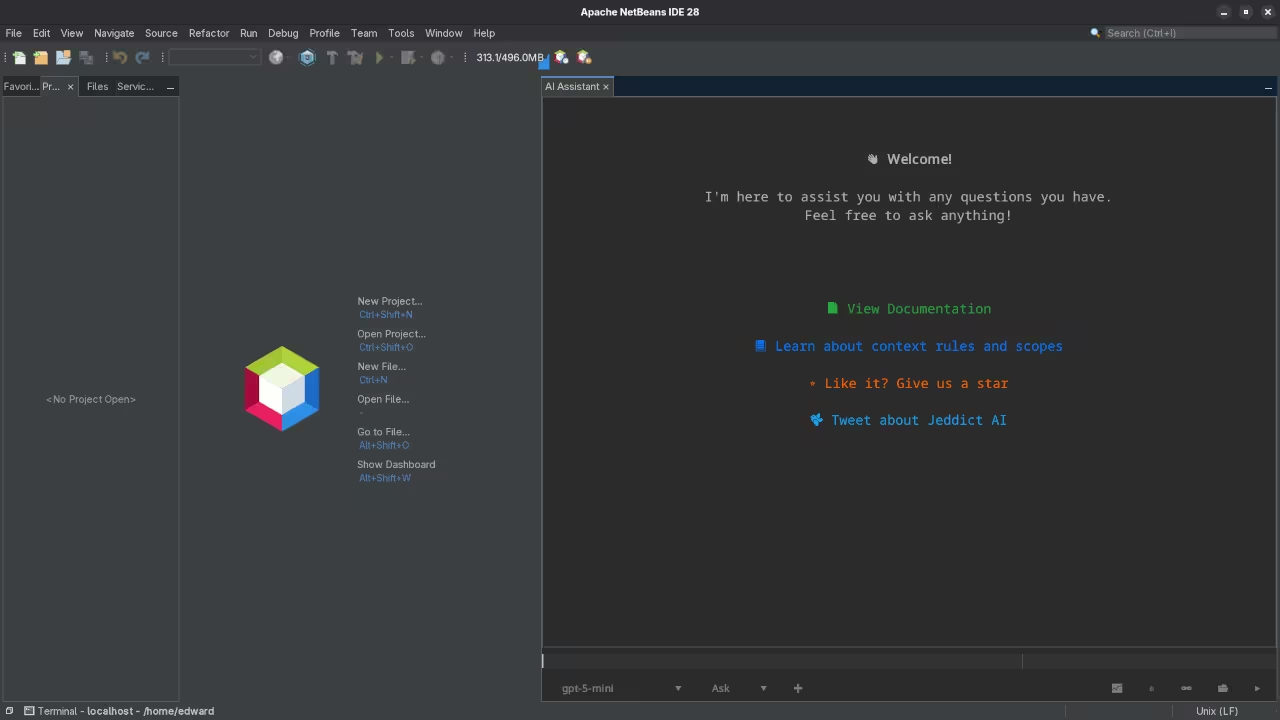
Jeddict AI Assistant Supercharge Your Apache NetBeans on Fedora Linux
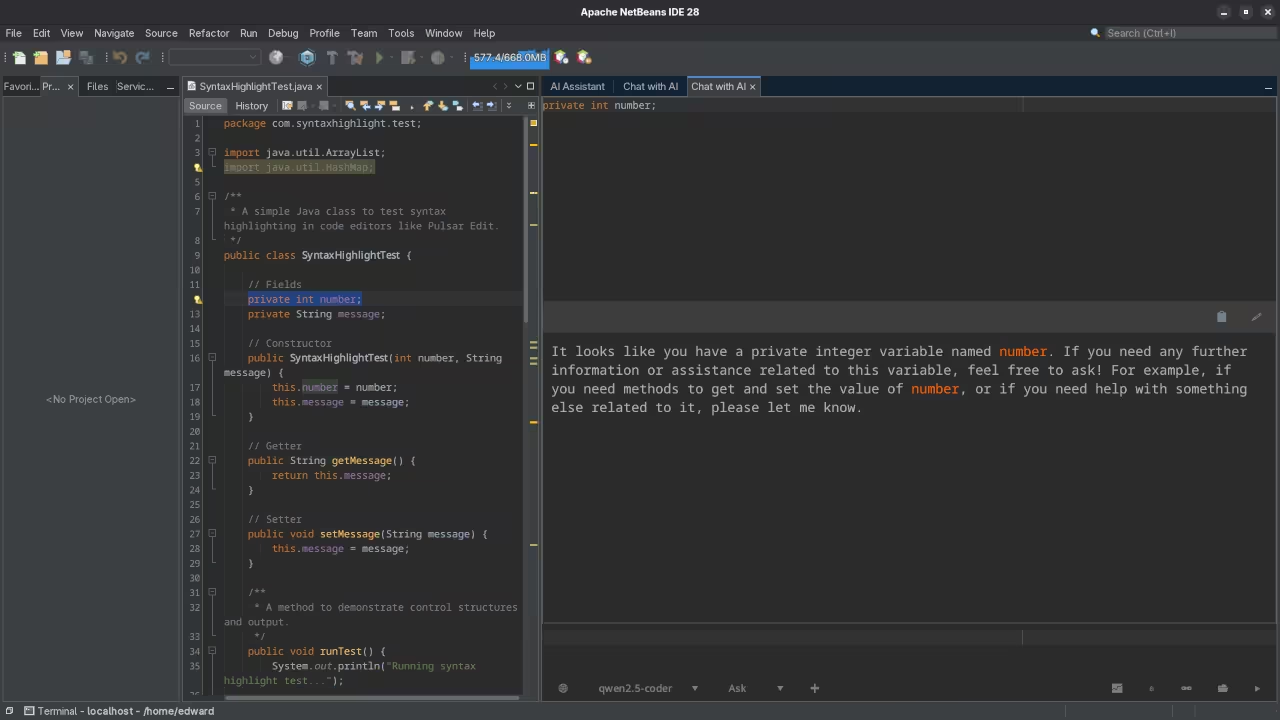
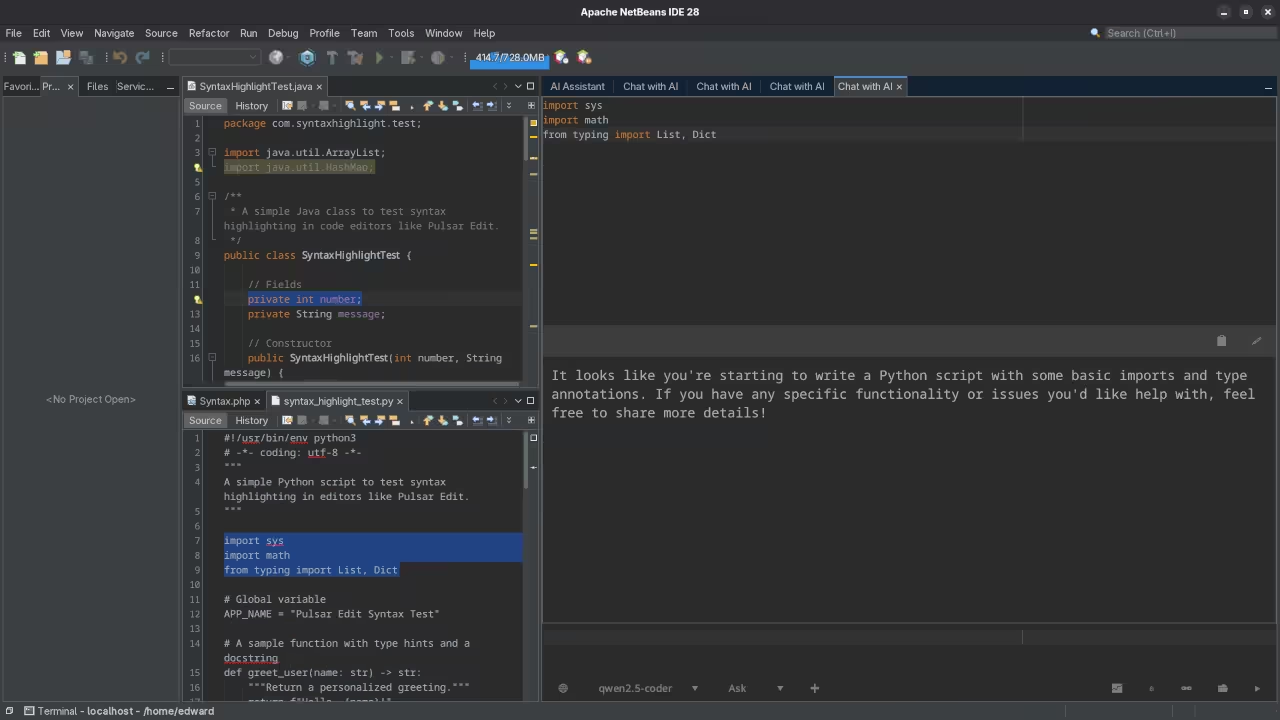
Whether you are a seasoned Jakarta EE architect or a student just starting your journey with Java the tools you choose define your productivity. Recently I have been exploring Jeddict AI Assistant a powerful extension for Apache NetBeans. Much like my previous review of the Netbeans 28 Advanced Editor Jeddict transforms a standard environment into a high performance development hub.
What is Jeddict AI Assistant
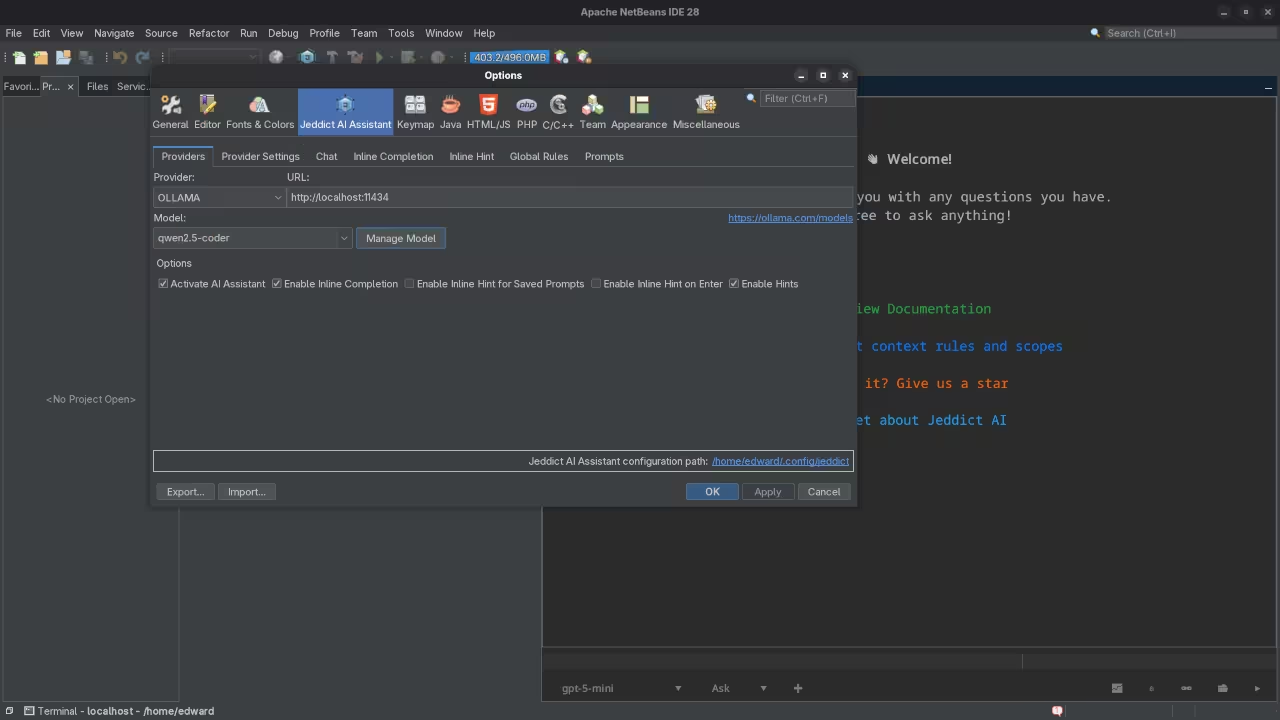
Jeddict AI Assistant is an open source plugin designed specifically for the Apache NetBeans IDE. It provides intelligent real time code suggestions and advanced hints tailored for Java and Jakarta EE. It is released under the Apache License 2.0 ensuring it remains free for the community to use and improve.
Installation Guide
The plugin is cross platform but since I am a huge proponent of open source operating systems we will focus on Fedora Linux.
For Fedora Linux Users
- Open NetBeans and go to
ToolsthenPlugins. - Go to the
Settingstab and clickAdd. - For the Update Center use the name Jeddict and provide the URL
https://jeddict.github.io/uc/updates.xml. Ensure you check the official catalogue for the version matching your IDE. - Go to the
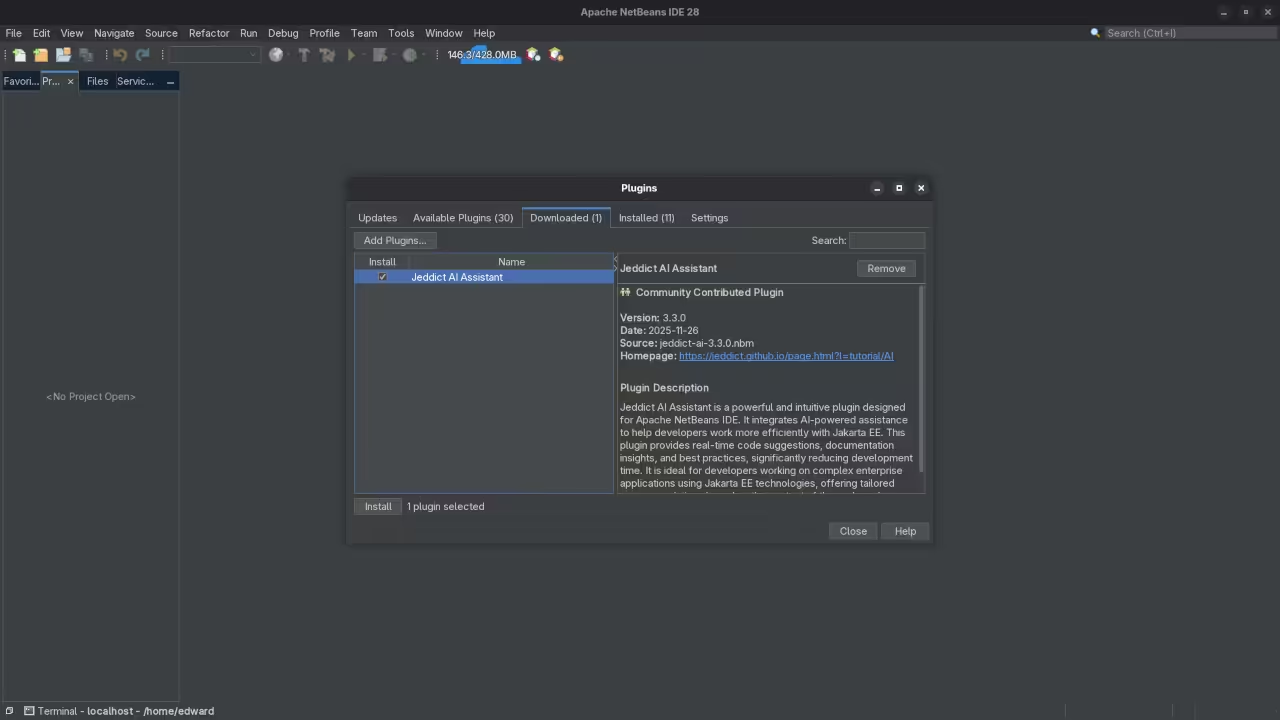
Available Pluginstab search for Jeddict select it and clickInstall.
Other Platforms
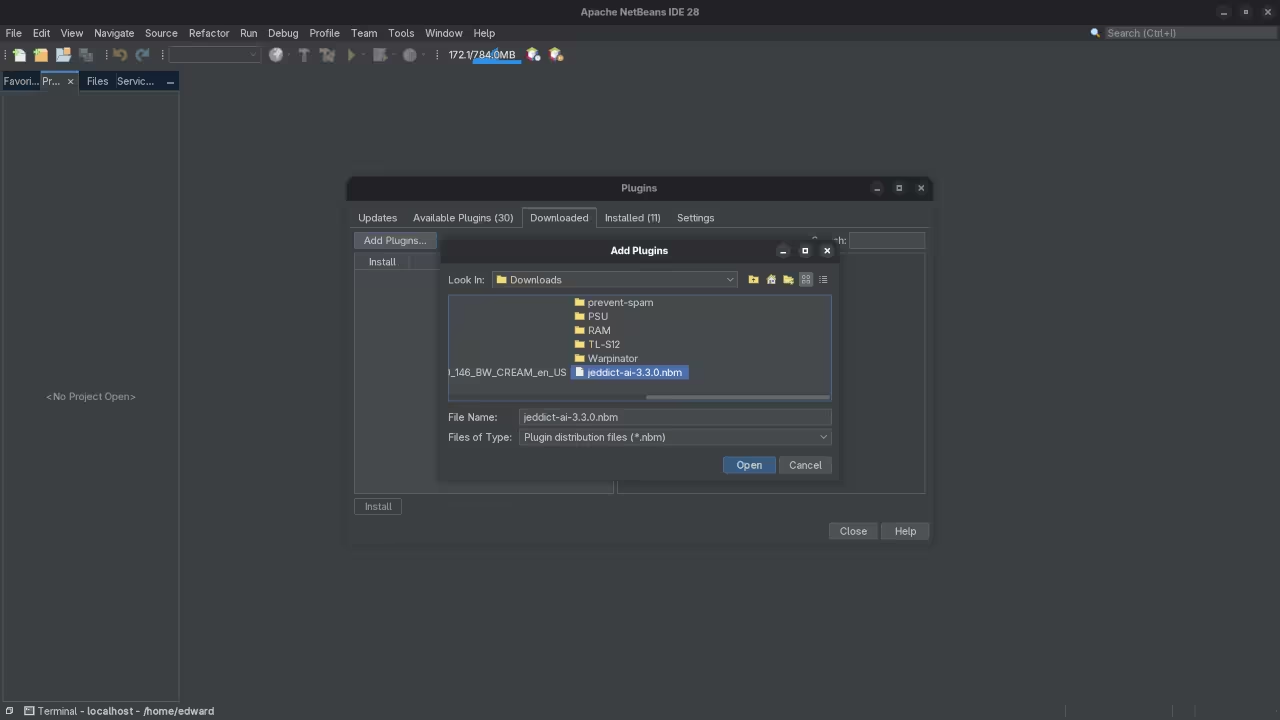
The process is identical within the NetBeans IDE on Windows or macOS. Alternatively you can download the .nbm file directly from the NetBeans Plugin Portal link above and add it via the Downloaded tab in the Plugins menu.
Managing Disk Space The 20GB NetBeans Log Problem
One common issue many users face especially on Linux is that Apache NetBeans logs and history files can balloon to over 20GB if left unchecked.
Tweak Your netbeans.conf
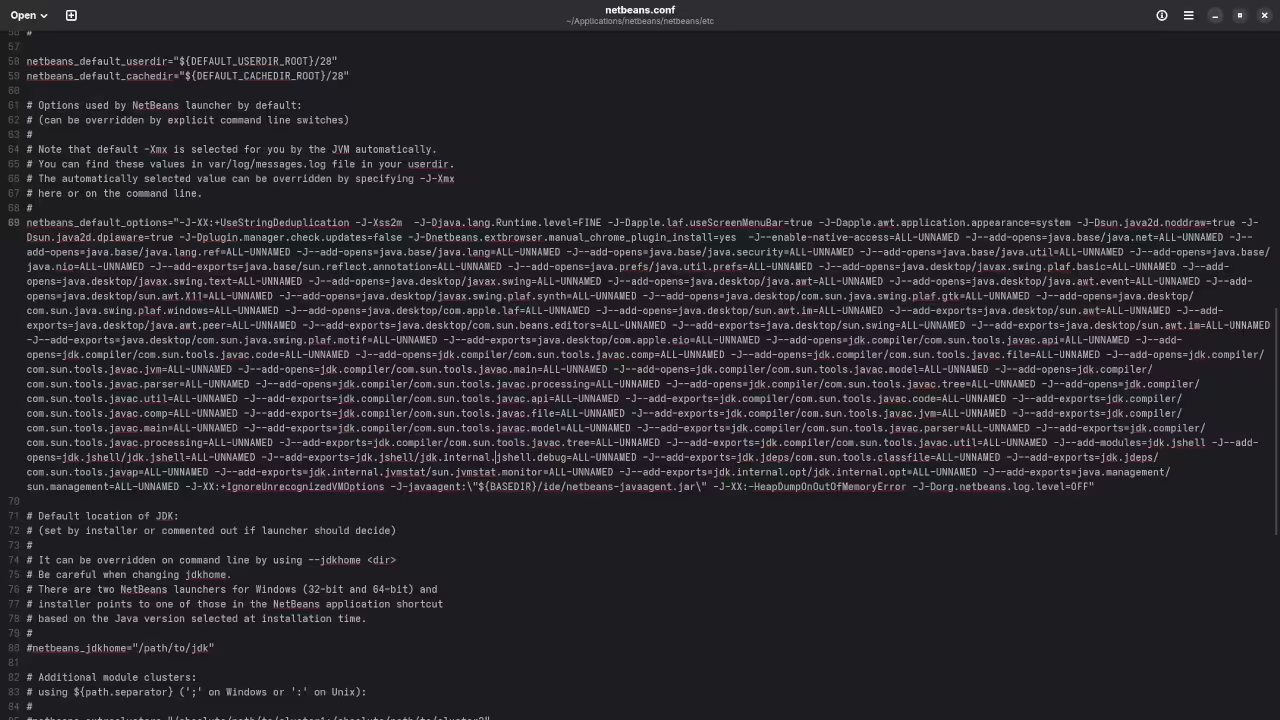
You can limit the log file size by editing the configuration file. On Fedora this is typically located in your installation directory under etc/netbeans.conf. Add or modify the following line in netbeans_default_options to limit memory and logging overhead.
-J-Djava.util.logging.FileHandler.limit=5000000 This setting limits the log to roughly 5MB.
Adjust History Settings
NetBeans Local History is great for undoing mistakes but it eats disk space. To change this go to Tools then Options then Editor and finally Versioning. Reduce the Keep local history for setting from the default to 2 or 3 days.
Requirements For Programming Text Editor
Glossary:
Code Editor
Designed for writing and editing source code.
IDE
Integrated Development Environment combines various tools need for software development.
Plugin
Software component that adds specific functionality.
Theme
Preset package containing graphical appearance to customize look and feel.
Open source
Freely available for possible modification and redistribution.
SCM
Source code management use to manage and track modifications to a source code repository.
LMB
Left Mouse Button (LMB) or left click
MMB
Middle Mouse Button (MMB) or scroll wheel
Test Tools
| Name | Description |
|---|---|
| CPU | Ryzen 5 5600GT @ 3.60GHz. |
| Memory | 32GB DDR4. |
| Operating System | Fedora Linux Workstation 43. |
| Desktop Environment | Gnome 49. |
| Name | Description |
| Name | Description |
|---|---|
| Large File | 1GB human-readable text. |
| Regex File | Text with word “Helix” repeated. |
| Syntax File | PHP file containing HTML, CSS & JavaScript. |
| Media File | Smiley face or Tux Linux JPEG file. |
| Java Version | OpenJDK 21.0.9. |
| PHP Version | PHP 8.4.14. |
| Python Version | Python 3.14.0. |
| Netbeans Version | 28 |
| Name | Description |
Test Scoring
- Each feature has two parts.
- Score of zero indicates a missing feature.
- A part of a feature is work a score of 0.5.
Three bias elimination steps were utilized. The editor was used for at least three years on different platforms. Attempts were made to get stable plug-ins for missing features. The same editor was compared between the one in the repository, the developers website, and the compiled version if applicable.
Selecting Editor Version
For this review, Netbeans was downloaded from the developers website and it did not require additional plugins.
Features
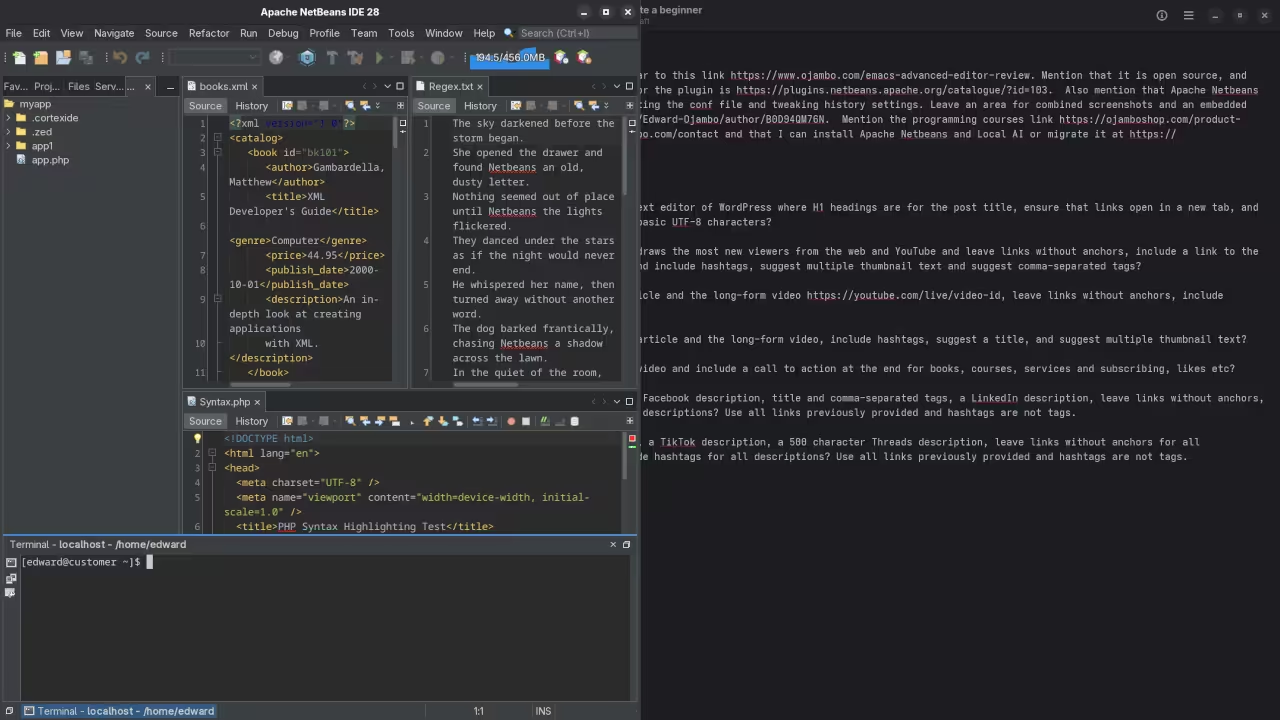
- The theme can be native for the editor in terms of the background, and the dark theme did not need tweaks for source code management. Netbeans comes with dark and light themes and others can be created or downloaded. The score for the theme was 1.0.
- Dragging and dropping a text file into the editor opens a new tab. It is still not possible to specify the tab location during the drag and drop operation. The score for drag and drop into editor was 0.5.
- Opening a very large text file did not crash Netbeans. An out of memory window was shown and it was not possible to edit the large file. The score for opening a large file was 0.5.
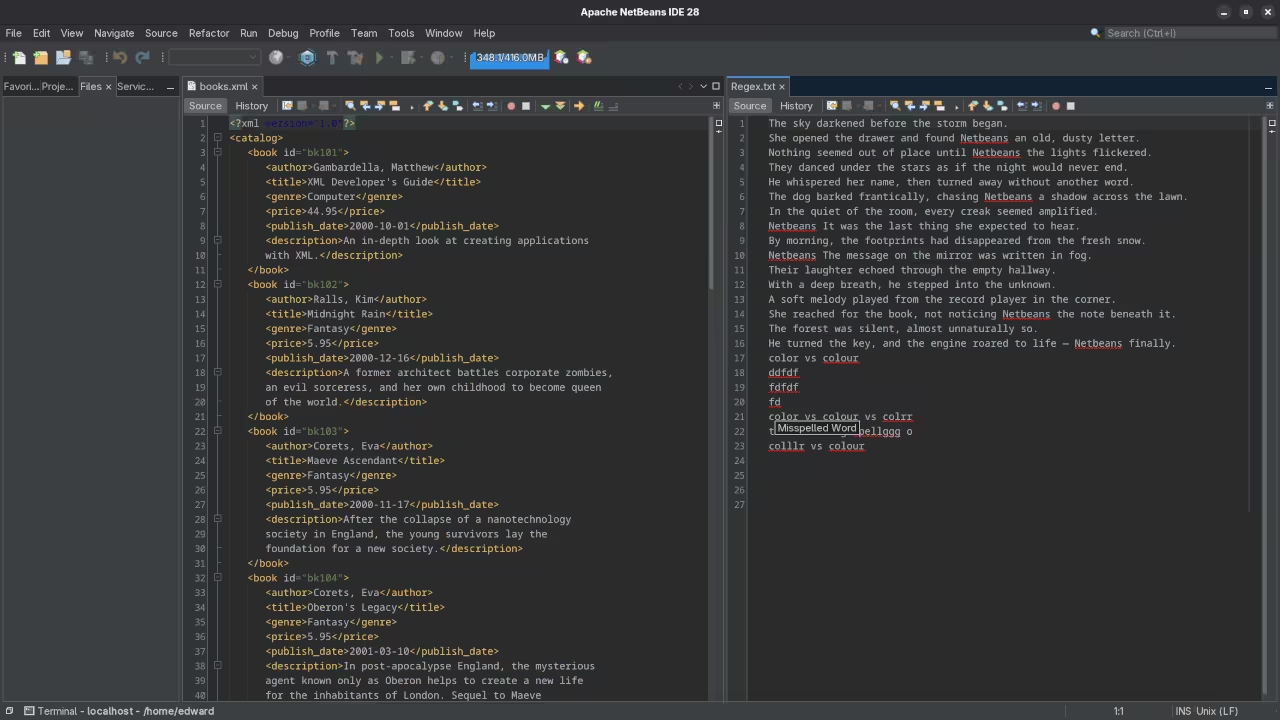
- Multiple documents can opened in multiple tabs. Tear-off tabs work by opening a new Netbeans editor instances which is handy for multiple monitors. The score for multiple documents was a perfect 1.0.
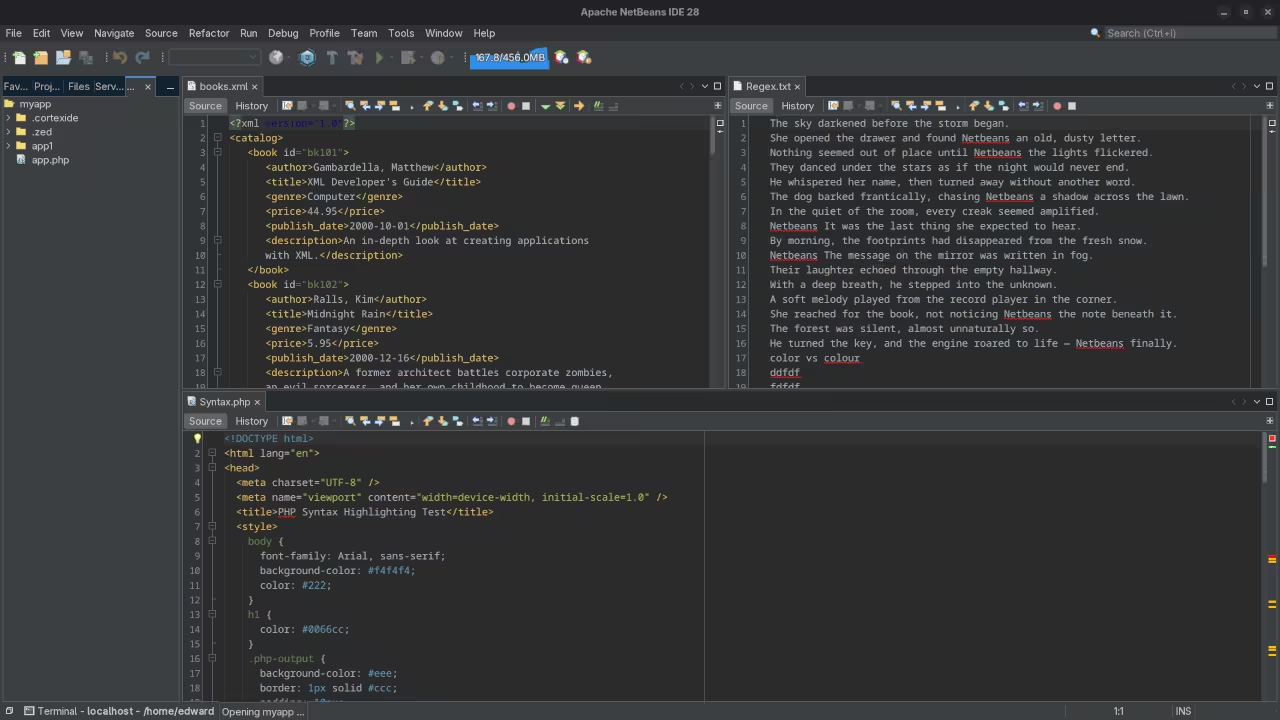
- Multiple editors can be opened as new tabs with drag options. Every new editor tab can be split vertically or horizontally. The score for multiple editor view was a perfect 1.0.
- Creating non-project files is possible by dragging the folder into the workspace. Non-project files can be opened by the drag and drop operation. The score for creating non-project files was a perfect 1.0.
- Soft word wrap can be enabled in the editor settings. Automatic soft wrap for documents is available for Netbeans. The score for word wrap was a perfect 1.0.
- Spell check works as words are typed. Spelling errors are shown in opened documents. The score for spell check was a perfect 1.0.
- Word count is not available for Netbeans. Selection word count is not available. The score for word count was 0.0.
- Go to line
CTRL-Gcan jump to a specified line. It is possible to jump to either the first or last line. The score for go to line was a perfect 1.0. - Indentation can default to user-defined tab stops. Children are automatically indented. The score for indentation was a perfect 1.0
- Fonts can be dynamically scaled using
ALT-MMB. The system font can be bypassed and a new editor font and size can be set. The score for fonts was a perfect 1.0. - Find and replace using regular expressions can be utilized for all open documents in the current session. Find and replace will work for the current document or a selection in the current document. The score for find and replacing using regular expressions was 1.0.
- Multiple language syntax highlighting in one file is enabled if the language plug-ins are installed. Each language has code-sensitive syntax colors which can be modified. The score for multiple language syntax highlighting was a perfect 1.0.
- Code folding works for markup languages such as HTML. Code folding also works for programming languages such as Java and PHP. The score for code folding was 1.0.
- Selecting rectangular block per column works via a toggle or
CTRL-SHIFT-Ron Linux. Rectangular block selections work with word wrap enabled. The score for selecting rectangular block was a perfect 1.0. - Multiple selection works using the shortcut
CTRL-SHIFT-LMBorCMD-SHIFT-LMBon Macs. Search multiple selection is not available. The score for multiple selection was 0.5. - Distraction-free mode to hide panes works. Line numbers can be toggled to improve distraction-free mode. The score for distraction-free was a perfect 1.0.
- The file manager can create and delete folders. Media files can be dragged and dropped into the file manager pane. The score for file manager was a perfect 1.0.
- Terminal is integrated into Netbeans. The terminal can follow folder. Terminal can execute system commands. The score for terminal was 1.0.
Results
Netbeans is a very powerful IDE. By default, the Netbeans editor is no longer missing required features which can be installed by using extensions. For my required features, the Netbeans editor scored 87.5% or 8.75 out of 10.
📱 Screenshots
🞍 Screencast Tour
Take a guided walk-through of some of NetBeans 28’s best new features—from database tools to testing frameworks:
Learn More and Get Help
If you are looking to dive deeper into programming check out my resources below.
- Programming Books Find my latest titles on my Amazon Author Page.
- Programming Courses Structured learning is available at OjamboShop Courses.
- One on One Tutorials I am available for online programming tutorials at Ojambo Contact.
- Professional Services I can install Apache NetBeans and Local AI or migrate your setup at OjamboServices Contact.
🚀 Recommended Resources
Disclosure: Some of the links above are referral links. I may earn a commission if you make a purchase at no extra cost to you.