
Introduction
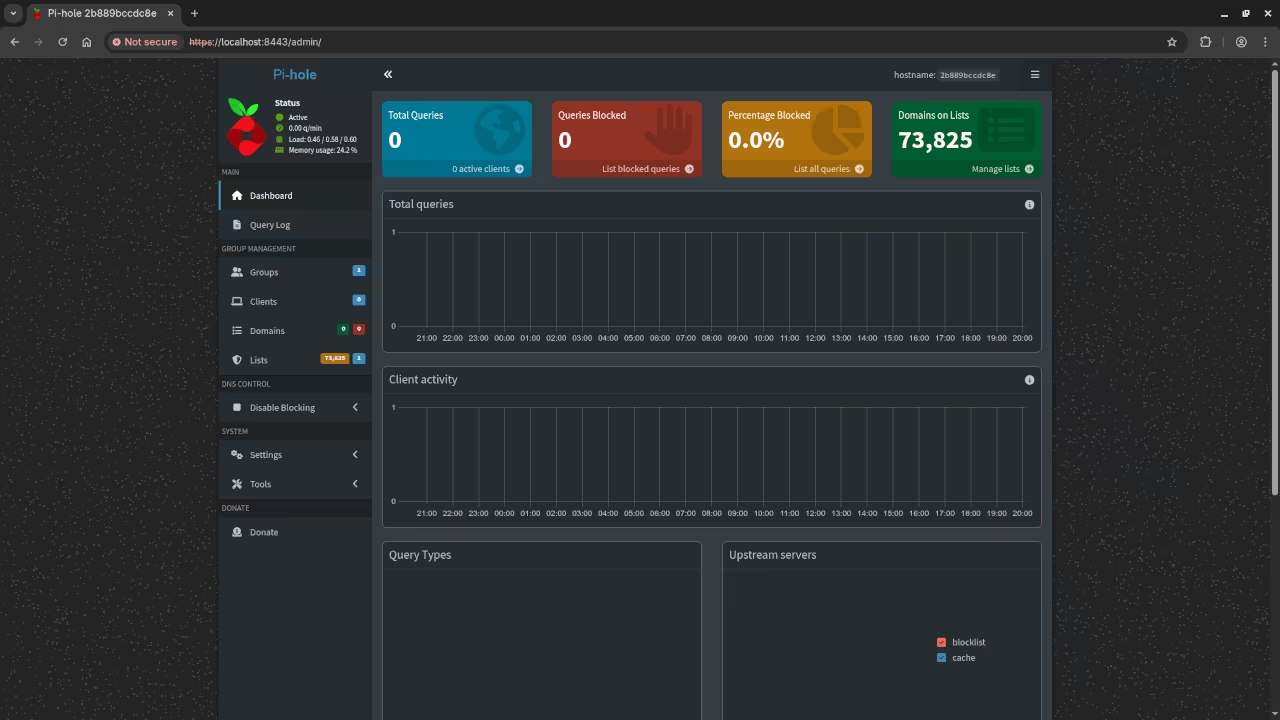
Learn to stop ads using a Raspberry Pi. Fedora Linux makes this setup very secure.
Getting Started with Fedora IoT
First install Fedora IoT on your small device. The Raspberry Pi Zero W works very well.
Understanding Quadlets for Containers
Quadlets are a modern way to run containers. They turn container configs into systemd services.
Prepare your Mini-PC by installing the podman package. Create a simple directory for your Quadlet files.
Configuration and Deployment
Write a basic container file for your blocker. Pi-hole or AdGuard Home are great choices.
The Quadlet file manages the network and storage. Start the service using the systemctl command.
The Quadlet Configuration Code
Create a file named adblocker.container in the systemd directory. Use the following configuration for your service.
[Unit]
Description=Private Ad Blocker Container
After=network-online.target

[Container]
Image=docker.io/adguard/adguardhome:latest
Volume=/var/lib/adguardhome:/opt/adguardhome/work:Z
Volume=/etc/adguardhome:/opt/adguardhome/conf:Z
PublishPort=53:53/tcp
PublishPort=53:53/udp
PublishPort=3000:3000/tcp
PublishPort=80:80/tcp

[Install]
WantedBy=multi-user.target default.target
[Unit]
Description=Pi-hole Rootless Container
After=network-online.target

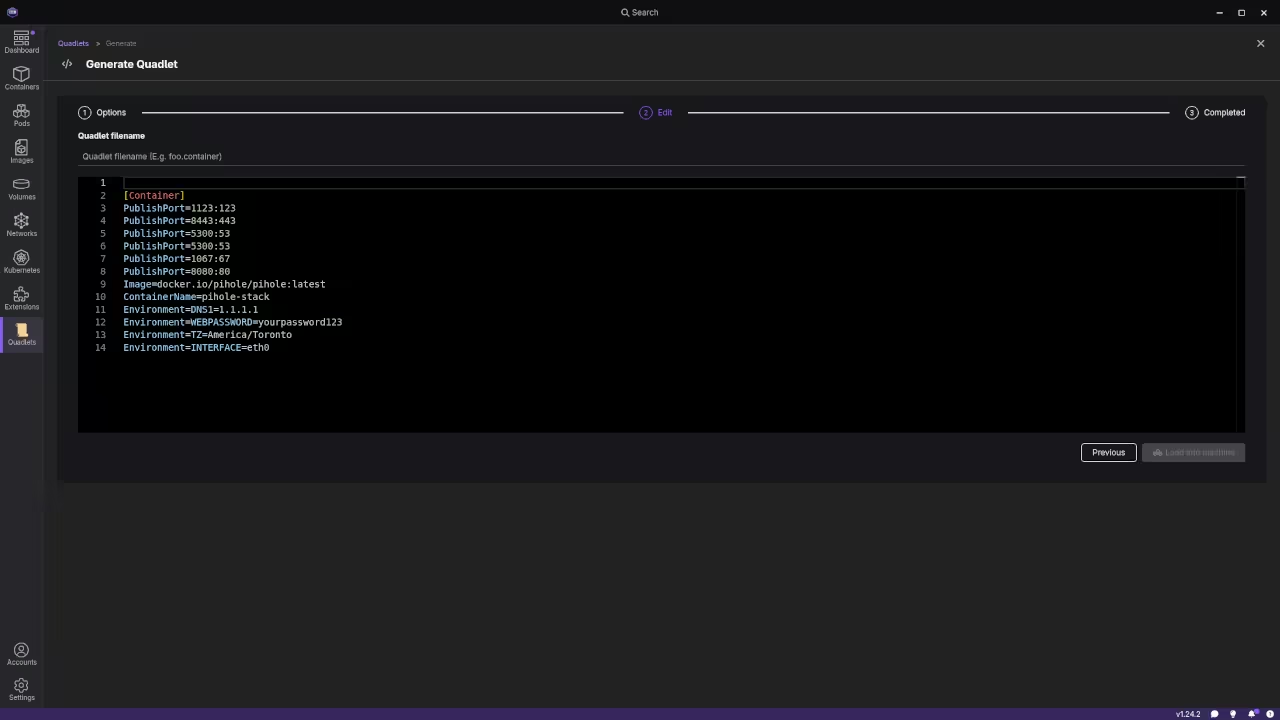
[Container]
Image=docker.io/pihole/pihole:latest
ContainerName=pihole-rootless

# DNS Ports (Redirected to high ports for rootless)
PublishPort=5300:53/udp
PublishPort=5300:53/tcp
# Web/Admin Ports
PublishPort=8080:80/tcp
PublishPort=8443:443/tcp
# Other requested ports
PublishPort=1123:123/udp
PublishPort=1067:67/udp

# Environment Variables
Environment=TZ=America/Toronto
Environment=WEBPASSWORD=your_secure_password
Environment=DNS1=1.1.1.1

# Volume Mapping (The :Z handles Fedora's SELinux automatically)
Volume=%h/pihole/etc-pihole:/etc/pihole:Z
Volume=%h/pihole/etc-dnsmasq.d:/etc/dnsmasq.d:Z

[Service]
Restart=always

[Install]
WantedBy=default.target
Load and Start the Service
systemctl --user daemon-reload # Reload Daemon
systemctl --user start pihole.service # Start Service
systemctl --user enable pihole.service # Boot Start
# Keep Running After Logo
sudo loginctl enable-linger $USER
Deployment and Commands
Reload the systemd daemon to recognize the new file. Start the service using the systemctl start command.
Final Network Setup
Update your router DNS to point to Pi. Every device on your network stays clean.
You now have a private ad blocking server. Quadlets ensure your blocker starts after every reboot.
📷 Screenshots
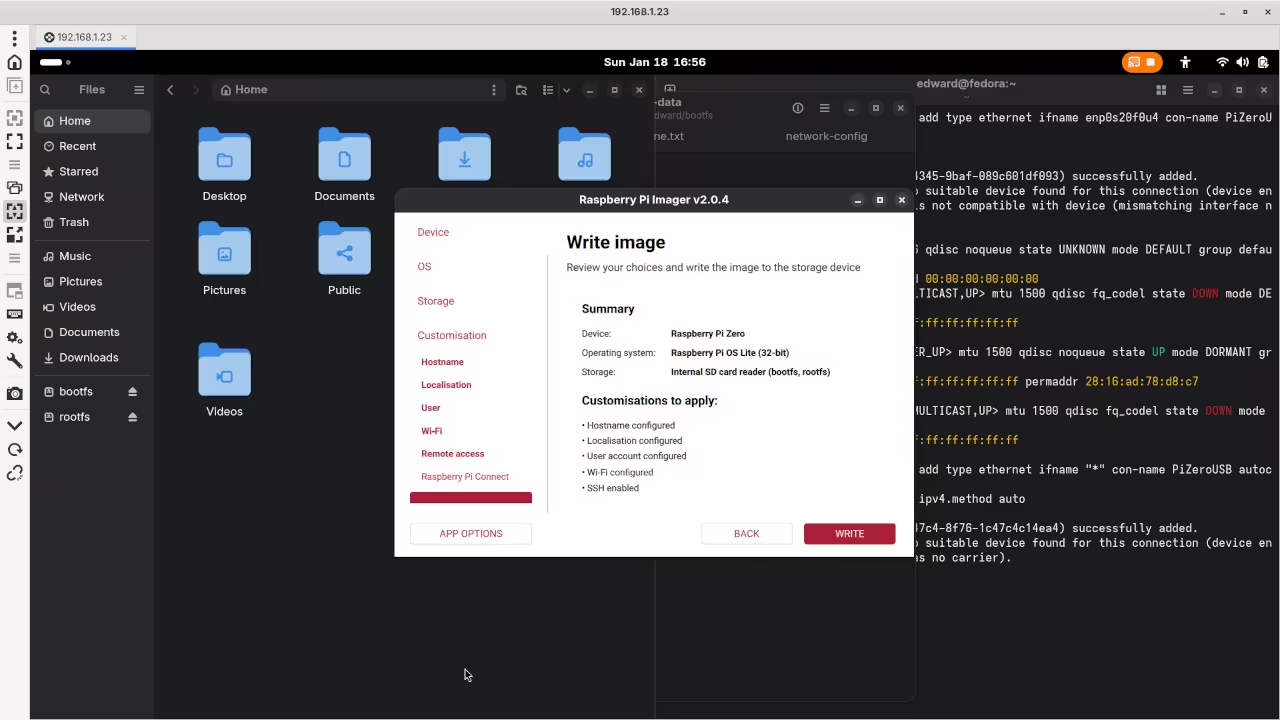
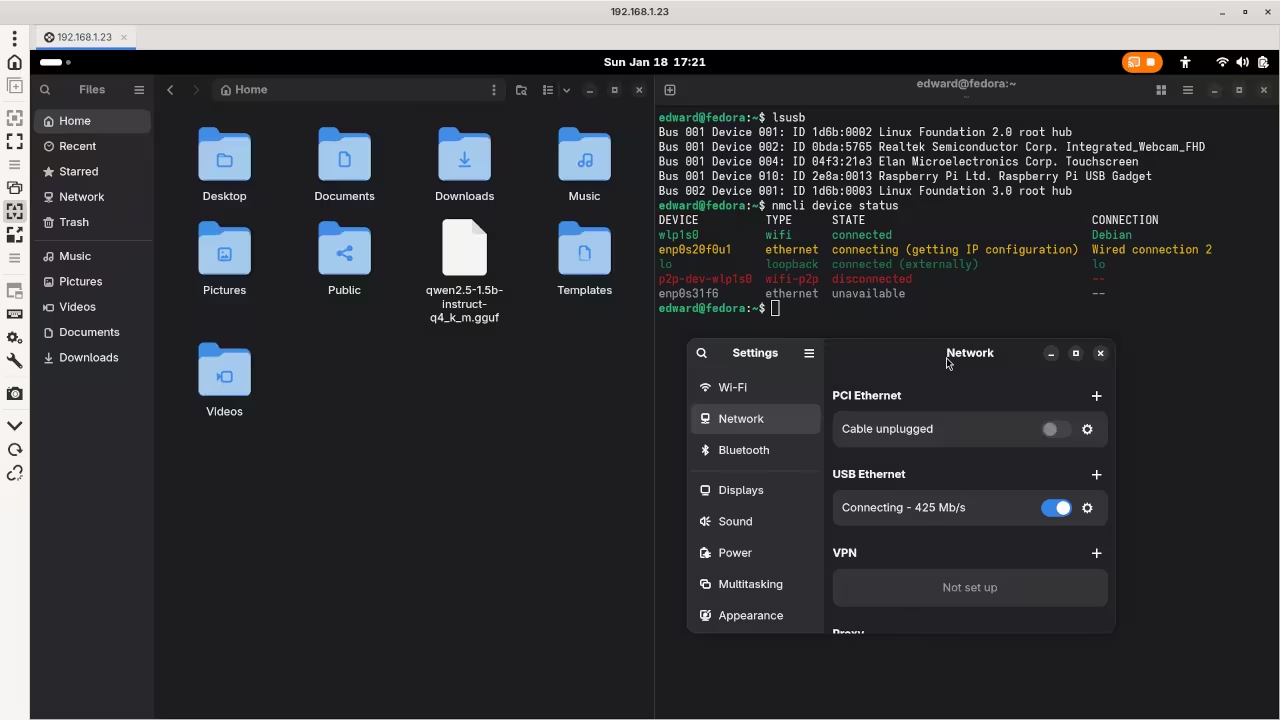
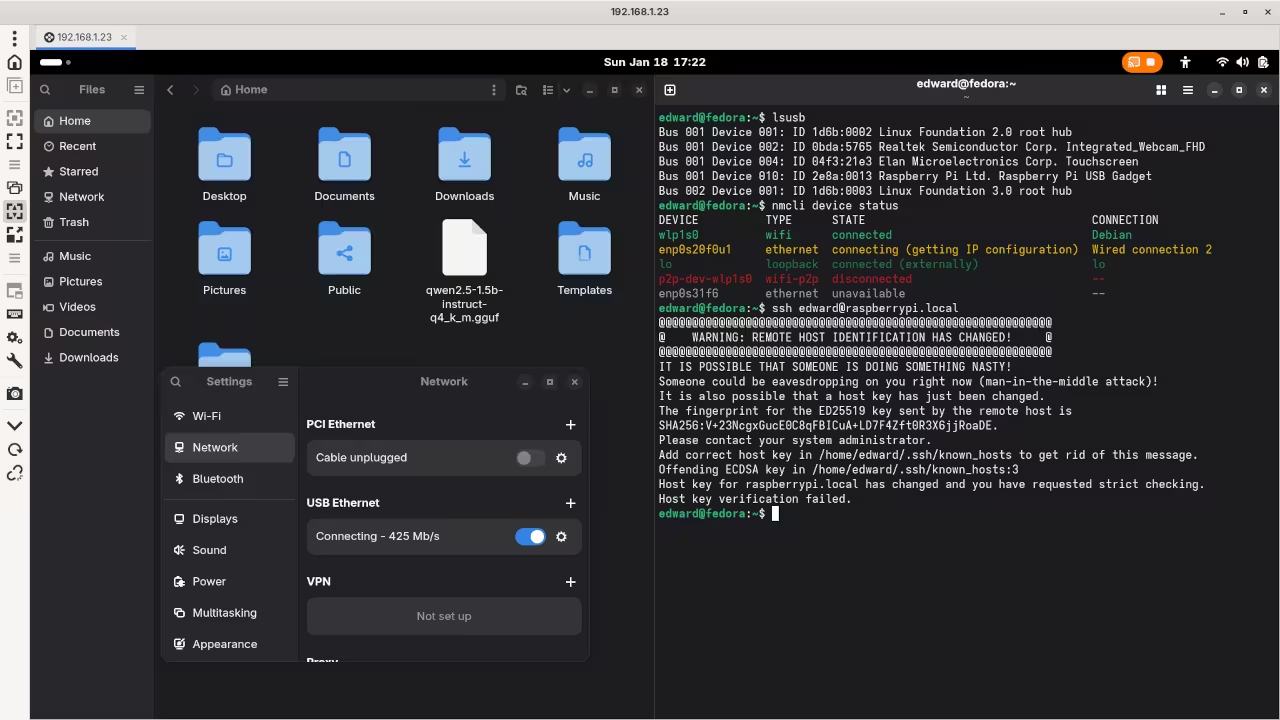
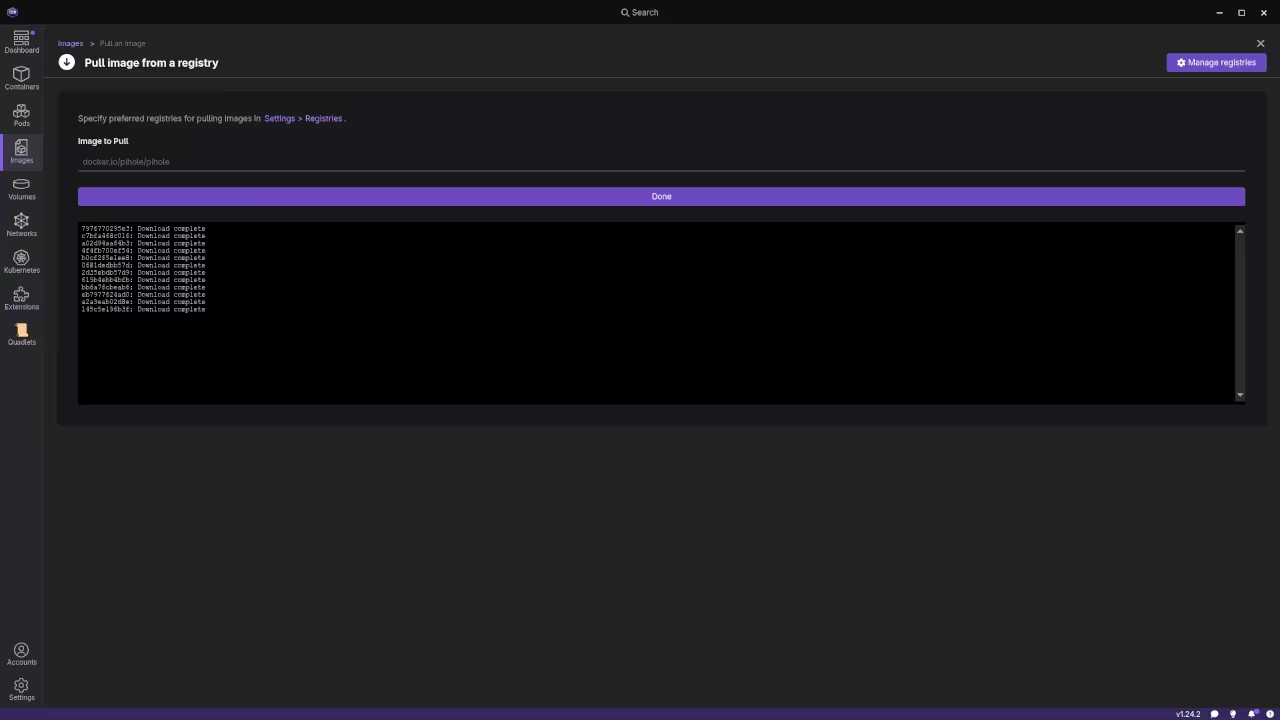
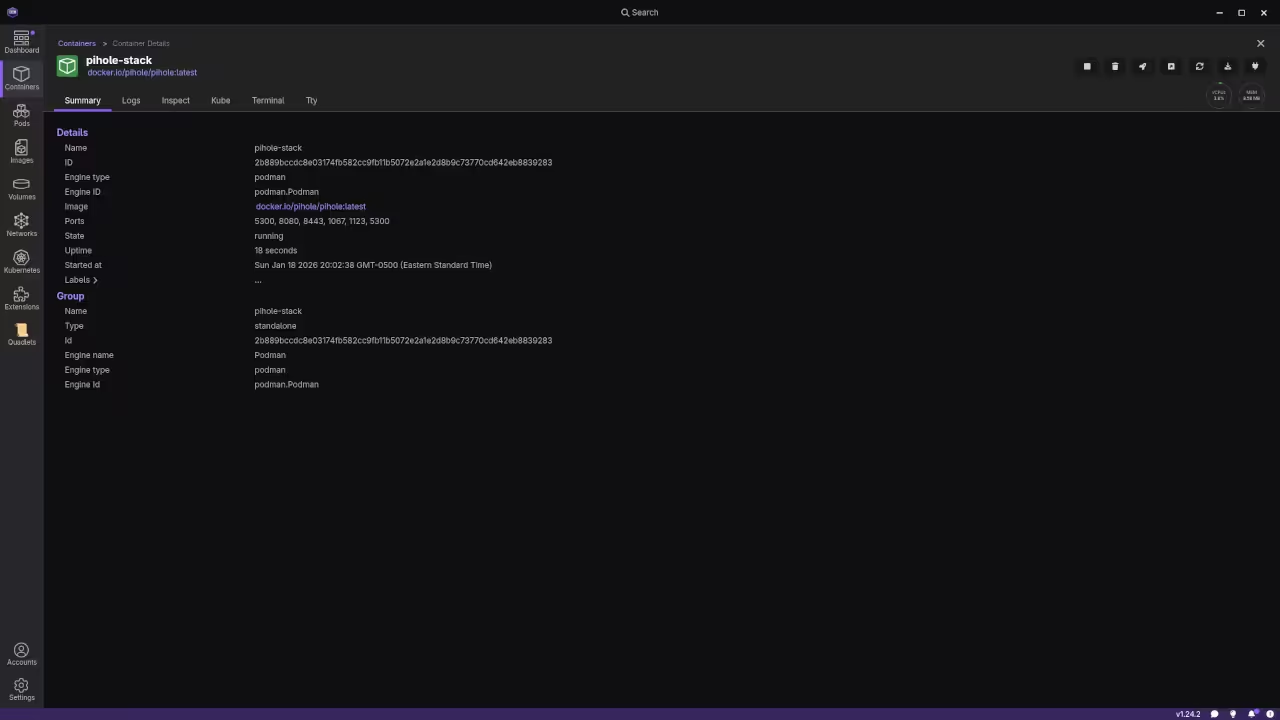

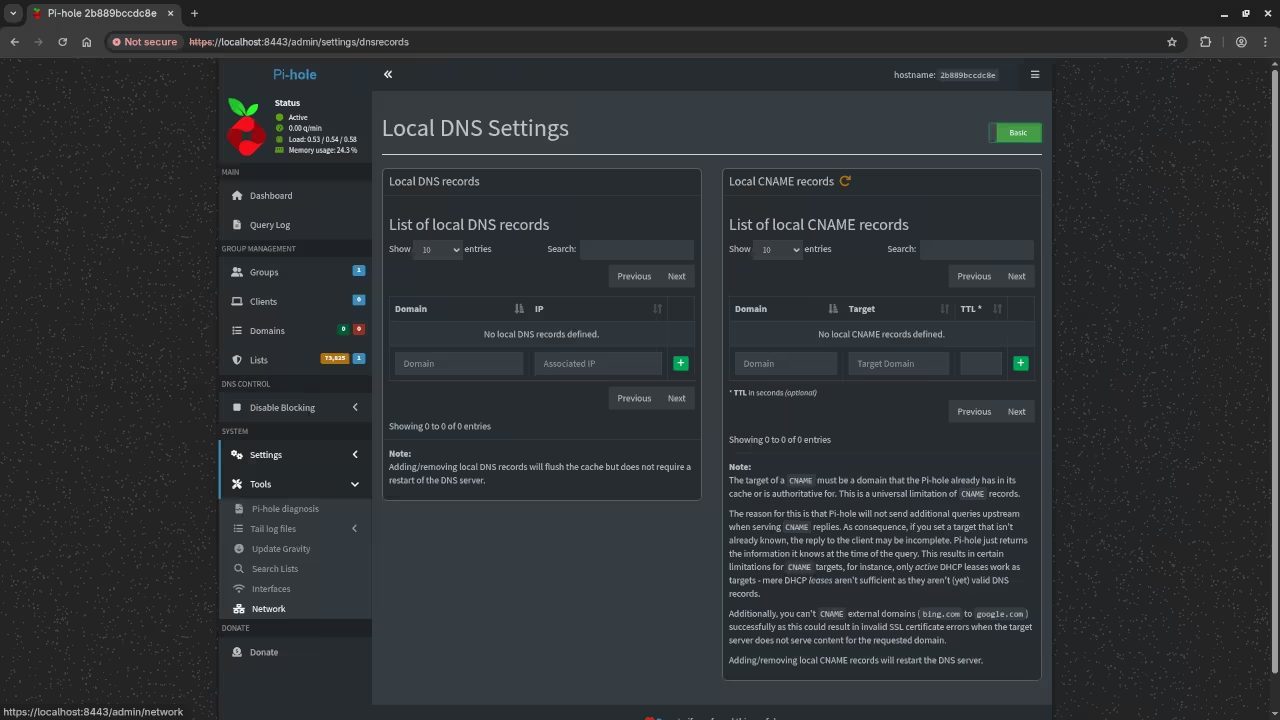
Now that you have the management tools installed you are ready to view the screencast and begin your deployment.
🎬 Live YouTube Screencast
Take Your Skills Further
- Books: https://www.amazon.com/stores/Edward-Ojambo/author/B0D94QM76N
- Courses: https://ojamboshop.com/product-category/course
- Tutorials: https://ojambo.com/contact
- Consultations: https://ojamboservices.com/contact
🚀 Recommended Resources
Disclosure: Some of the links above are referral links. I may earn a commission if you make a purchase at no extra cost to you.