
Introduction
Running large models like Wan 2.2 on Fedora 43 requires precise hardware tuning. Beginners often struggle with AMD ROCm installation errors during the setup process.
Eliminate Site Wide Python Dependency Conflicts
The first mistake is using the site wide Python installation. This leads to massive dependency conflicts within the Fedora ecosystem.
Fedora updates frequently change system packages and libraries. Always use a dedicated virtual environment for every ComfyUI project.
Create a clean virtual environment using the venv module. Run python -m venv comfy-venv to initialize the folder.
Activate the environment before installing any pip requirements. Use source comfy-venv/bin/activate to isolate your AI workspace.
Configure Virtual Memory and Linux Swap Files
The second mistake is ignoring your limited system RAM. Your 32GB of physical memory is not enough for 14B models.
The Ryzen 5600GT iGPU reserves 4GB for video processing. This leaves only 28GB for the entire Fedora operating system.
Loading the Wan 2.2 model weights will spike memory usage. Create a 32GB swap file to prevent the OOM killer.
Use btrfs filesystem mkswapfile for modern Fedora installations. Add the entry to /etc/fstab to enable it on boot.
Resolve ROCm DNF No Match for Argument Errors
The third mistake involves the ROCm 6.4 repository configuration. DNF will return no match errors if the path is wrong.
Fedora 43 requires a specific repository file in /etc/yum.repos.d/. Check that your baseurl points to the correct ROCm version.
Isolate the Instinct Mi60 from the Ryzen iGPU
Hardware conflicts between the iGPU and Mi60 cause crashes. The integrated graphics can confuse the ROCm compiler scripts.
Set the HIP_VISIBLE_DEVICES="0" variable in your launch script. This forces ComfyUI to ignore the 5600GT graphics unit.
Why You Must Use GGUF Quantization
Standard fp16 models are too large for 32GB VRAM. A 14B model in fp16 requires nearly 60GB of memory.
Even fp8 models can cause fragmentation on Vega 20. The Mi60 architecture handles GGUF quants with much better stability.
Select the Q5_K_M GGUF quantization for the best quality. This format allows the model to fit inside your VRAM.
Advanced Startup Tweak and Custom Nodes
Add the HSA_OVERRIDE_GFX_VERSION="9.0.6" variable to your environment. This tells ROCm to treat the Mi60 as a Vega card.
Use the --lowvram and --force-fp16-vae flags for ComfyUI. These arguments prevent the VAE from exceeding your VRAM limit.
Install the Sage Attention custom node for optimized sampling. This node reduces the memory footprint during the video generation.
Use the Model Sampling Flux/Wan node for motion control. Set the shift value to 1.1 for smoother video results.
Monitor your progress using the rocminfo command in terminal. This tool verifies that Fedora sees your hardware correctly.
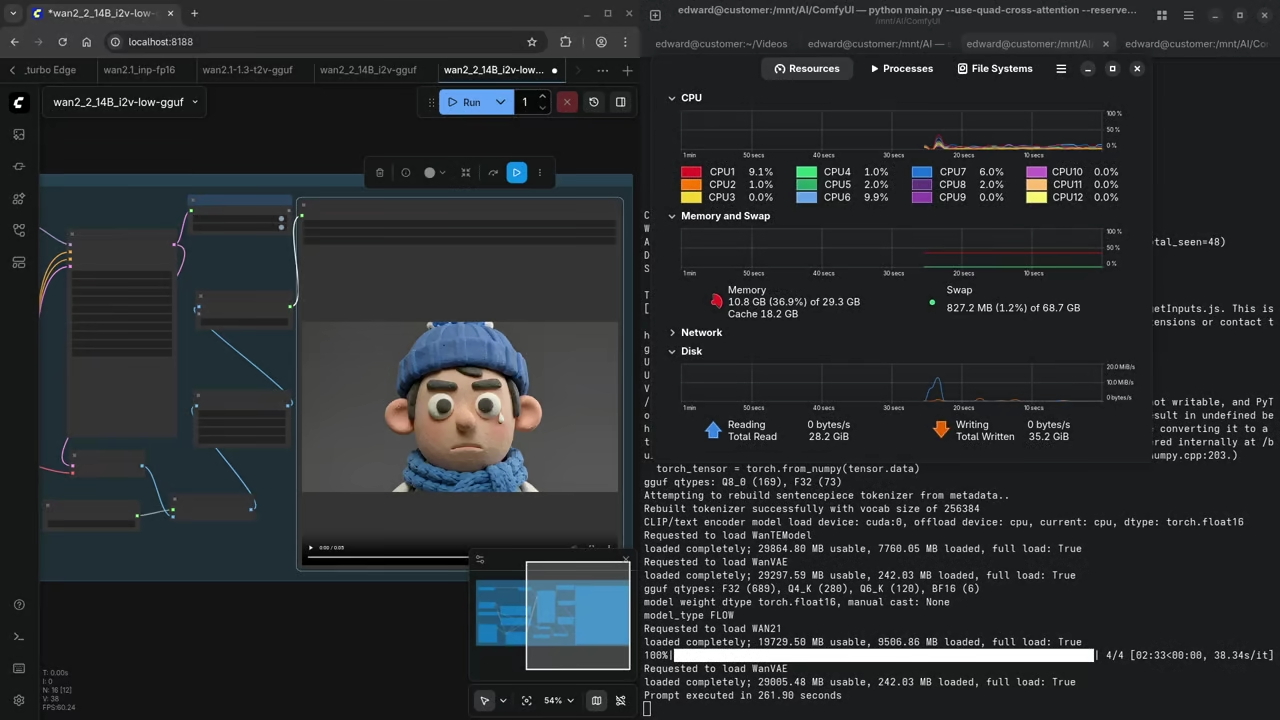
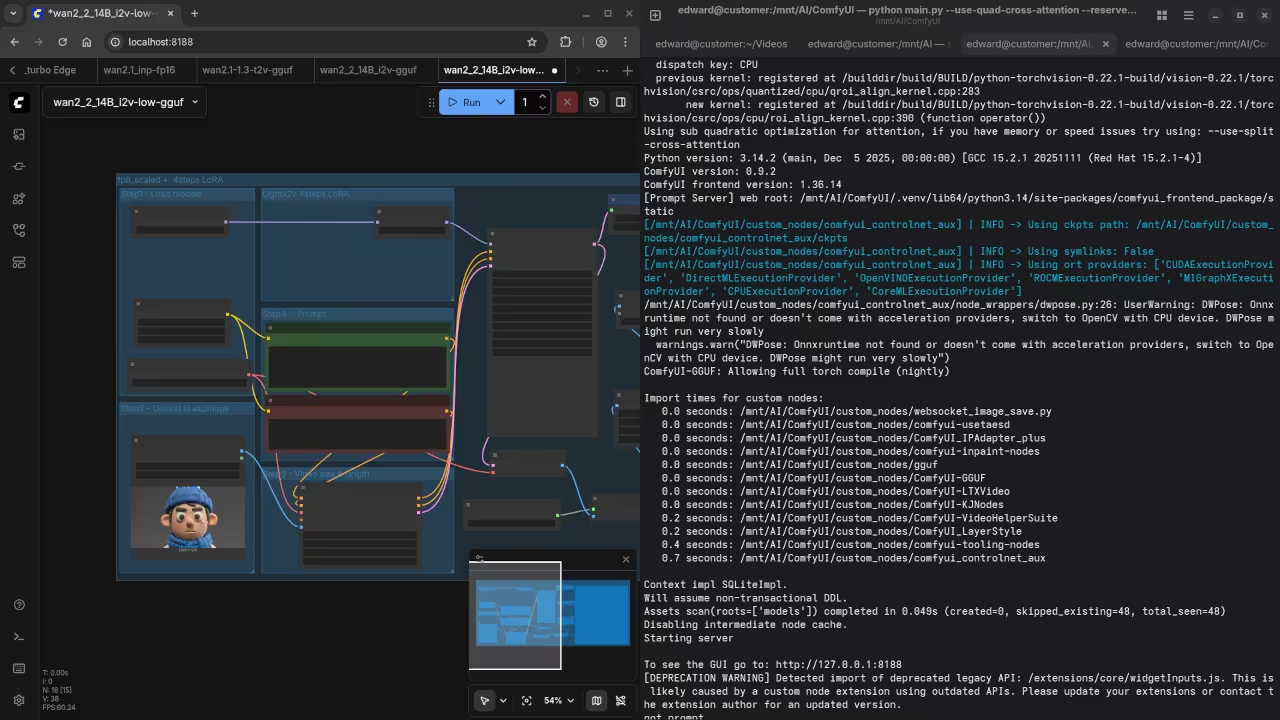
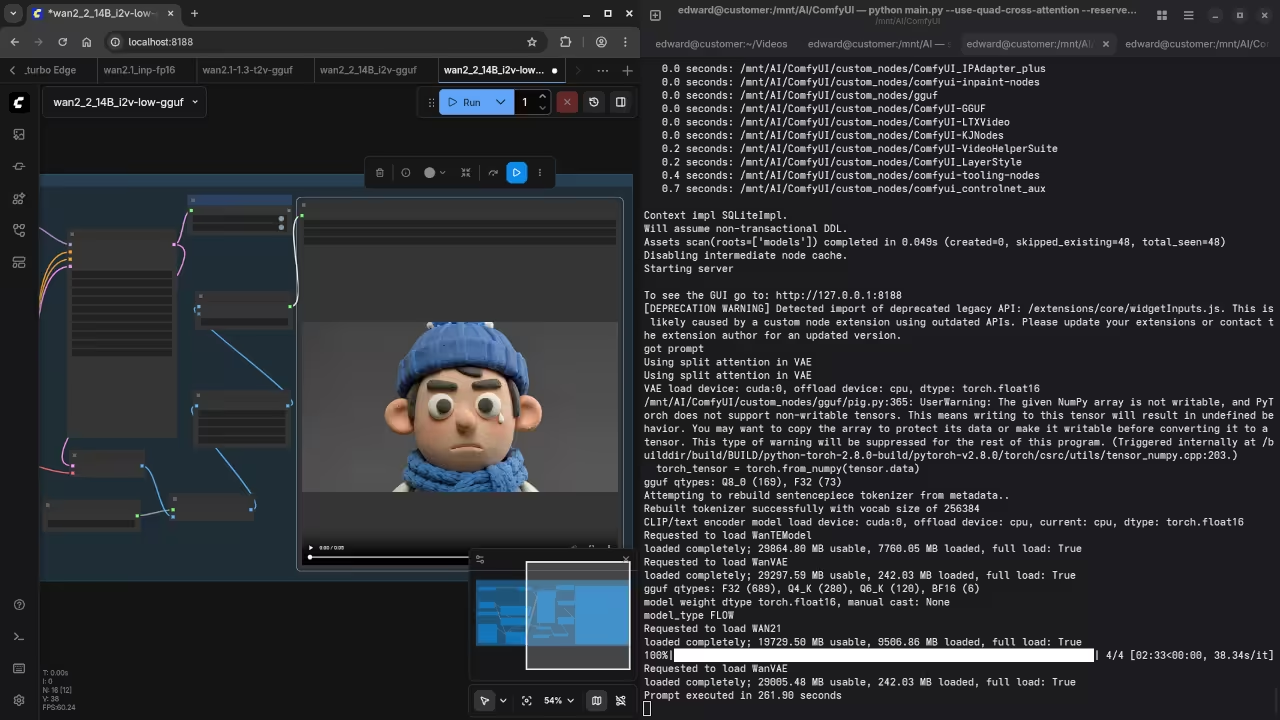
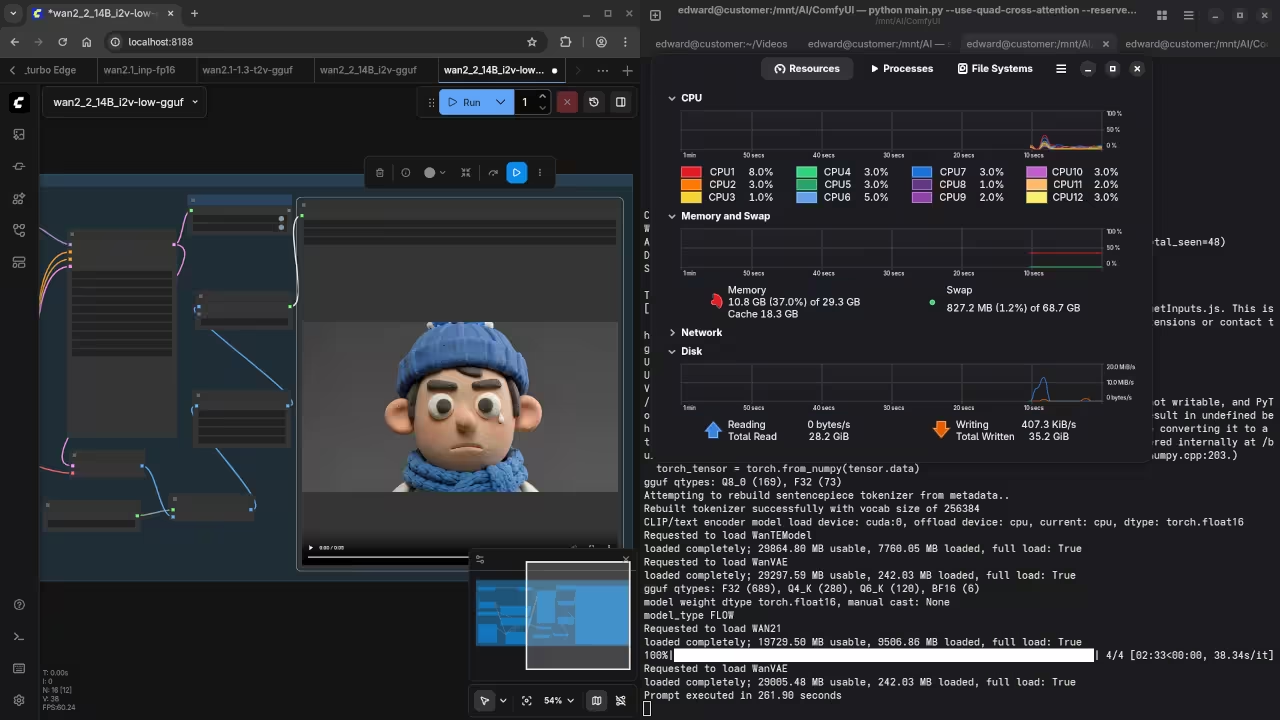
Screenshot
Live Screencast
Take Your Skills Further
- Books: https://www.amazon.com/stores/Edward-Ojambo/author/B0D94QM76N
- Courses: https://ojamboshop.com/product-category/course
- Tutorials: https://ojamb.com/contact
- Consultations: https://ojamboservices.com/contact
🚀 Recommended Resources
Disclosure: Some of the links above are referral links. I may earn a commission if you make a purchase at no extra cost to you.