
Introduction
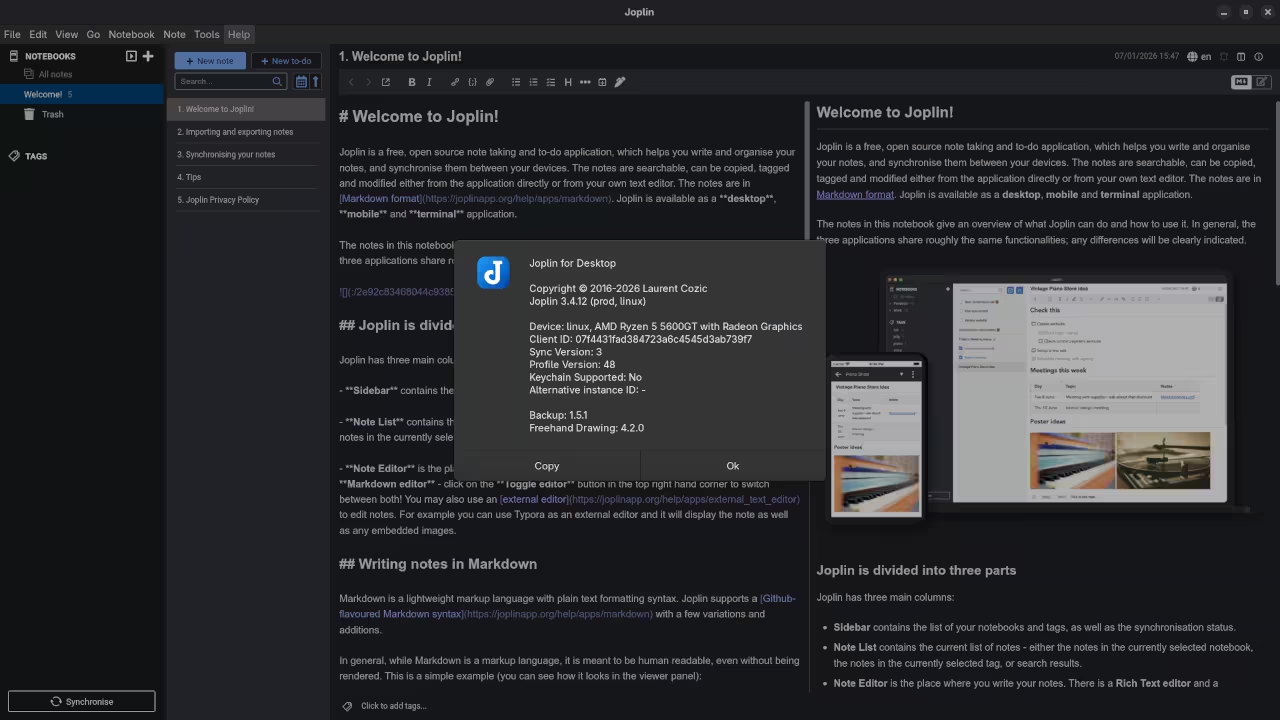
In the world of professional note-taking, speed and portability are king. While many are used to clicking buttons in a toolbar, true efficiency comes from keeping your hands on the keyboard. This is where Joplin shines. By using Markdown as its core language, Joplin allows you to format your thoughts as fast as you can type them. Today, we are moving beyond the basic setup and looking at how to truly leverage the Joplin Markdown editor on Fedora Linux.
Why Markdown Matters
Markdown is not just a styling choice; it is a future-proof format. Because it is essentially plain text, your notes are never trapped in a proprietary database. If you ever decide to move your data, every other major open-source tool can read it. In Joplin, this “markup” approach lets you create complex structures—from mathematical formulas to architectural diagrams—without ever leaving the text editor.
Essential Markdown Syntax in Joplin
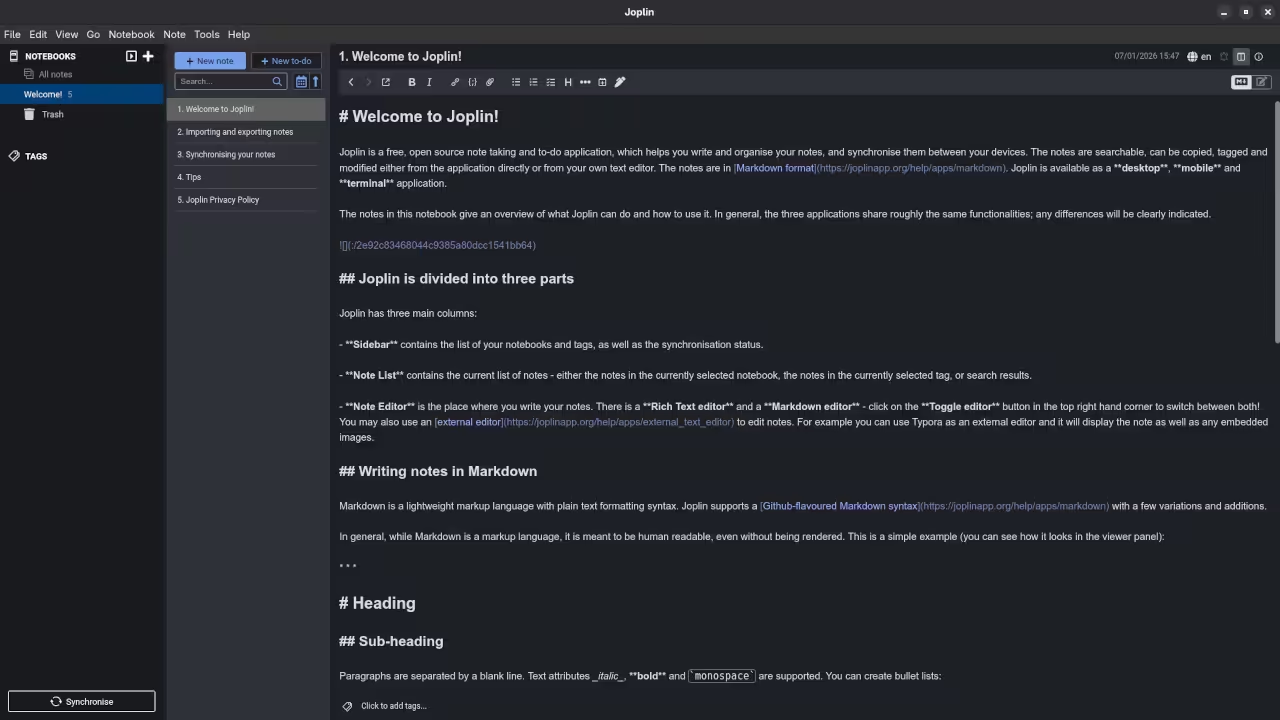
To get the most out of Joplin, you should familiarize yourself with the core syntax. The editor typically offers a split-view mode, where you can see your raw code on the left and the beautiful, rendered result on the right. Below are the essential components:
- Headers: Use the hash symbol. A single # is a large H1, while ### creates a smaller H3.
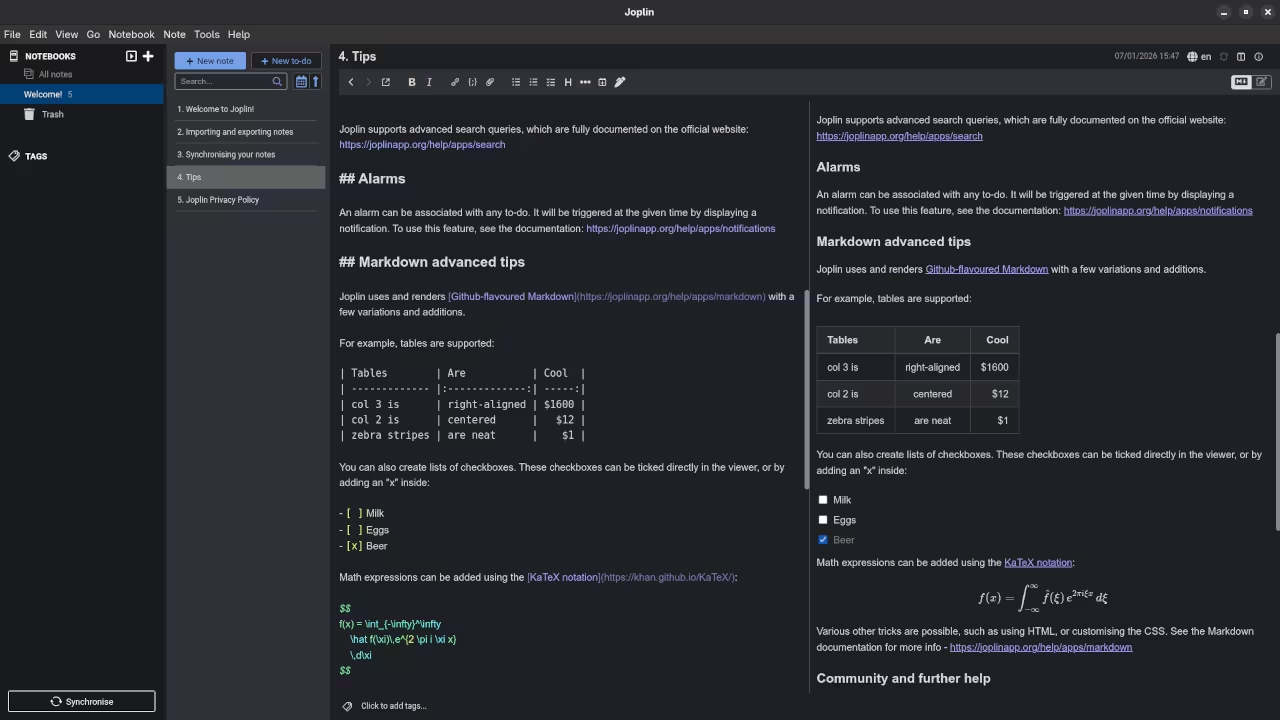
- Emphasis: Wrap text in asterisks. Use double asterisks for bold and single for italics.
- Interactive Checklists: This is perfect for task management. Use
- [ ]for an open task and- [x]for a completed one. - Code Blocks: For developers, wrap your code in triple backticks. You can even specify the language for syntax highlighting.
Advanced Formatting: Math and Diagrams
One of Joplin’s superpowers is its support for KaTeX and Mermaid. If you are a student or an engineer, you can render complex mathematical equations by wrapping them in dollar signs, such as $E = mc^2$.
For visual thinkers, the Mermaid plugin allows you to generate flowcharts and diagrams directly from text. A simple script can instantly render a professional-looking flowchart in your note, keeping your documentation visual without the need for external drawing tools.
Optimizing the Fedora Experience
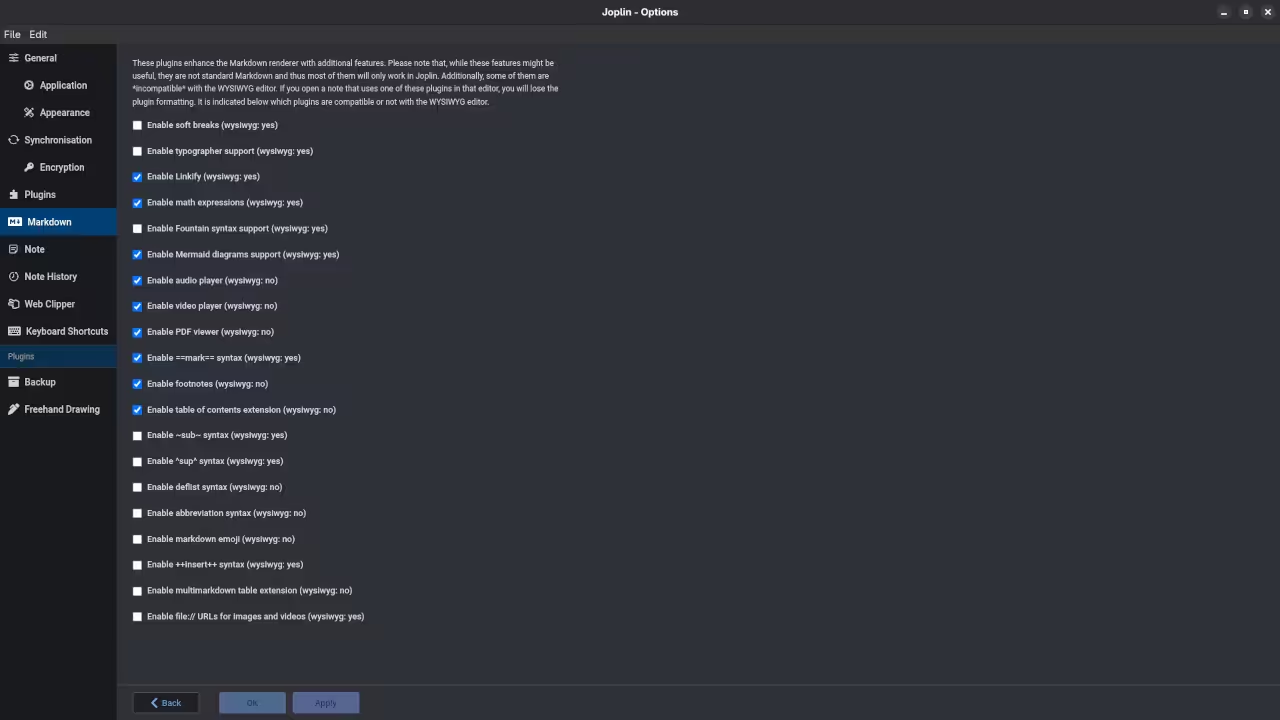
On Fedora 43, the experience is enhanced by the Rich Markdown plugin. This plugin allows you to render elements like images and bold text directly within the editor pane. To install it, navigate to Tools, then Options, and search the Plugins menu for “Rich Markdown.” It provides a much cleaner, more modern writing environment while maintaining the power of raw text.
📷 Screenshots
🎬 Live YouTube Screencast
In the video above, I demonstrate a speed-run of creating a technical project plan in Joplin. We use Markdown to build tables, embed local Linux system diagrams, and set up a synchronized task list in real-time.
Take Your Documentation Further
Mastering Markdown is a fundamental skill for any modern developer or power user. If you want to deepen your understanding of these systems, my books provide a deep dive into the logic of structured data and open-source workflows. My online courses also offer comprehensive modules on technical writing and Linux system administration.
For those looking to build custom Joplin plugins or integrate it into a larger professional workflow, I am available for one-on-one tutorials and professional consultations to help you scale your productivity.
🚀 Recommended Resources
Disclosure: Some of the links above are referral links. I may earn a commission if you make a purchase at no extra cost to you.