
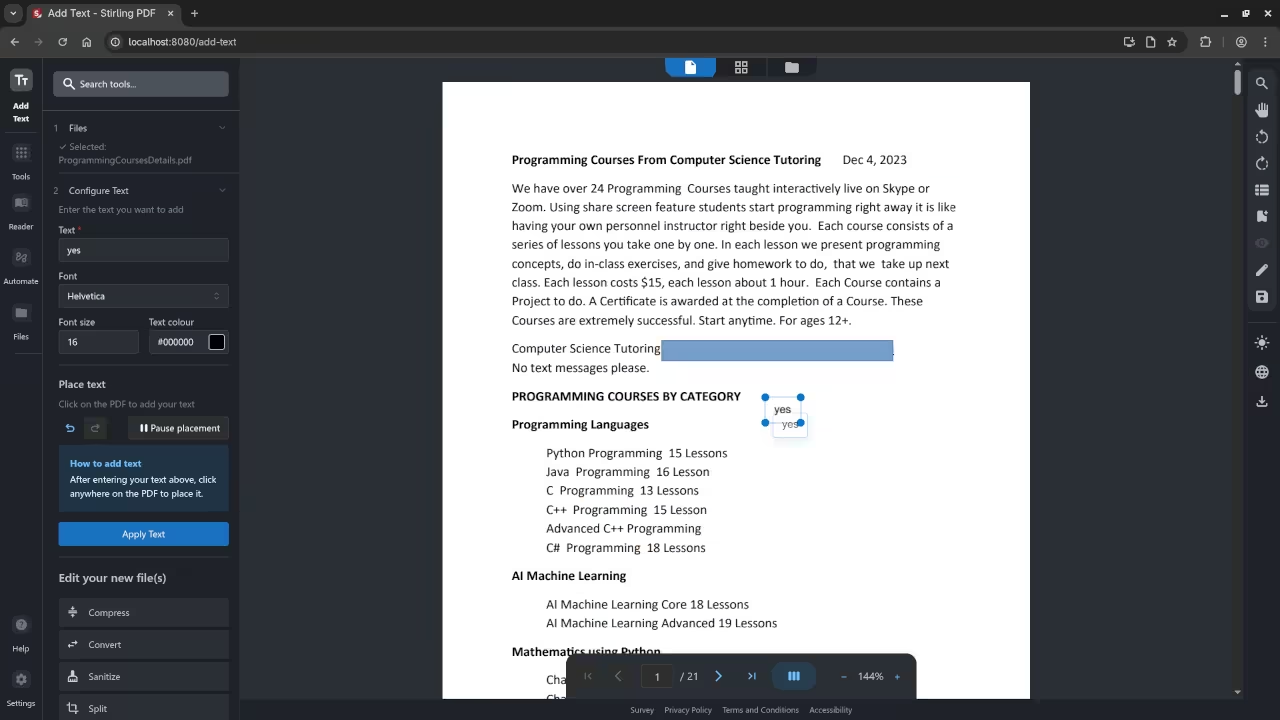
Getting Started with Stirling PDF: Installation and Setup Guide
Stirling PDF is an open-source tool designed to manage and process PDF files with ease. Whether you’re a developer looking to integrate PDF functionality into your web applications or someone who wants a robust tool for PDF manipulation, Stirling PDF can meet your needs. In this guide, we will show you how to install Stirling PDF on your server using Podman (or Podman Compose) for a containerized experience.
What is Stirling PDF?
Stirling PDF is a lightweight and efficient solution for handling PDF files. It’s open-source, which means anyone can freely use, modify, and distribute it. It’s particularly useful for developers who need to automate PDF-related tasks, such as converting files to PDF, merging multiple PDFs, or extracting text and images from PDFs.
You can download and explore the project by visiting its official repository (link to repository, if applicable).
Installation Instructions
In this section, we’ll walk you through the process of installing Stirling PDF using Podman (a containerization tool). Podman is a great choice for running containers without requiring a central daemon, making it easier to manage and more secure.
Prerequisites
- A Linux-based system (although Podman can be installed on Windows and macOS, this guide assumes you’re using a Linux machine).
- Podman installed on your machine. If you don’t have Podman installed, you can install it by running the following command:
sudo apt install podman Alternatively, if you’re using a system with Podman Compose (to manage multi-container setups), you can install it with:
sudo apt install podman-compose Step 1: Pull the Stirling PDF Container Image
To get started with Stirling PDF, the first thing you’ll need to do is pull the container image from the container registry (make sure Stirling PDF’s container image is available on a public registry like Docker Hub or GitHub):
podman pull stirlingpdf/stirlingpdf Step 2: Running Stirling PDF
Once the image is downloaded, you can easily run Stirling PDF using the following command:
podman run -d -p 8080:80 stirlingpdf/stirlingpdf This command will run Stirling PDF as a container and map port 8080 on your local machine to port 80 inside the container. You should now be able to access Stirling PDF at:
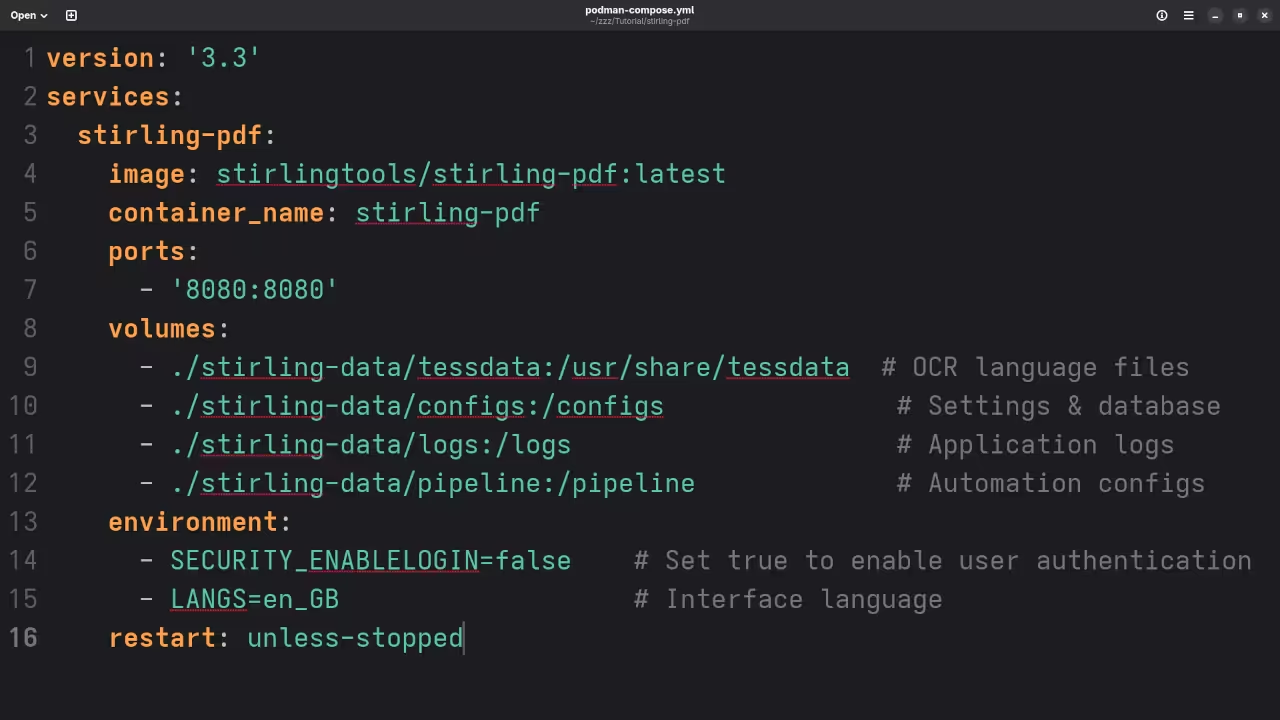
http://localhost:8080 If you’re using Podman Compose for a more complex setup with multiple containers, create a docker-compose.yml file like this:
version: '3'
services:
stirlingpdf:
image: stirlingpdf/stirlingpdf
ports:
- "8080:80"
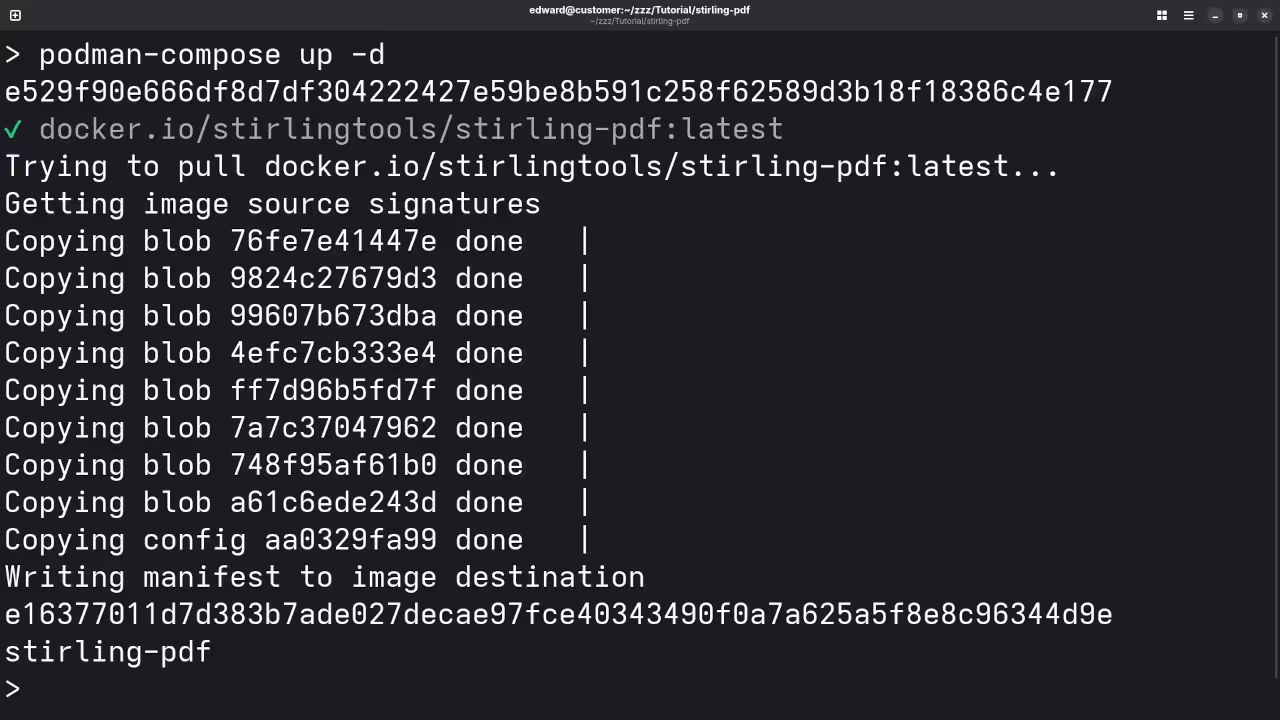
restart: always To run the setup with Podman Compose, use:
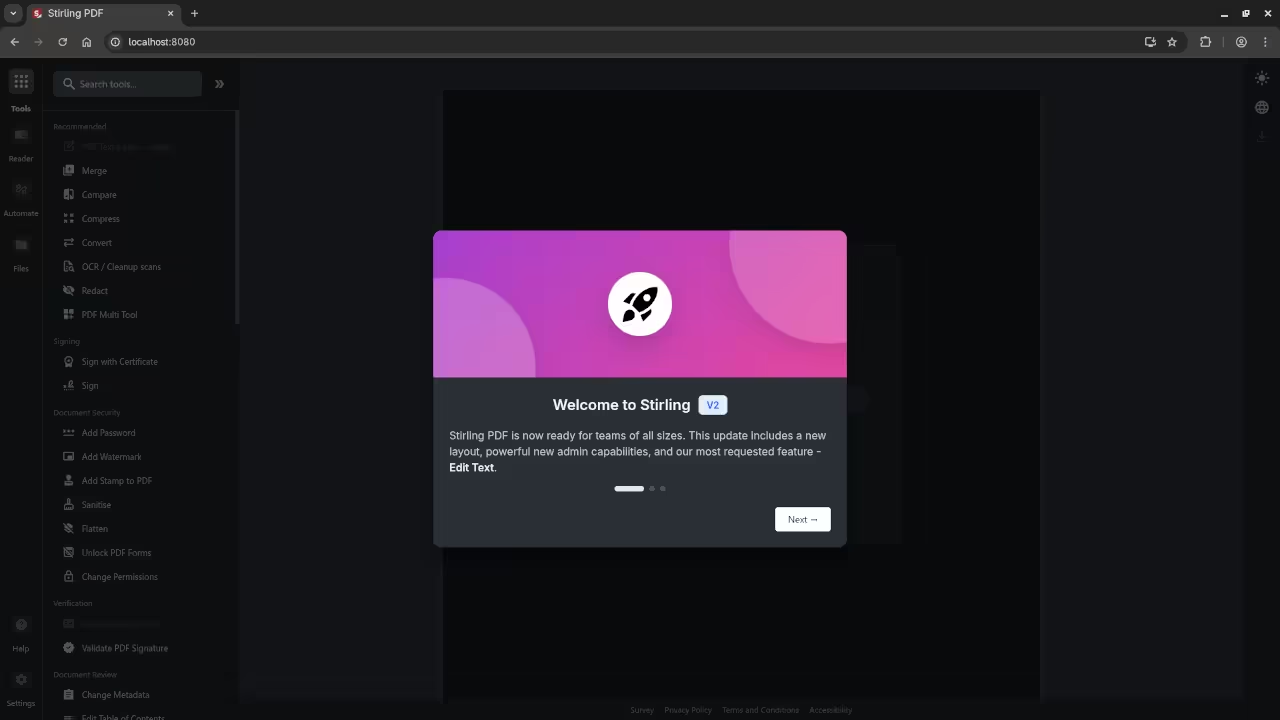
podman-compose up Now, just like before, you can access Stirling PDF at:
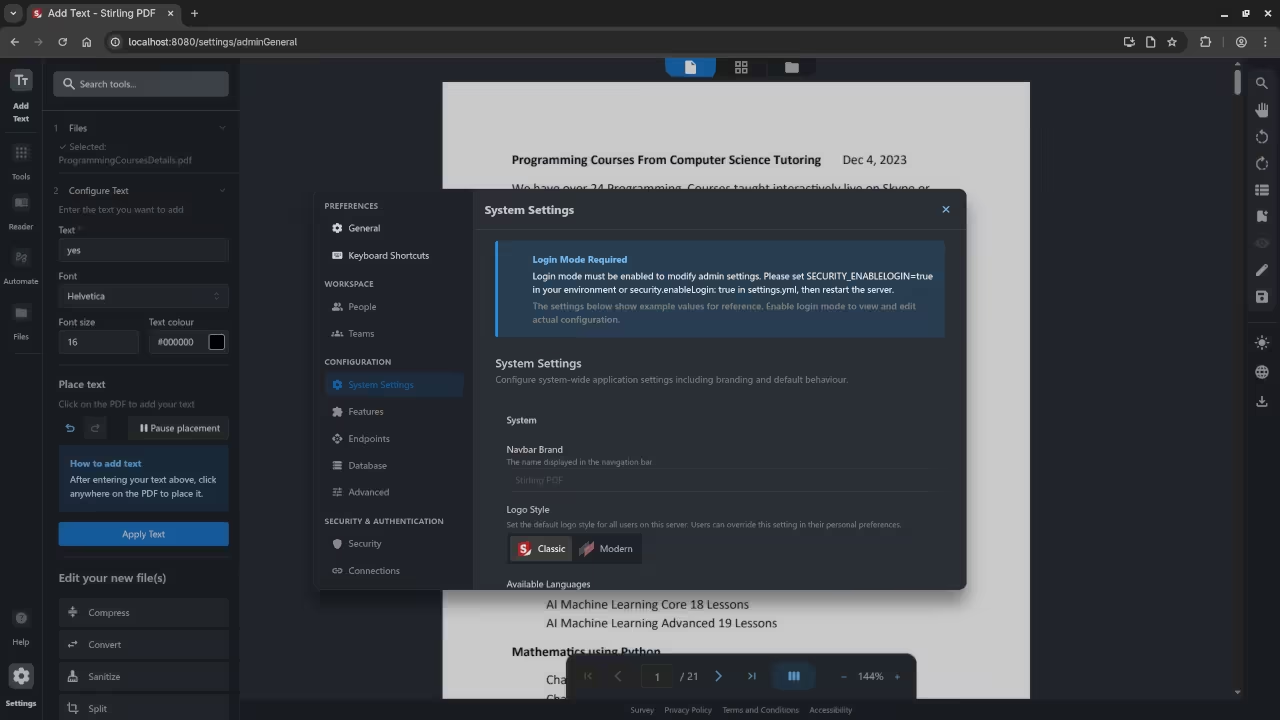
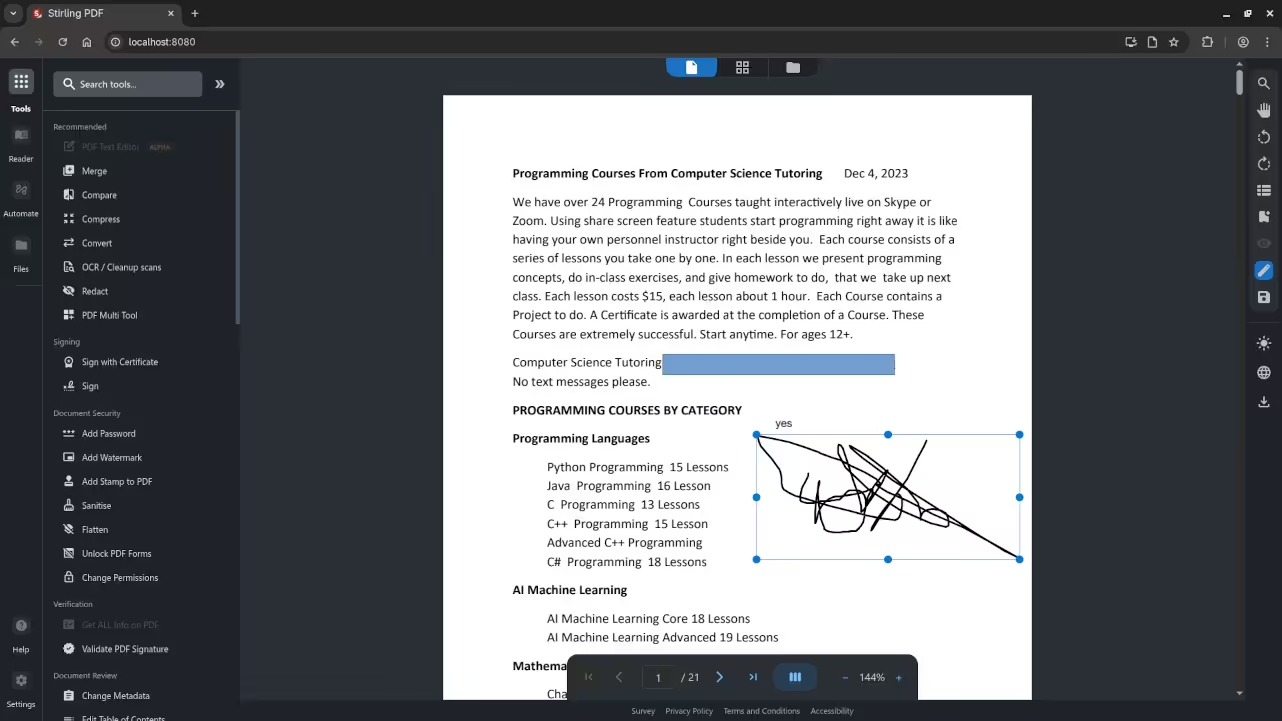
http://localhost:8080 📱 Screenshots & Screencast
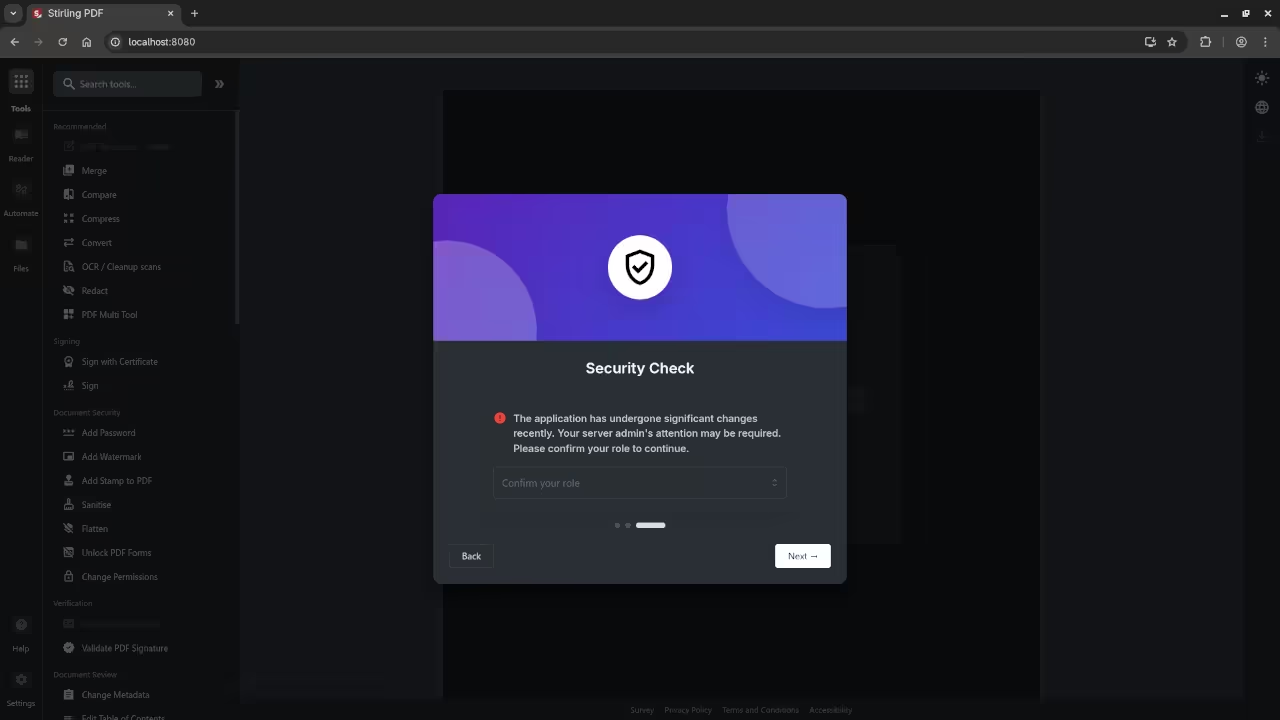
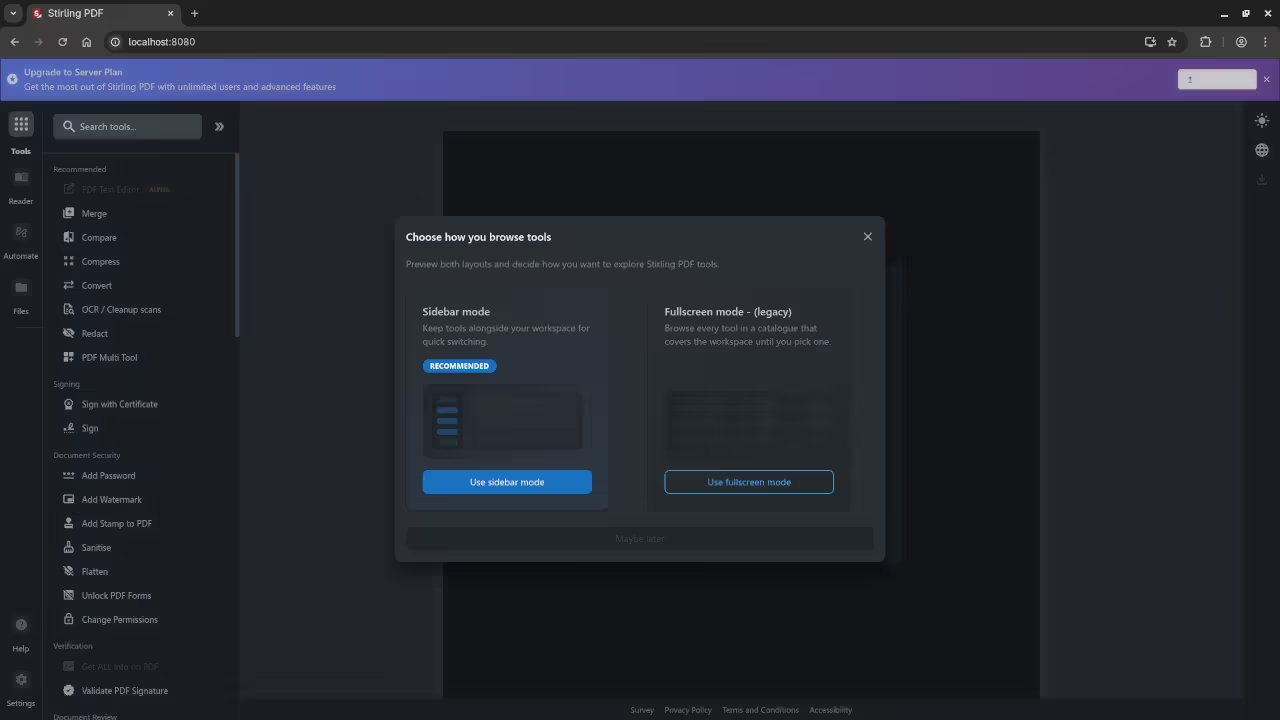
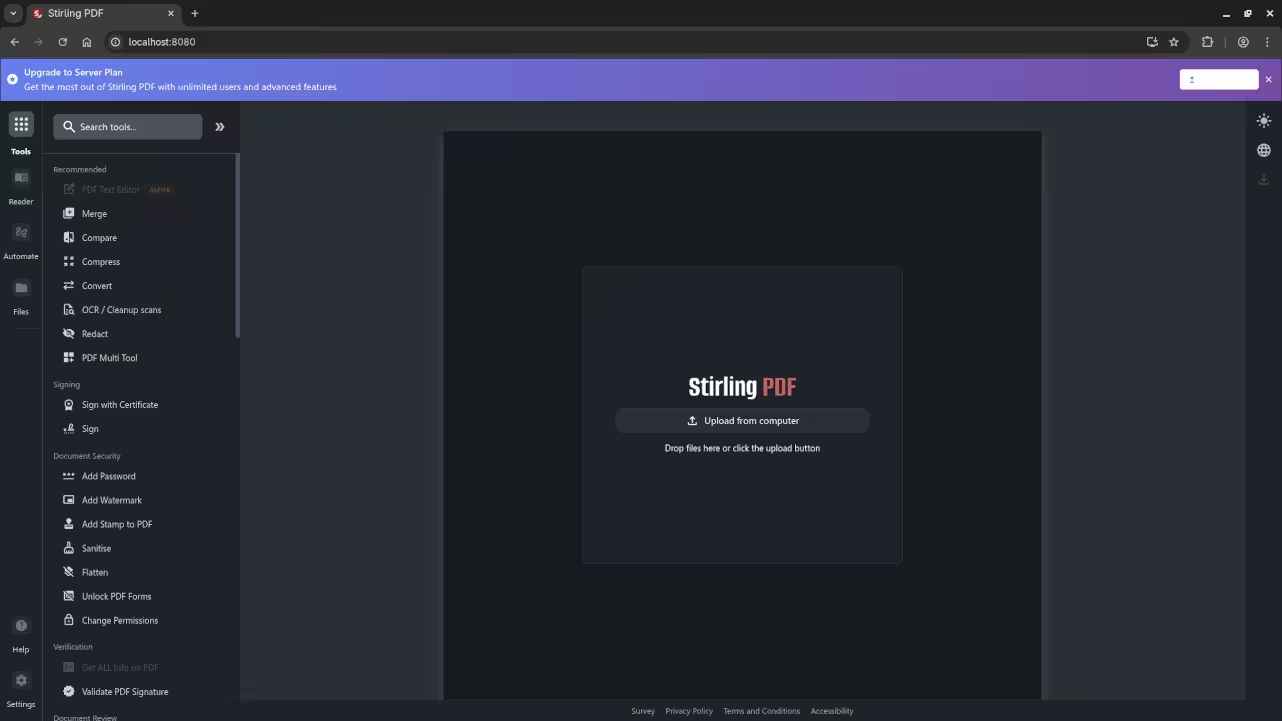
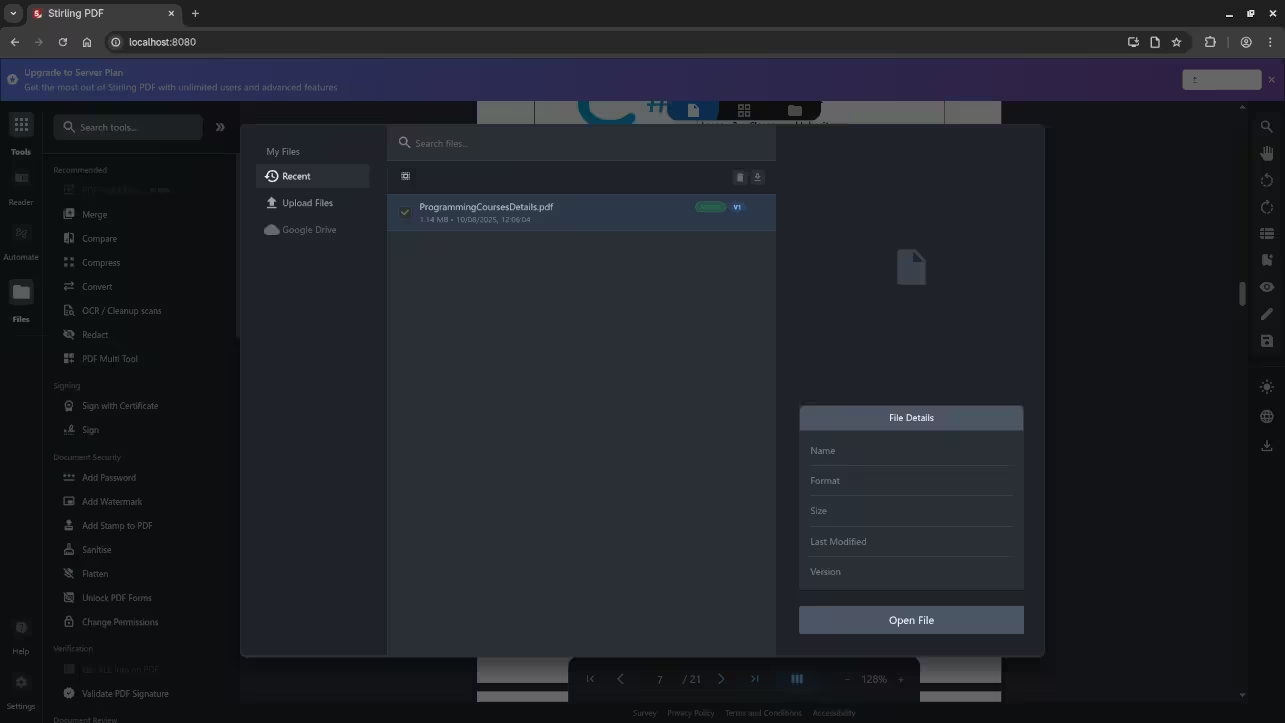
Need Help or Want More Features?
If you need assistance with the installation or want to migrate your existing Stirling PDF setup, I am available for one-on-one online programming tutorials. You can reach out to me directly for personalized help with Stirling PDF or any other programming challenges you might have.
Additional Resources
If you’re looking to dive deeper into programming, check out my programming books on Amazon and explore my online programming courses. Whether you’re just getting started or looking to level up your skills, these resources will guide you in the right direction.
I also offer installation and migration services for Stirling PDF. If you need professional help, feel free to get in touch through my services page.
Conclusion
With Stirling PDF, you can easily integrate PDF capabilities into your projects with just a few simple steps. If you need further assistance or more detailed instructions, don’t hesitate to reach out!
🚀 Recommended Resources
Disclosure: Some of the links above are referral links. I may earn a commission if you make a purchase at no extra cost to you.