
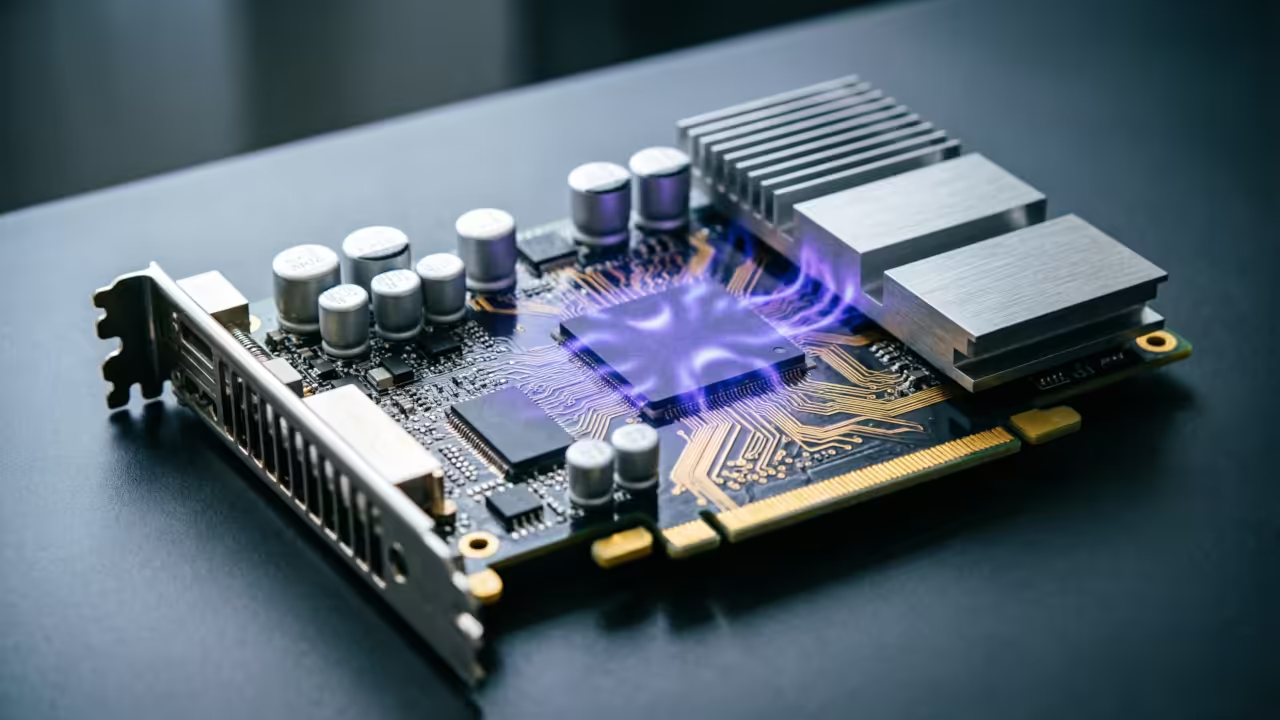
The Pain Point in Local AI Image Generation
There is a massive pain point in the local AI image generation landscape today. Most tools demand heavy Python environments and massive VRAM just to generate a single image. The barrier to entry feels impossibly high for creative professionals who want speed and control.
Stable diffusion cpp changes this entire equation completely. This pure C and C plus plus library runs directly on your AMD GPU with zero Python dependencies. The newly added Lens model support takes this advantage even further. You get distilled four step image generation with stunning quality.
The Experience of Local AI Mastery
I felt a surge of excitement when I first compiled stable diffusion cpp with Vulkan support on my AMD Instinct Mi60. The terminal output scrolled with clean compilation messages instead of the usual dependency nightmares. Then I ran my first Lens model inference command and waited barely seconds for the result.
The generated image quality exceeded my expectations dramatically. That moment of pure technical satisfaction is what drives this entire series. You deserve that same experience on your own hardware setup.
Understanding the Lens Model Architecture
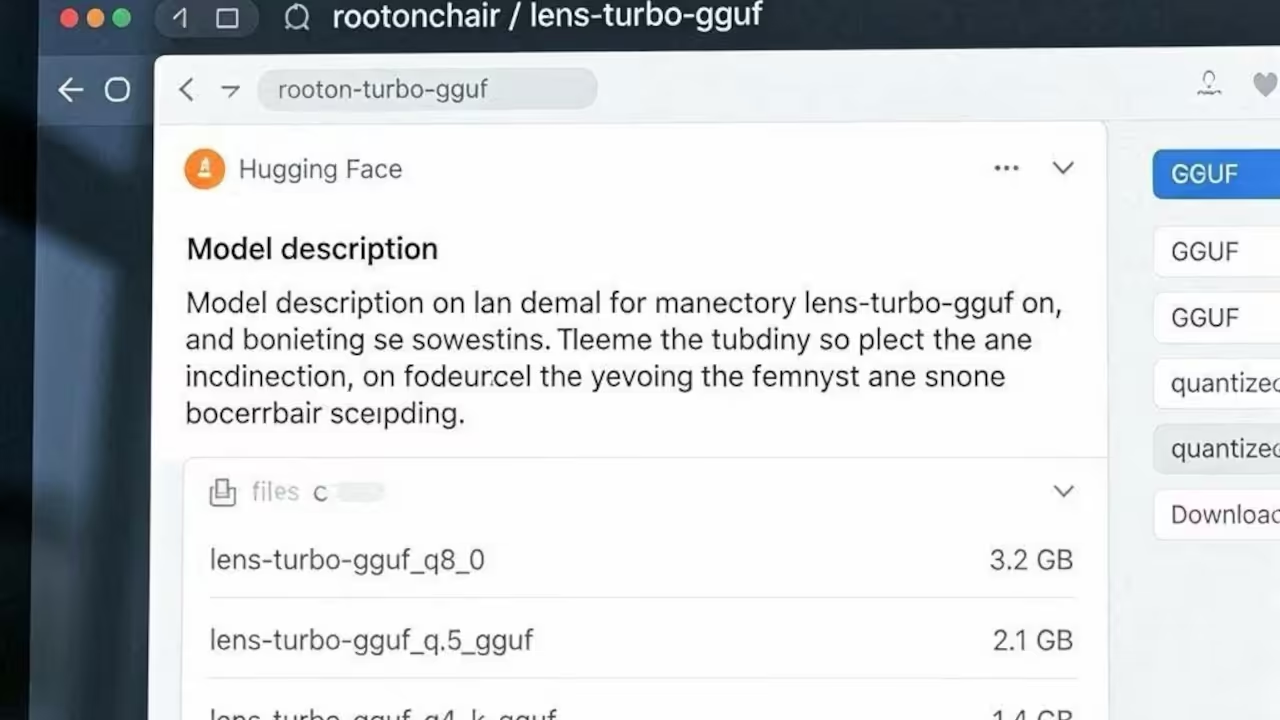
The Lens model architecture uses a diffusion transformer paired with the FLUX point two VAE for decoding. It relies on GPT OSS twenty billion as the LLM text encoder for prompt understanding. You can download the Lens Turbo GGUF weights from the rootonchair repository on Hugging Face.
The diffusion model weights alone are available in multiple quantization levels for different VRAM constraints. You will also need the GPT OSS twenty billion text encoder and the FLUX point two VAE separately. This modular approach gives you incredible flexibility across different hardware configurations.
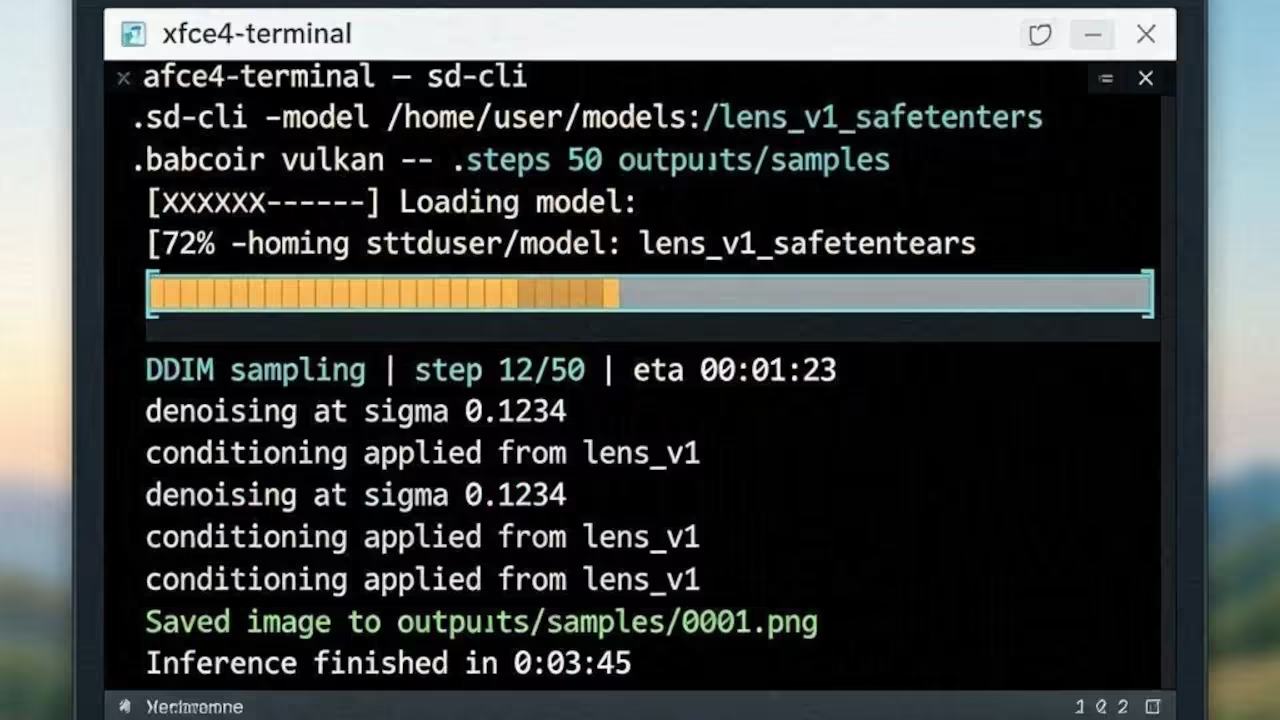
Building for Vulkan
Building stable diffusion cpp for Vulkan requires enabling the SD VULKAN flag during the cmake configuration step. Create a build directory and navigate into it before running the cmake command. The build process links against your system Vulkan drivers automatically without additional toolkit installations.
This makes Vulkan the most convenient option for quick deployment on any AMD GPU. The resulting binary runs inference with solid performance across both consumer and enterprise cards.
mkdir build && cd build
cmake .. -DSD_VULKAN=ON
cmake --build . --config Release
Building for ROCm
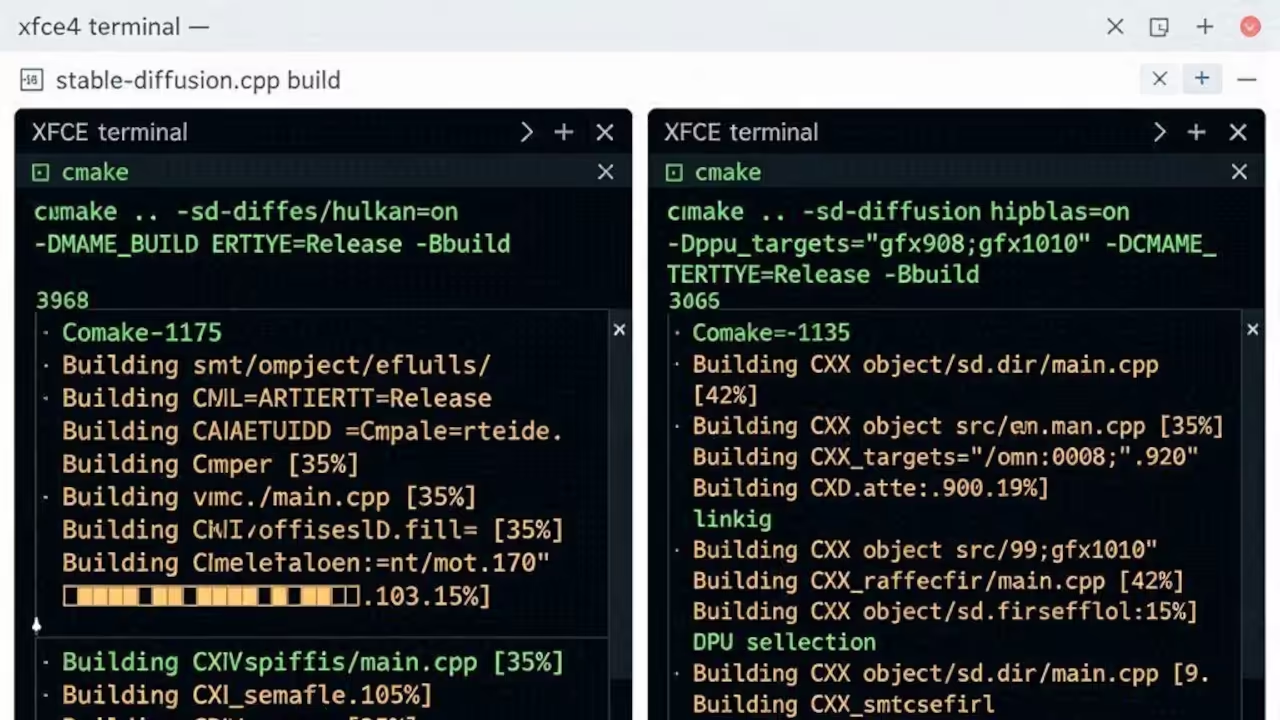
Building for ROCm demands more preparation but delivers raw computational power on supported enterprise GPUs. You need the ROCm toolkit installed along with HIP and hipBLAS libraries on your system. The cmake configuration requires the SD HIPBLAS flag enabled plus explicit GPU target specification for your architecture.
Detect your GPU target name using the rocminfo command before configuring the build. This extra setup complexity pays dividends in throughput for heavy batch generation workloads.
export ROCM_PATH=/opt/rocm
export PATH=$ROCM_PATH/bin:$PATH
export LD_LIBRARY_PATH=$ROCM_PATH/lib:$ROCM_PATH/lib64:$LD_LIBRARY_PATH
GFX_NAME=$(rocminfo | awk '/ *Name: +gfx[1-9]/ {print $2; exit}')
mkdir build && cd build
cmake .. -DSD_HIPBLAS=ON -DGPU_TARGETS=$GFX_NAME -DCMAKE_BUILD_TYPE=Release
cmake --build . --config Release
Insider Backend Performance Secrets
Here is the insider detail that most tutorials completely miss. The Vulkan backend actually outperforms ROCm for single image generation tasks on many AMD GPUs. ROCm shines when you scale up to batch processing multiple images simultaneously.
Your choice of backend should depend entirely on your specific workflow rather than assumed superiority. I tested both backends extensively on my Mi60 with thirty two gigabytes of VRAM. The results revealed surprising nuances that I will share during the live stream tonight.
| Parameter | Vulkan Backend | ROCm Backend |
|---|---|---|
| Installation Complexity | Minimal | Moderate |
| Single Image Speed | Excellent | Good |
| Batch Processing | Good | Excellent |
| VRAM Efficiency | High | High |
| Driver Requirements | Standard Mesa RADV | ROCm Toolkit |
| Supported GPUs | All AMD GPUs | Select AMD GPUs |
| Build Flag | SD_VULKAN=ON | SD_HIPBLAS=ON |
| Parameter | Vulkan Backend | ROCm Backend |
Lens Turbo Quantization Strategy
The Lens Turbo model excels at rapid four step generation while maintaining impressive detail quality. This distilled approach dramatically reduces inference time compared to full diffusion models. You can run it with quantized GGUF weights to fit comfortably within your available VRAM.
The Q8 point zero quantization level offers the best balance between speed and visual fidelity. Lower quantization levels like Q4 point five K S reduce VRAM usage further with minimal quality loss. Experiment with different quantization levels to find your personal sweet spot.
Related Architectural Breakthroughs
This optimization connects directly to the architectural breakthroughs explored in my previous deep dive on running Ideogram four via stable diffusion cpp. That article revealed how GGUF quantization slashes VRAM usage by up to seventy percent while preserving output quality.
The same principles apply here with the Lens model family. You can also reference my earlier comparison of enterprise GPUs like the AMD Mi60 versus consumer cards for broader hardware context. Each piece builds toward a complete understanding of local AI infrastructure design.
Master the Professional Stack
Transform your local AI infrastructure with the proven architectural blueprints and technical guides below. These resources provide the theoretical foundation and practical implementation details for every project in this series.
- Books: https://www.amazon.com/stores/Edward-Ojambo/author/B0D94QM76N
- Blueprints: https://ojamboshop.com
- Tutorials: https://ojambo.com/contact
- Consultations: https://ojamboservices.com/contact
🚀 Recommended Resources
Disclosure: Some of the links above are referral links. I may earn a commission if you make a purchase at no extra cost to you.