
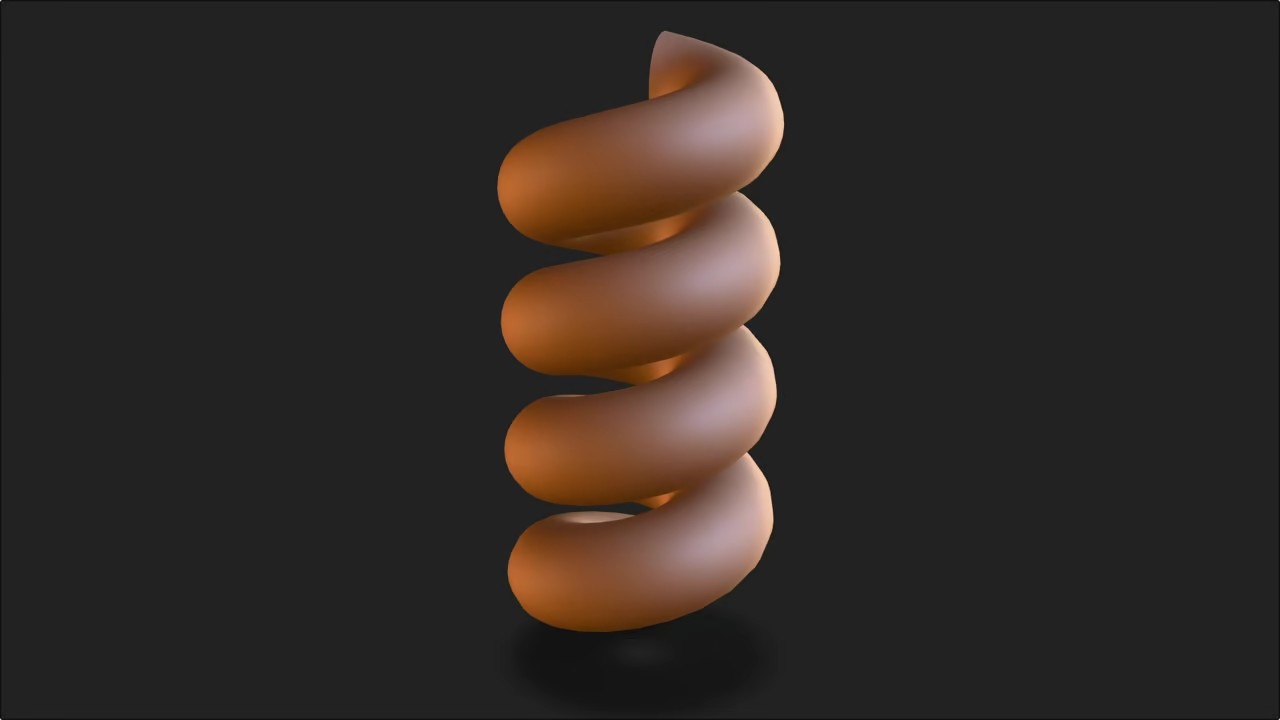
Creating a Simple Elastic Spring Animation in Blender 5 Python and Displaying It in the Browser with Model Viewer
In this beginner tutorial you will learn how to generate a simple elastic style spring animation in Blender 5 using the Python API. After creating the animation we will export the object and display it directly in the web browser using the open source model viewer library. The goal is to demonstrate how Blender Python scripting can be combined with web technology to show animated 3D scenes online.
The animation will use very basic keyframes to approximate a spring bounce effect. The values are inspired by the motion settings from the GNOME Elastic application but simplified so new users can follow step by step. We will also apply a rustic color to the object and try drawing with Grease Pencil for a decorative outline. The model viewer display will use a high dynamic range image for lighting using the courtyard EXR file included in Blender 4.5 LTS.
Step 1 Creating a Simple Spring Animation in Blender 5 Using Python
Below is a small Python script that creates a mesh object adds simple scaling keyframes to imitate a spring squash and stretch sets a rustic color material adds an optional Grease Pencil layer and prepares the object for export. Save this script as spring_anim.py and run it from the command line.
Running the script from the command line
blender myscene.blend --background --python spring_anim.py If the blend file does not exist Blender will create a new empty scene.
Blender 5 Python Example Script
import bpy
from mathutils import Color
import os # Import the os module for file path construction
# --- Configuration ---
SPRING_OBJECT_NAME = "Spring_Cylinder"
MATERIAL_NAME = "SpringMaterial"
OUTLINE_NAME = "Outline_GP"
EXPORT_FILE_NAME = "spring_animation.glb"
# Use the current blend file's directory for export, falling back to CWD
try:
SCRIPT_DIR = os.path.dirname(bpy.data.filepath)
except AttributeError:
SCRIPT_DIR = os.getcwd()
EXPORT_PATH = os.path.join(SCRIPT_DIR, EXPORT_FILE_NAME)
# Animation data path constant
DATA_PATH_SCALE = "scale"
Z_INDEX = 2 # Z-axis scale index
# --- Main Logic ---
def create_animated_spring():
# 1. Scene Cleanup
# Select all objects and delete them
bpy.ops.object.select_all(action='SELECT')
bpy.ops.object.delete()
# 2. Create Geometry and Material
# Add a cylinder mesh
bpy.ops.mesh.primitive_cylinder_add(radius=0.2, depth=2)
obj = bpy.context.object
obj.name = SPRING_OBJECT_NAME
# Create and configure material
mat = bpy.data.materials.new(MATERIAL_NAME)
mat.use_nodes = True
bsdf = mat.node_tree.nodes['Principled BSDF'] # Principled BSDF node name must be in quotes
rust = Color((0.45, 0.23, 0.12))
bsdf.inputs['Base Color'].default_value = (rust.r, rust.g, rust.b, 1.0)
obj.data.materials.append(mat)
# 3. Keyframe Animation (Z-Scale)
# Frame 1: Full height
bpy.context.scene.frame_current = 1
obj.scale = (1.0, 1.0, 1.0)
# The data_path must be a string, and we keyframe only the Z-scale (index 2)
obj.keyframe_insert(data_path=DATA_PATH_SCALE, index=Z_INDEX, frame=1)
# Frame 10: Compressed
bpy.context.scene.frame_current = 10
obj.scale = (1.0, 1.0, 0.6)
obj.keyframe_insert(data_path=DATA_PATH_SCALE, index=Z_INDEX, frame=10)
# Frame 20: Stretched
bpy.context.scene.frame_current = 20
obj.scale = (1.0, 1.0, 1.2)
obj.keyframe_insert(data_path=DATA_PATH_SCALE, index=Z_INDEX, frame=20)
# Frame 30: Reset
bpy.context.scene.frame_current = 30
obj.scale = (1.0, 1.0, 1.0)
obj.keyframe_insert(data_path=DATA_PATH_SCALE, index=Z_INDEX, frame=30)
bpy.context.scene.frame_end = 30 # Set end frame
# 4. Create Grease Pencil Object (For Outline)
# The correct operator is 'object.gpencil_add' in object mode,
# but the simplest way is to create the data and object manually.
gp_data = bpy.data.grease_pencils.new(OUTLINE_NAME)
gp = bpy.data.objects.new(OUTLINE_NAME, gp_data)
bpy.context.collection.objects.link(gp)
gp.location = (0, 0, 0)
# 5. Export to GLTF
# Select the objects to be exported (the cylinder is already active/selected)
bpy.ops.object.select_all(action='DESELECT')
obj.select_set(True)
bpy.ops.export_scene.gltf(
filepath=EXPORT_PATH, # Use the constructed path variable
export_format='GLB',
export_animations=True
)
print(f"Successfully exported GLB to: {EXPORT_PATH}")
if __name__ == "__main__":
create_animated_spring()
Step 2 Lighting the Animation with HDR Using the Courtyard EXR
Blender includes a courtyard EXR file inside the installation directory. EXR provides very high dynamic range lighting which results in realistic shading inside the model viewer. To use this HDRI in the model viewer environment reference it in your HTML.
Step 3 Displaying the Animation on the Web Using Model Viewer
Create an HTML file like the example below. Model viewer supports glTF and glb animations and plays them with no extra code.
<script type="module" src="https://unpkg.com/@google/model-viewer/dist/model-viewer.min.js"></script>
<model-viewer
src="spring_animation.glb"
autoplay
animation-name="Action"
environment-image="court_yard.exr"
camera-controls
exposure="1.0"
style="width: 100 percent height: 400px">
</model-viewer>
Which HDR Formats Work Best in Web Browsers
Format .hdr has limited browser support .exr is very limited .ktx has good support .ktx2 has very good support in modern browsers. Open source alternatives include Radiance HDR OpenEXR and PNG lighting maps for low dynamic range.
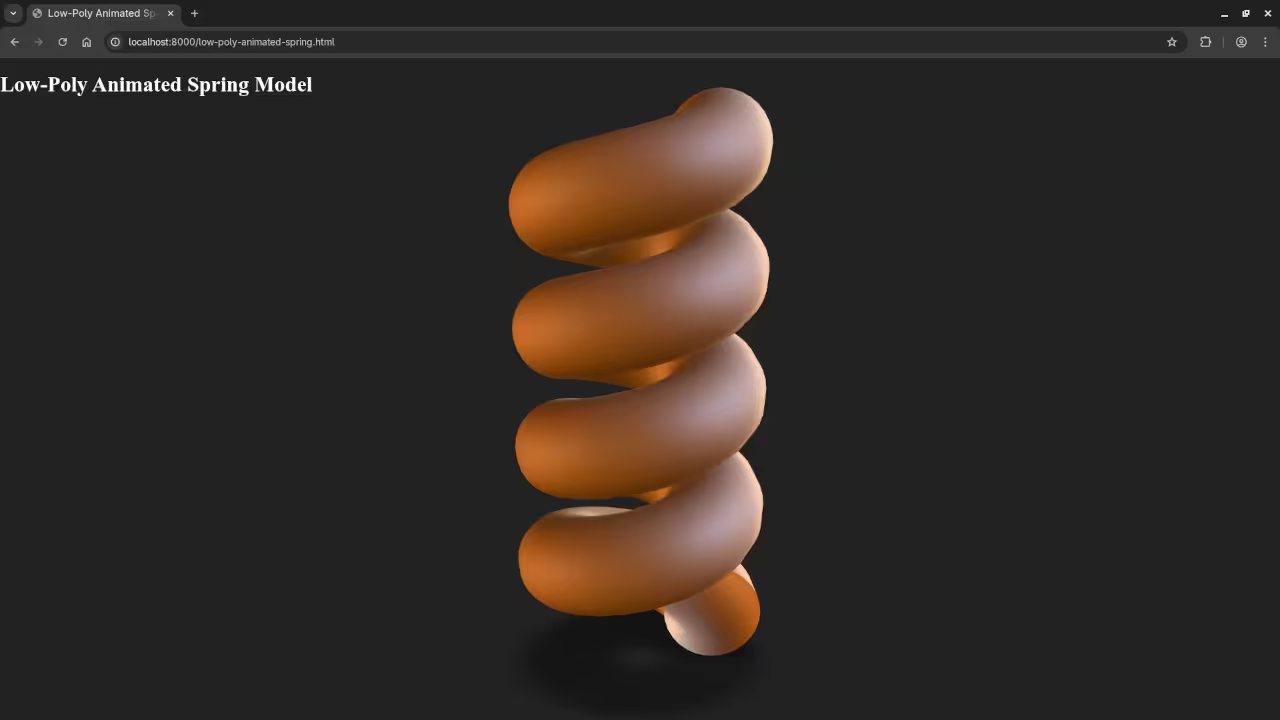
📸 Screenshots & Screencast
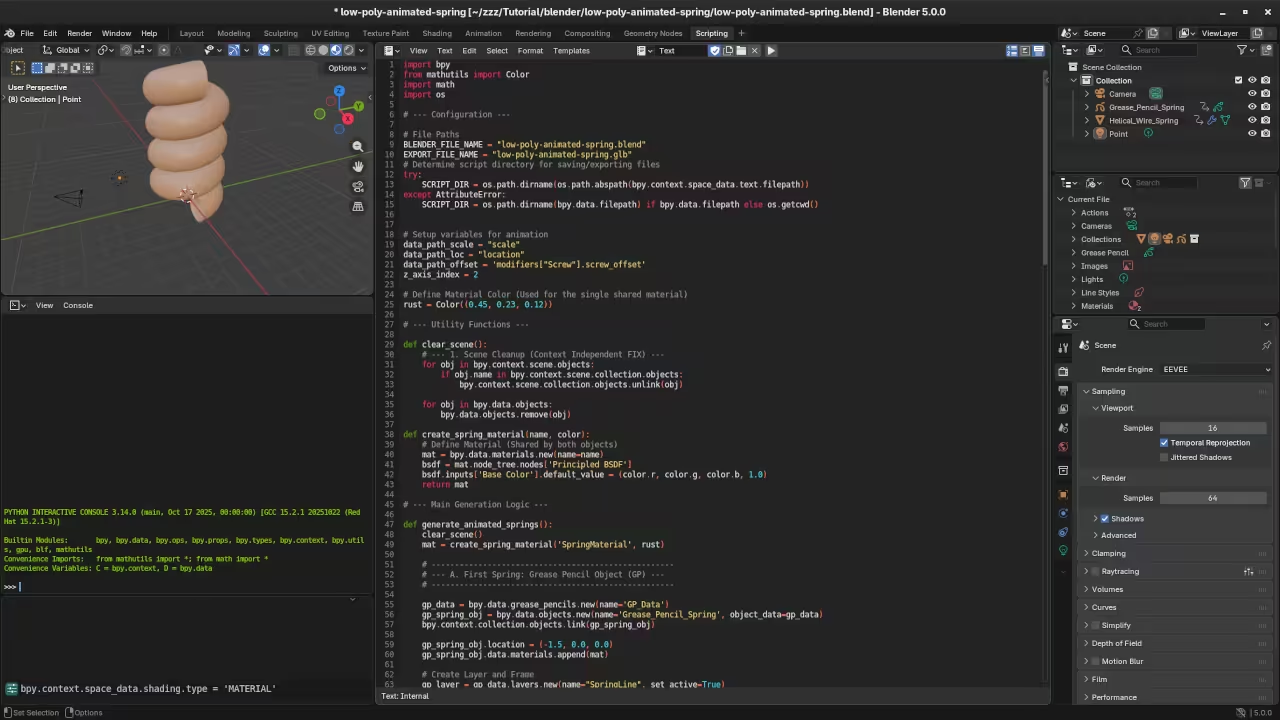
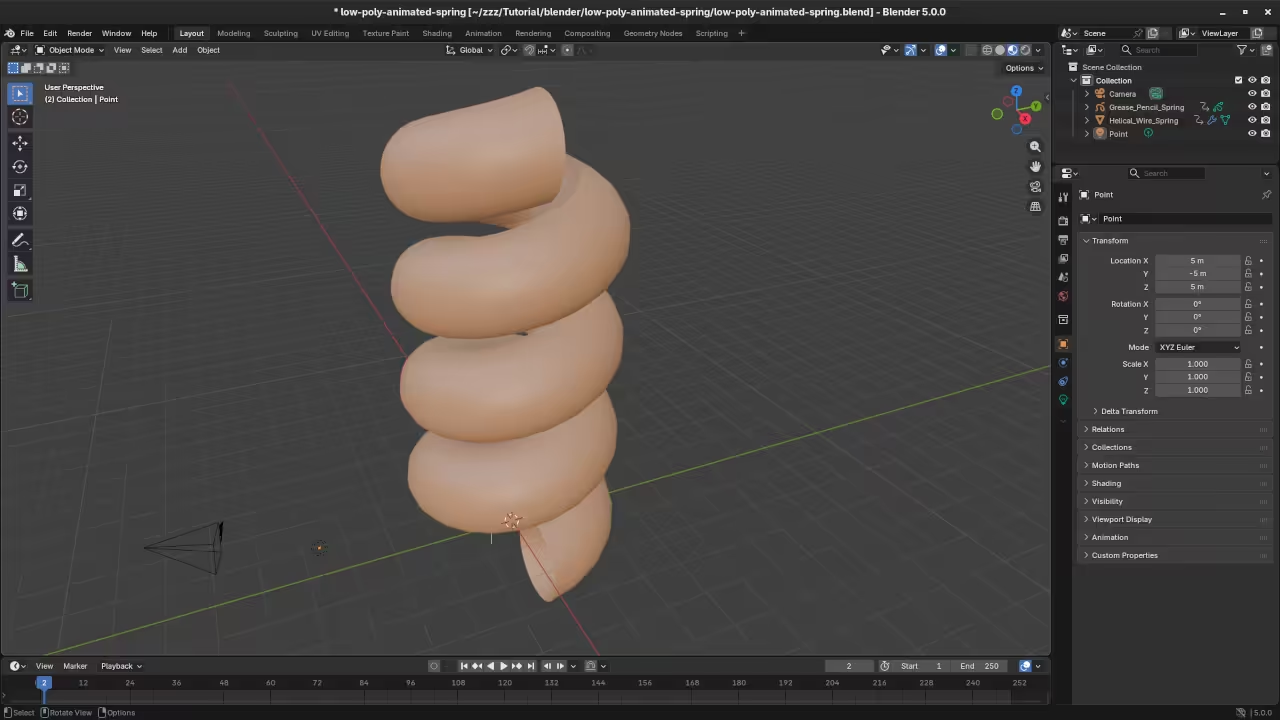
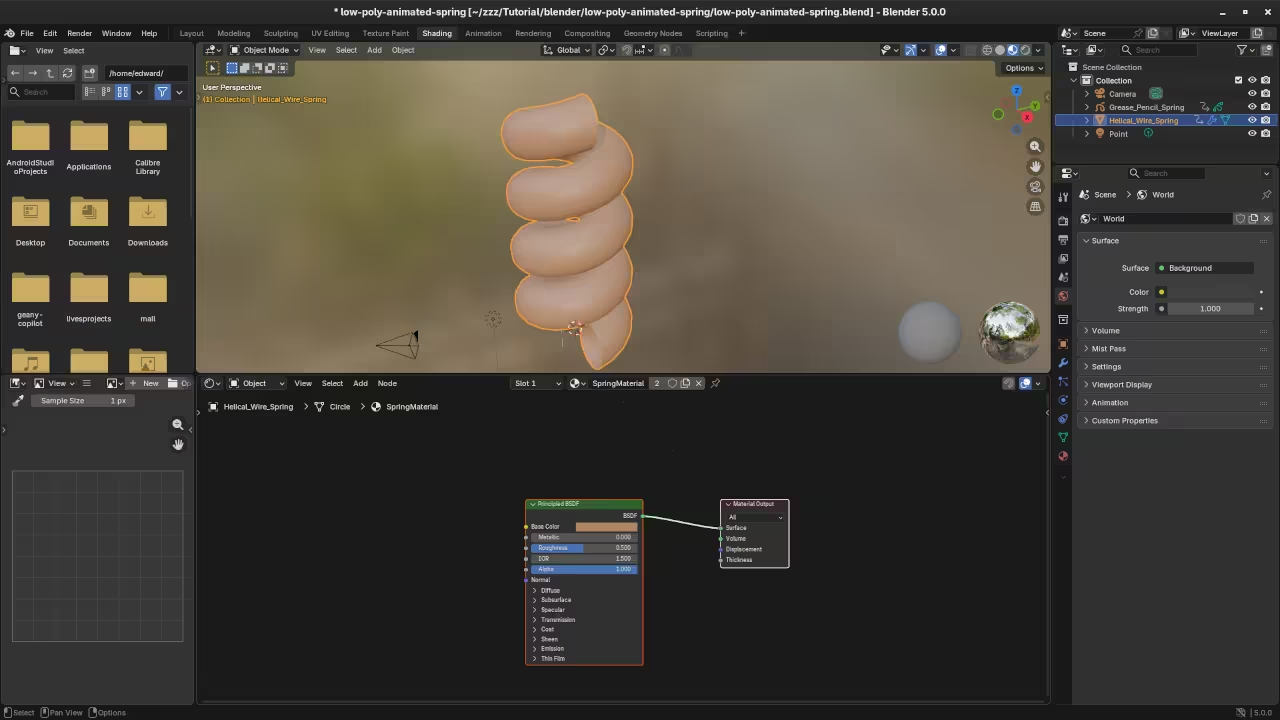
Conclusion
You have now created a simple spring style animation using Blender 5 Python scripting and displayed it directly inside a web browser using model viewer. This beginner workflow teaches you the foundations of 3D automation web display and HDR environment lighting. Experiment with changing keyframes or using more advanced physics as you become comfortable.
My Python and Blender Books
Learning Python
https://www.amazon.com/Learning-Python-Programming-eBook-Beginners-ebook/dp/B0D8BQ5X99
Mastering Blender Python API
https://www.amazon.com/Mastering-Blender-Python-API-Programming-ebook/dp/B0FCCQKFFZ
My Python Course
Learning Python
https://ojamboshop.com/product/learning-python
One on One Python and Blender Tutoring
I am available for private online lessons
https://ojambo.com/contact
🚀 Recommended Resources
Disclosure: Some of the links above are referral links. I may earn a commission if you make a purchase at no extra cost to you.